
Prerequisites: Allow the target database to accept connections from the IP address 20.57.1.113.
Step 1: If you don't have an Arcturus account, register here
https://support.arcturustech.com/registerStep 2: Login our ArcIn site using the registered support site credentials.
https://arcin.applicare.io/Step 3: Navigate to Arcturus Insights Configuration page.

Step 4: Select your database type from the "Database Management System" dropdown, enter the required database details, and click "Update configuration" to save your settings.
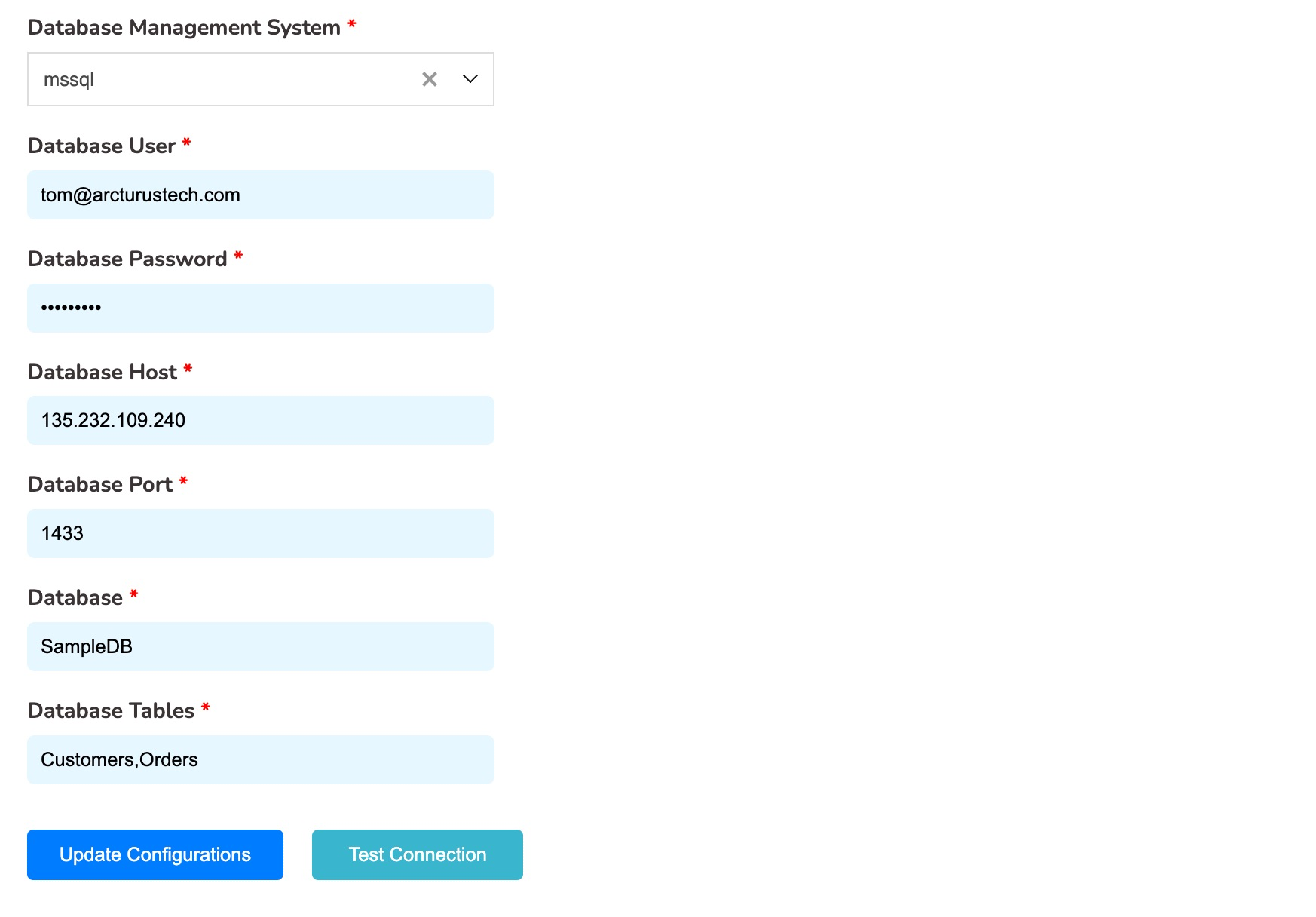
Test Connection and ensure test is successful. Once you have successfully tested database connectivity, you can start asking questions. Its that simple.