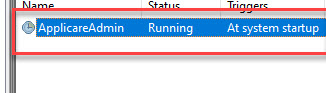
Set up the Applicare Controller in Task Scheduler

Follow the steps for installing ApplicareController

1. Launch the command prompt with administrator rights, go to the directory where Applicare controller is installed and run the createControllerTask.bat file.

Screenshot 1 — Set up the Applicare Controller in Task Scheduler

  1. Open Task Scheduler, expand the Task Scheduler Library, and choose the ApplicareController folder.
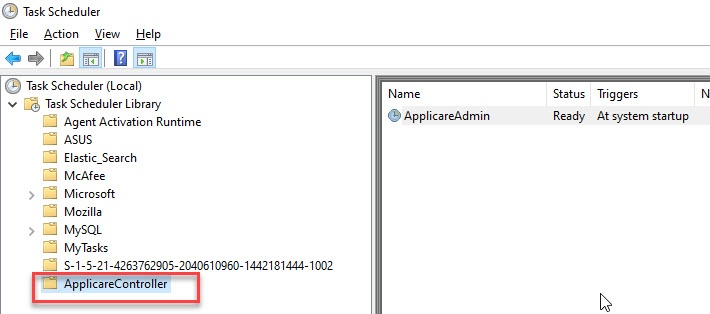
Screenshot 2 — Set up the Applicare Controller in Task Scheduler

3. Right-click on the ApplicareAdmin task and choose Properties.
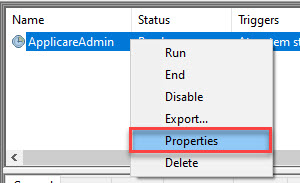
Screenshot 3 — Set up the Applicare Controller in Task Scheduler

4. Enable Run whether the user is logged on or not option and click OK.
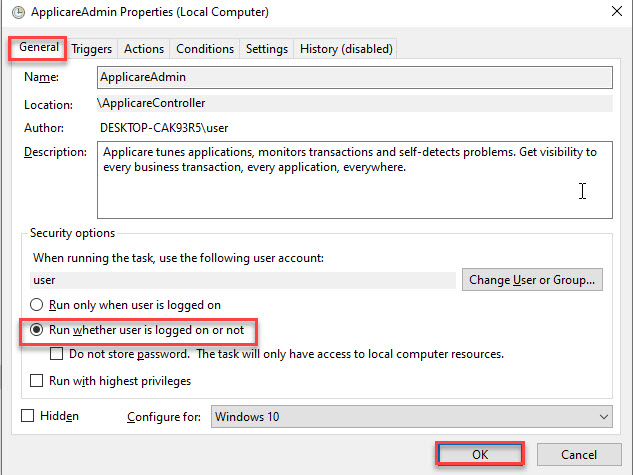
Screenshot 4 — Set up the Applicare Controller in Task Scheduler

5. Provide the username and password, then click OK.
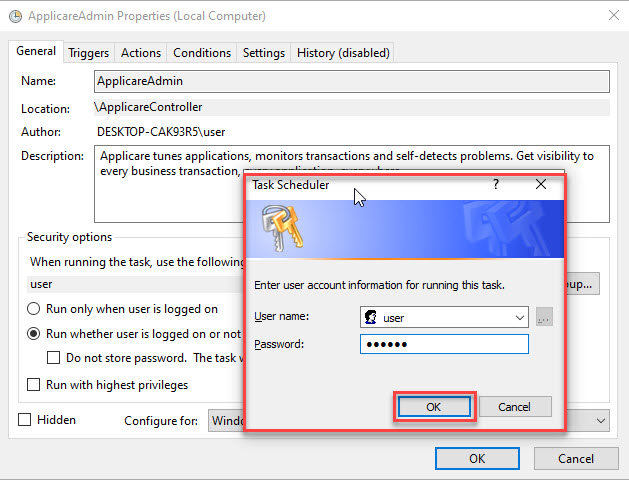
Screenshot 5 — Set up the Applicare Controller in Task Scheduler

6. Right-click the ApplicareAdmin task and choose Run.
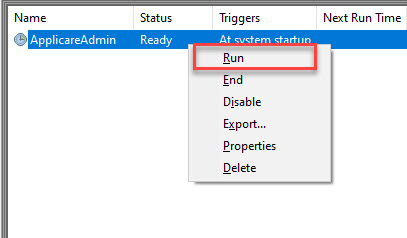
Screenshot 6 — Set up the Applicare Controller in Task Scheduler

Screenshot 7 — Set up the Applicare Controller in Task Scheduler

Monitoring with Applicare

Was this article helpful?

Votes and follows are kept by Zendesk, so they need a Help Center account. These buttons open this article there.

Opens Zendesk · needs internet and sign-in

Still stuck? Contact support