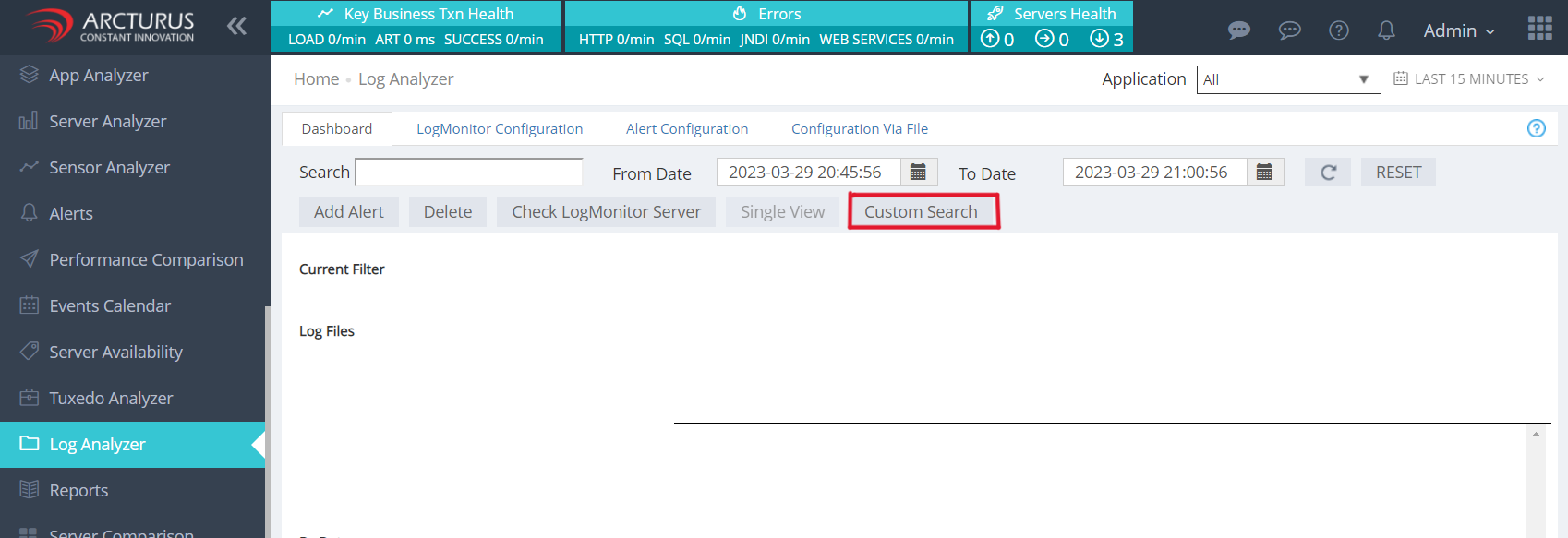
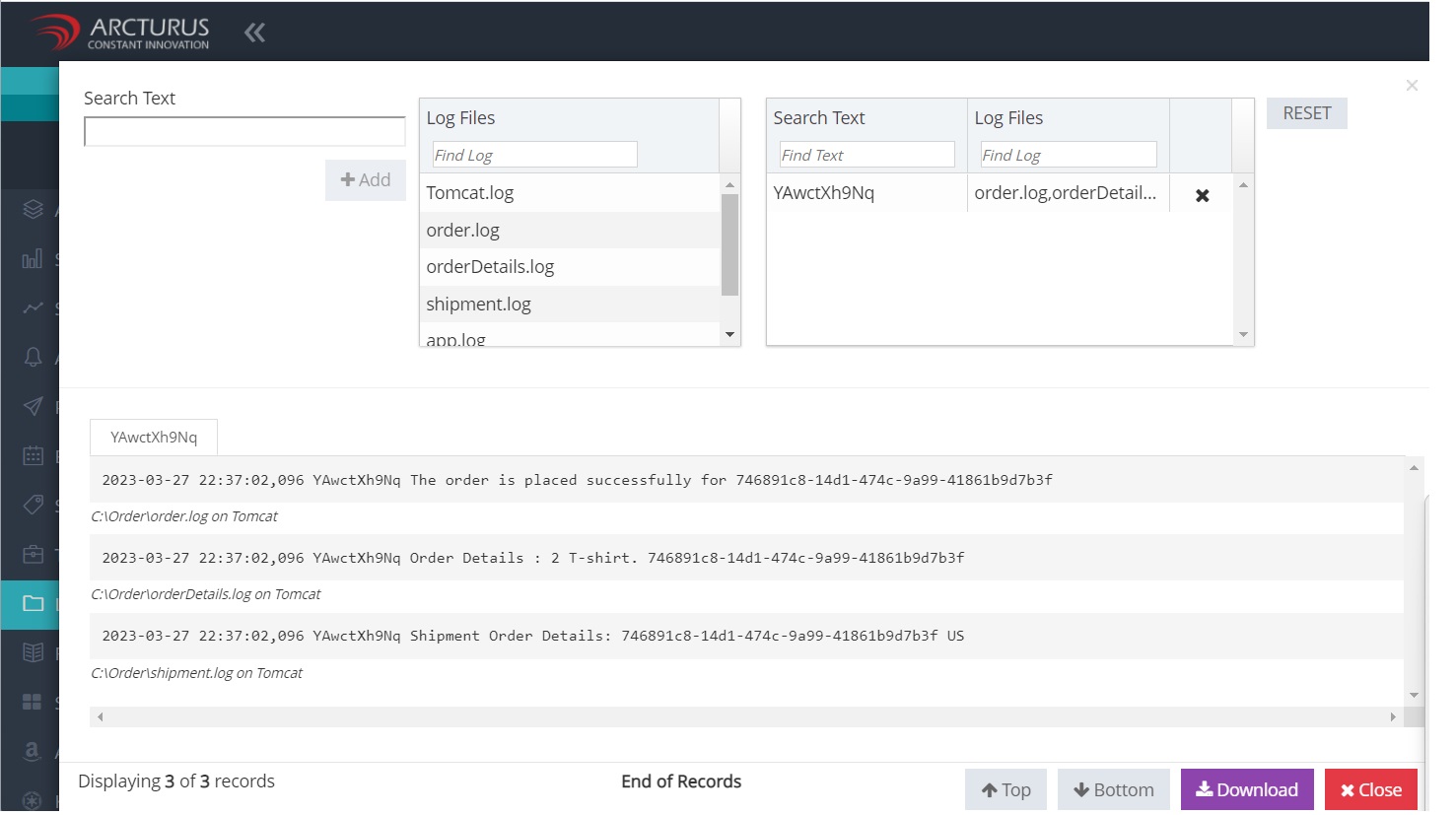
1. Go to Log Analyzer menu and click the Custom Search button.
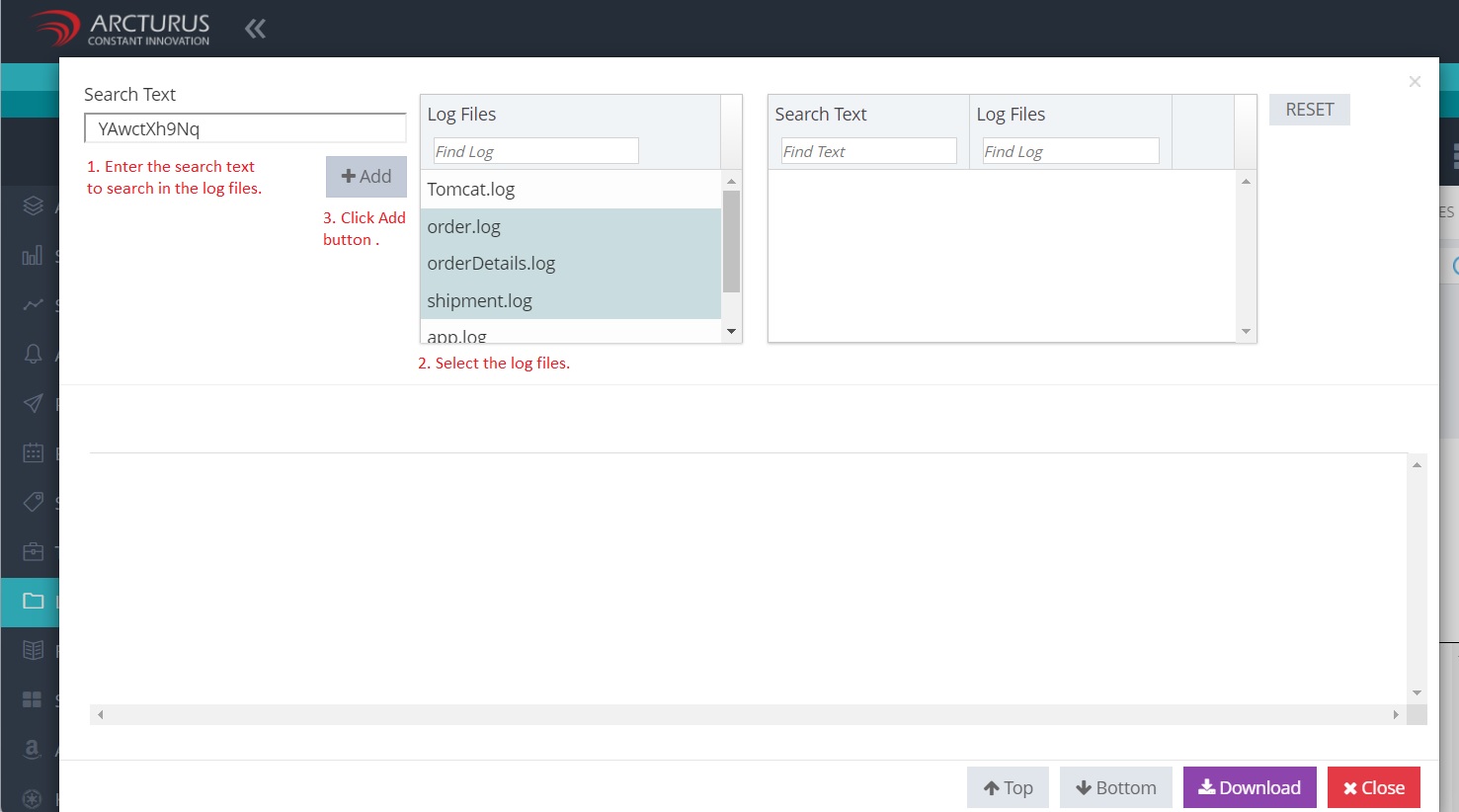
2. In the Custom Search popup
- Enter the search text.
- Select the log files.
- Click the Add button.
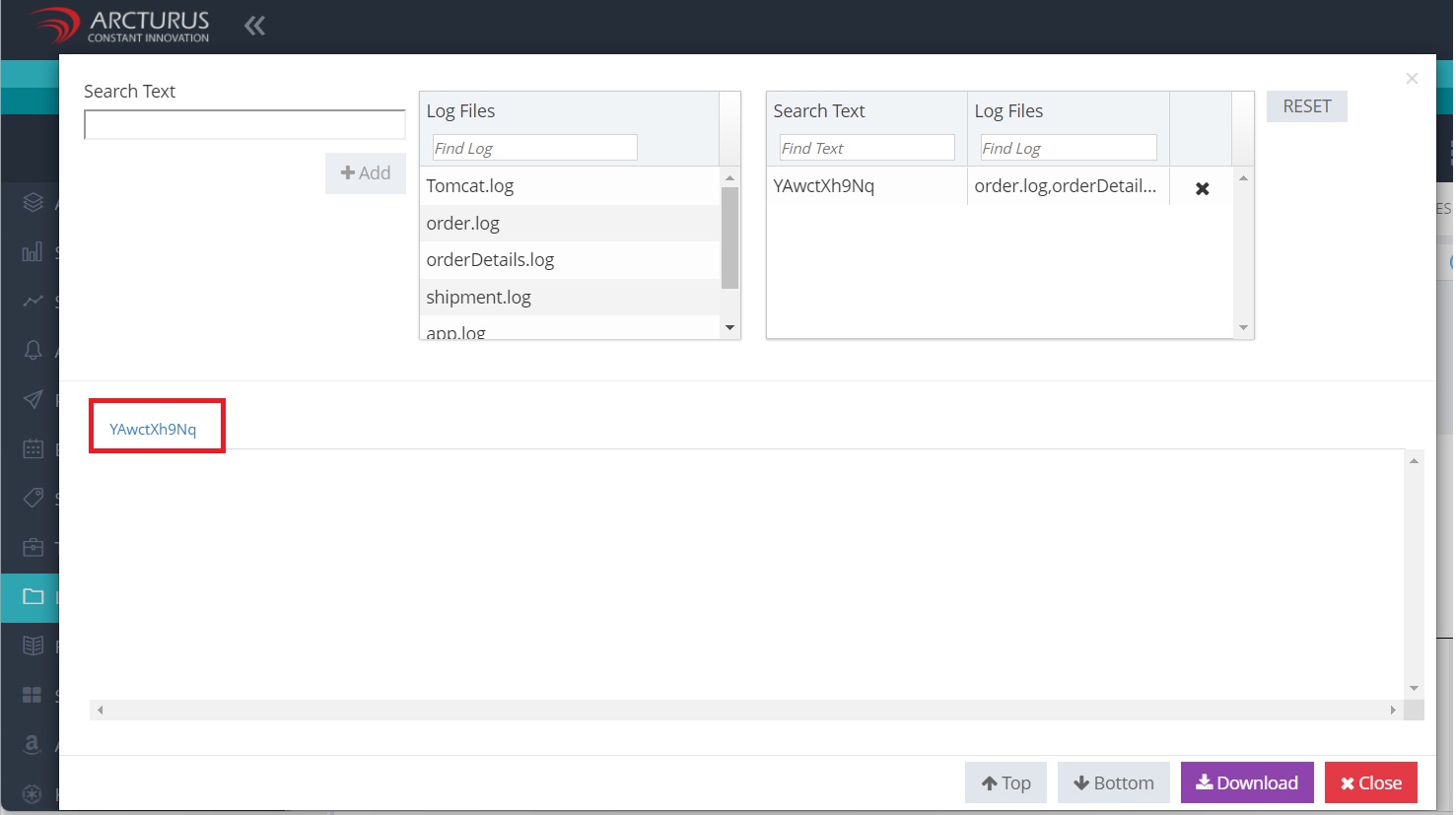
3. A tab will appear with the name of the search text. Click on the tab to view the results.
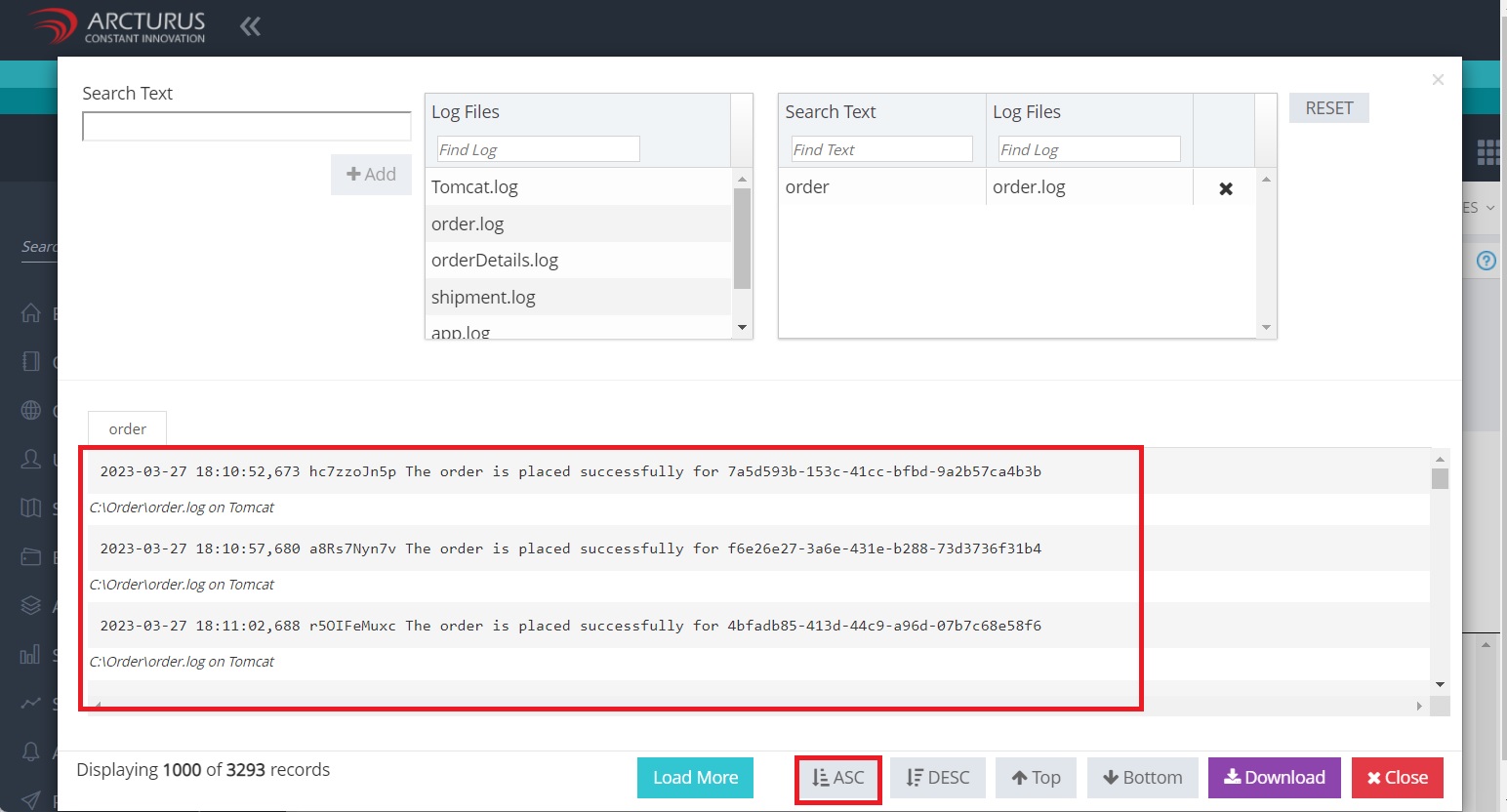
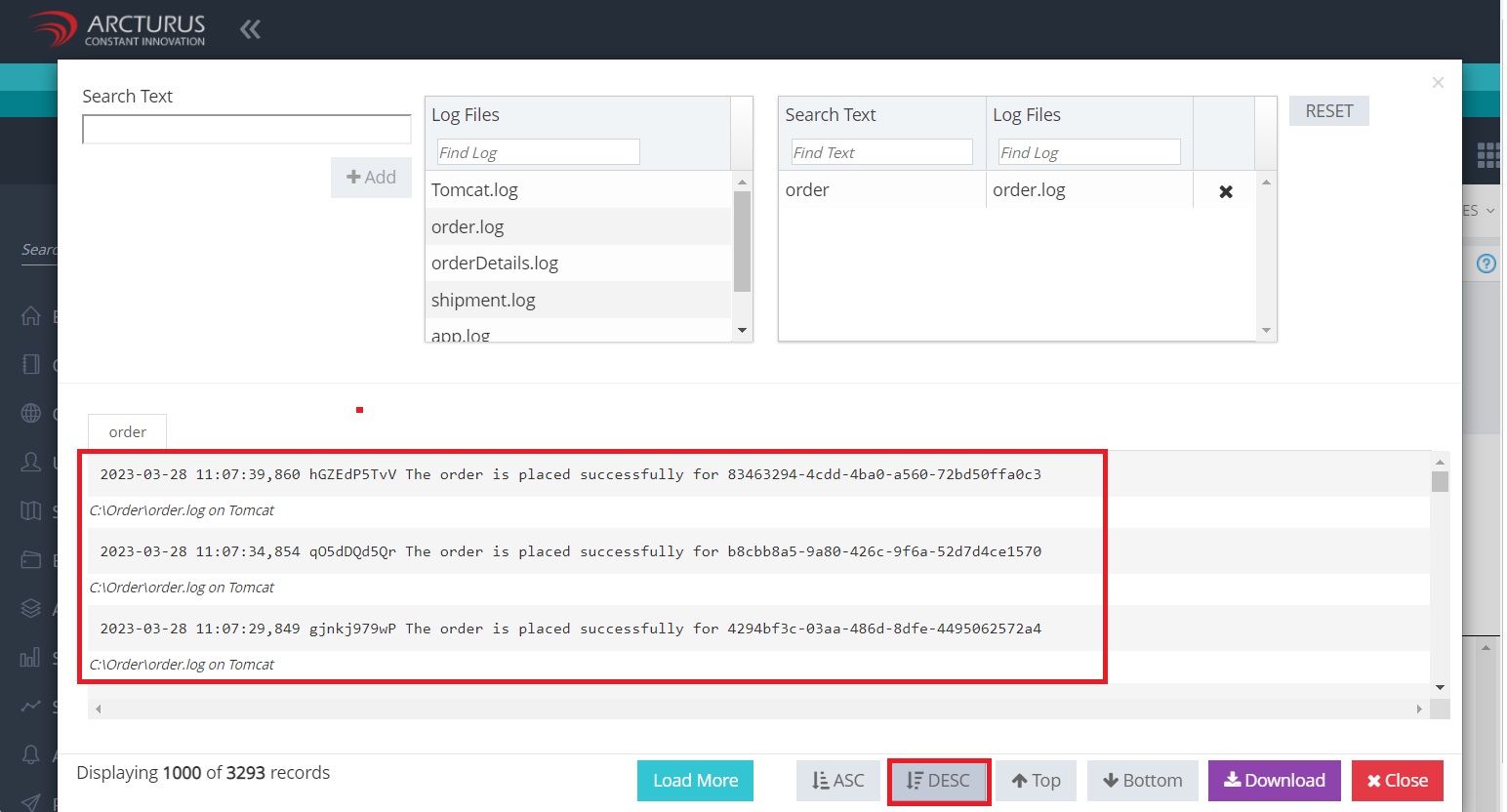
By default, it will display the top 1000 records in descending order based on the log time.
To view the records in the descending order based on date-time click the DESC button.
To load the records in the descending order based on datetime click the DESC button.
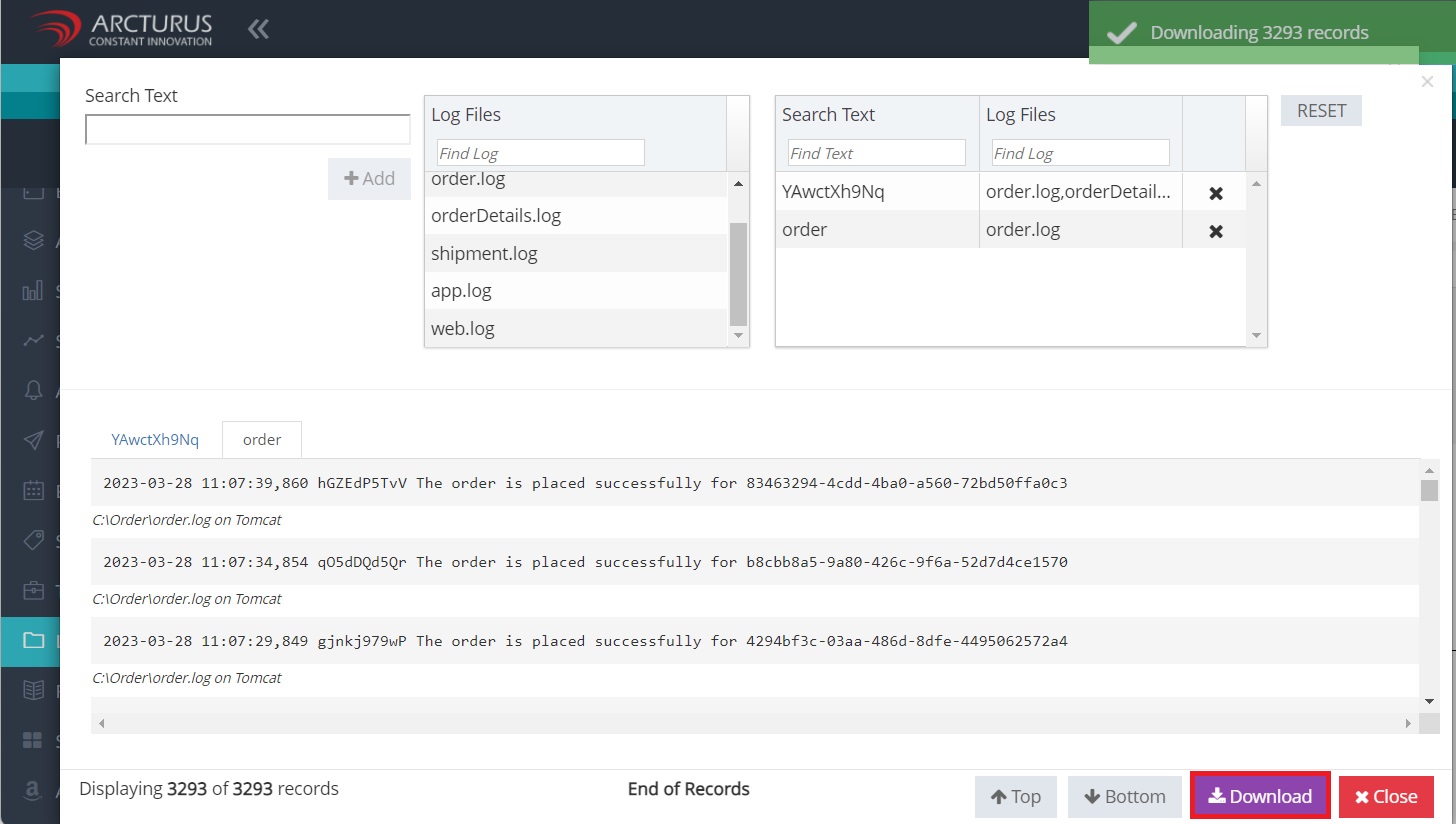
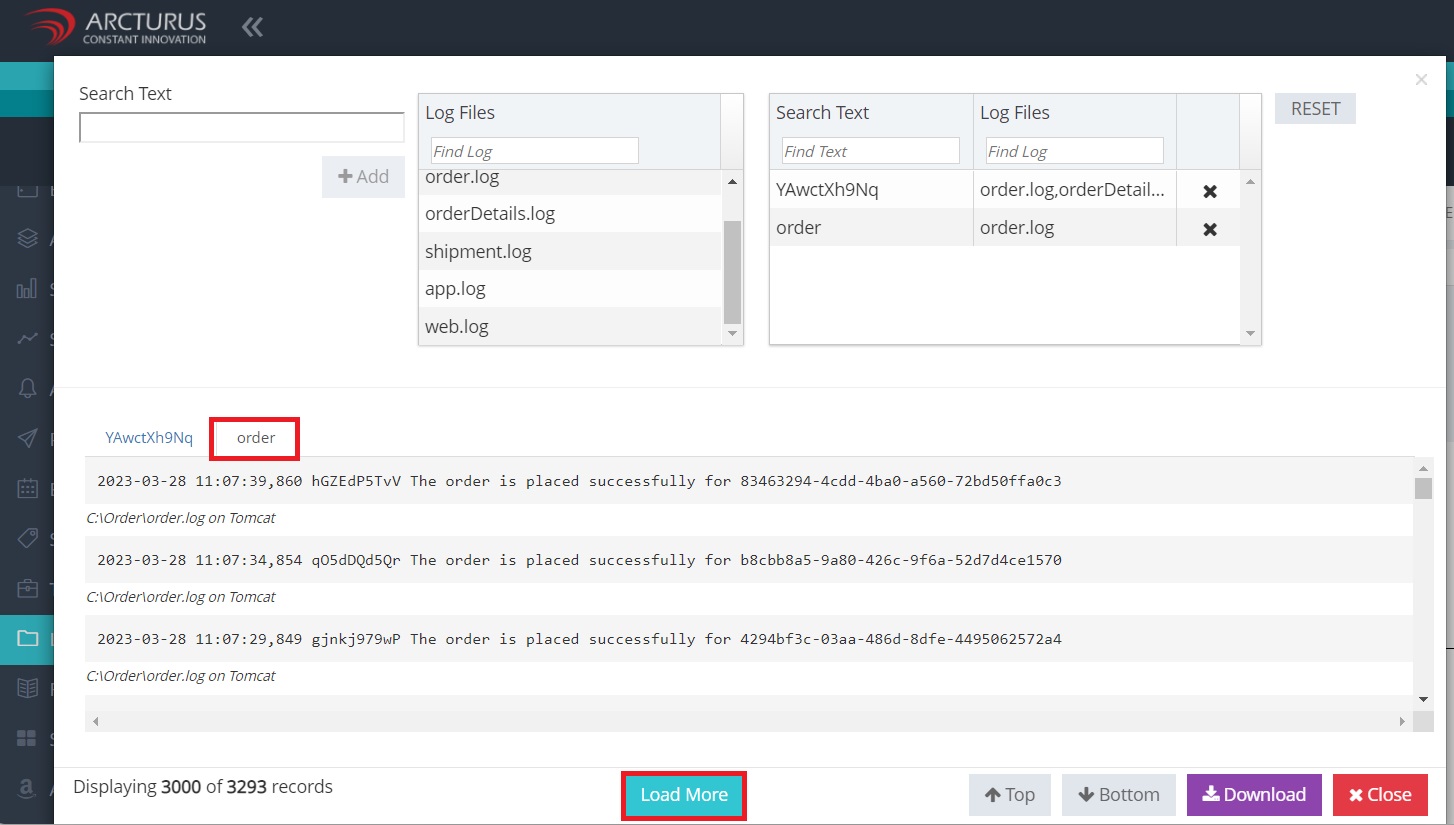
4. If there are more than 1000 records the Load More button will be displayed. Click the Load More button to load next set of 1000 records.
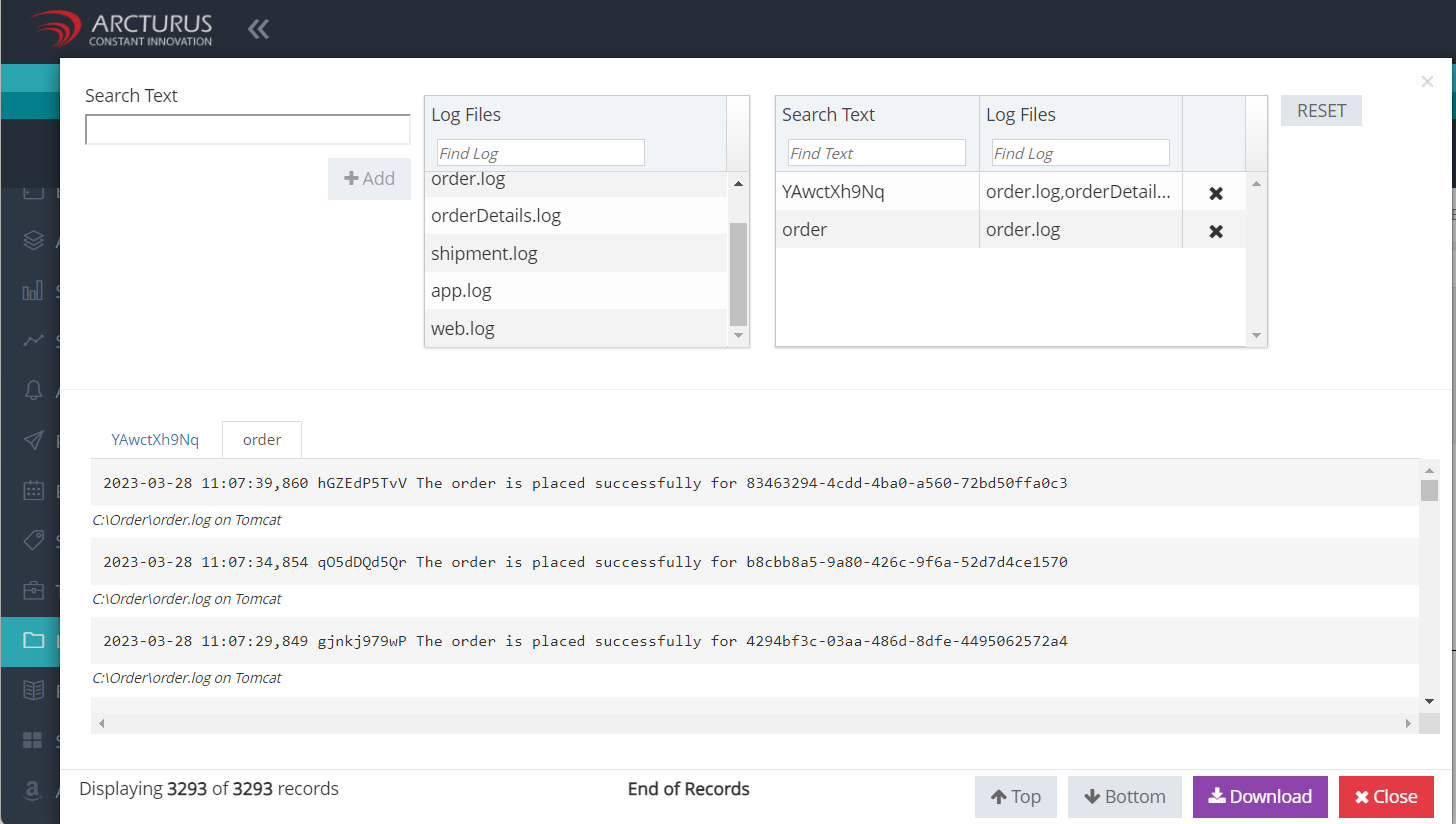
5. Click the Download button to download the records.