1. Follow the steps for Installing Applicare SingleAgent.
2. Navigate to the folder where the ApplicareSingleAgent.zip was extracted from and then run startAgent.bat in administrator mode.
3. Login to the Applicare controller, Navigate to the overview screen, and check if the agents appear. If needed, add the app name to that agent.
4. Click the agent and then the edit button.
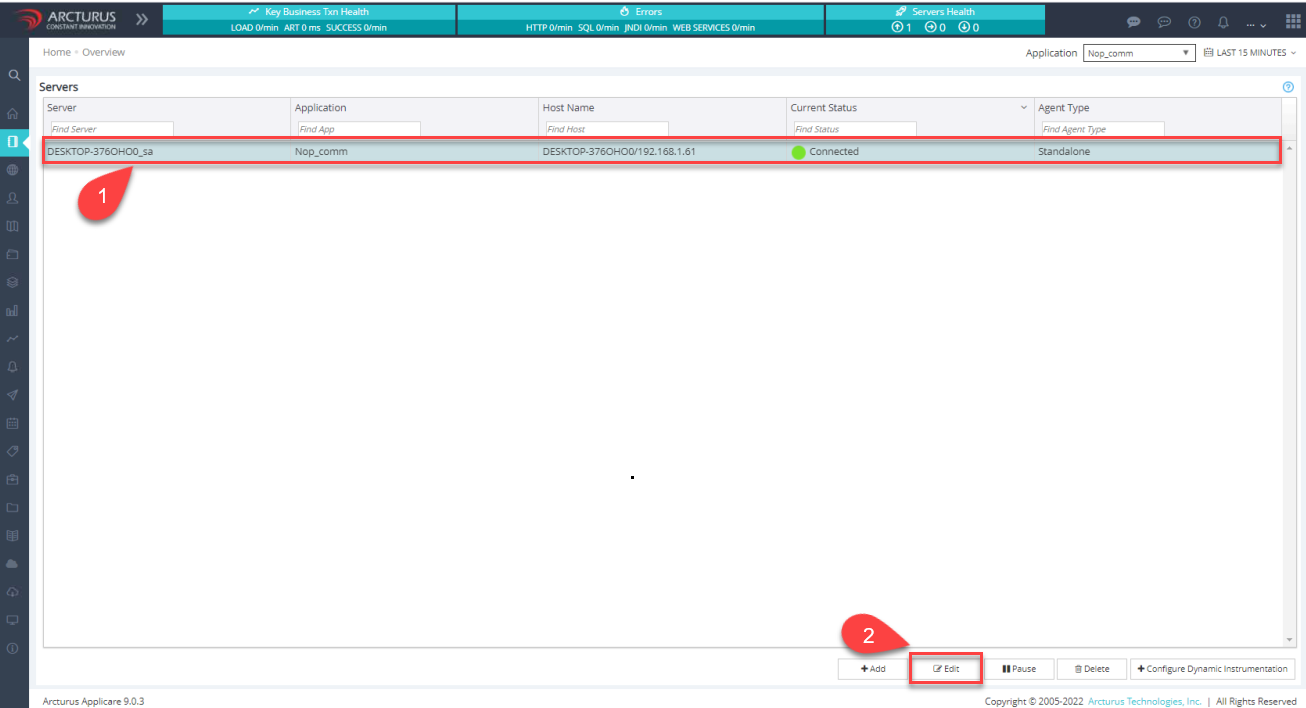
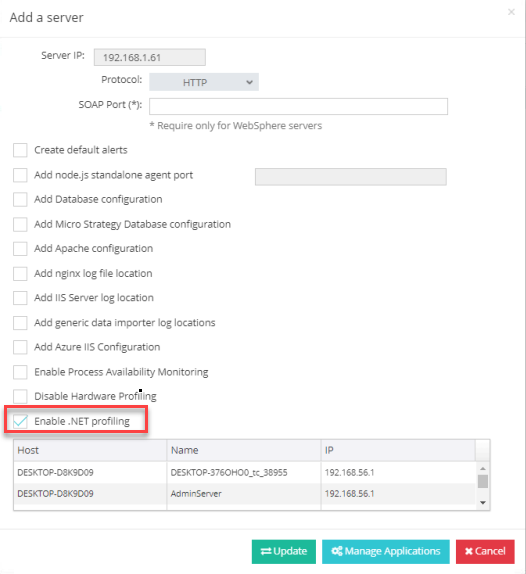
5. Click the edit button to open the "Add Server" popup. In the popup, check the "Enable .NET Profiling" checkbox.