Applicare provides granular access control to the resources it monitors. A user can be assigned either full control or read-only access to a specific application, or to a single server. This way each Application administrator has access to their application resources and are not distracted by other application alerts.
Applicare Users
Applicare comes with two predefined users in its default configuration.
Super Admin ('admin')
The Super Admin user has a fixed ID of "admin" and possesses full access to all features in Applicare. The default password for this account is 'admin', which should be changed after installation is complete.
Guest ('guest')
In the default configuration, there is a guest user with ID 'guest'. The Default password for this account is 'guest'. This user has a read-only access and will must be granted access to specific applications or servers.
Applicare User Roles
User access in Applicare is managed by assigning specific roles. The following roles can be assigned in Applicare.
Admin
The Admin role grants the user with full of rights to create, edit and remove users, as well as manage their access. However, this role does not permit modifications to or removal of the Super Admin's privileges.
App Admin
The App Admin role allows users to administer and manage a specific applications. Users assigned this role are designated by the Super Admin or Admin to oversee particular applications.
Read only
Read only role grants the user read only access and they can't make changes to monitoring.
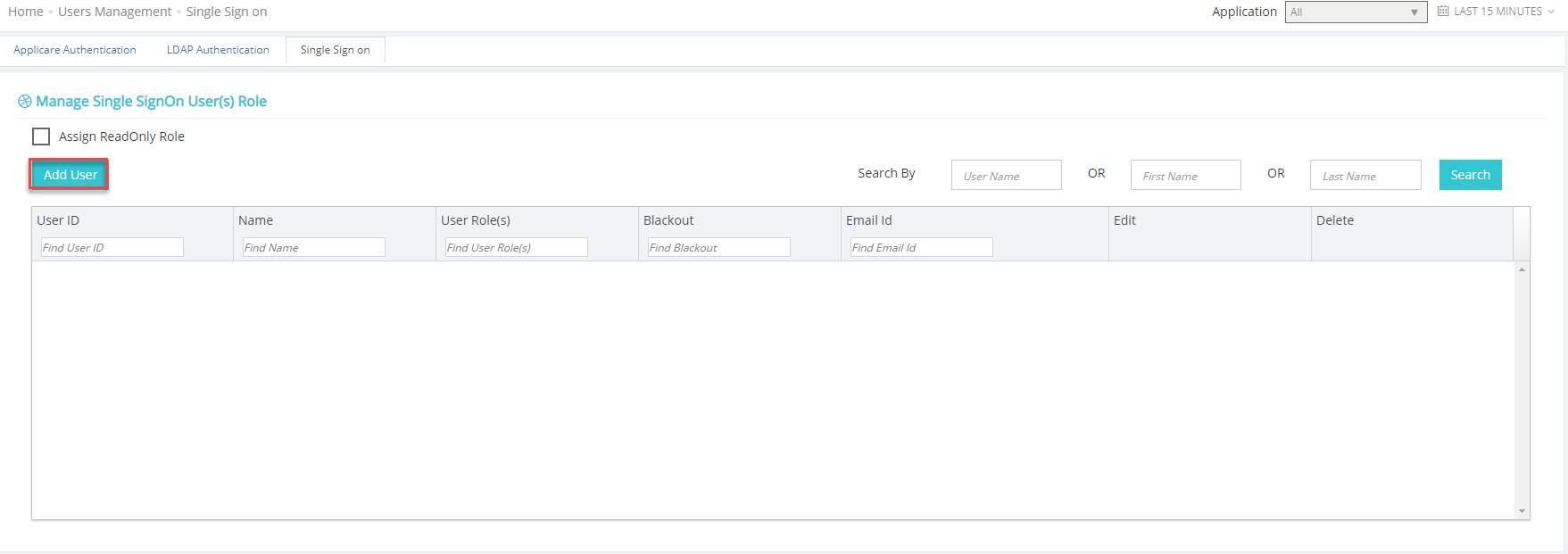
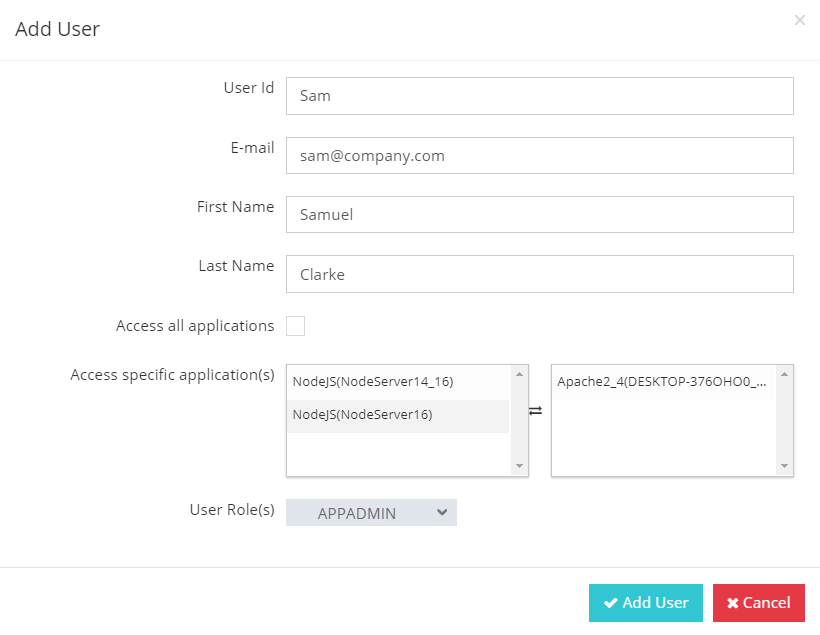
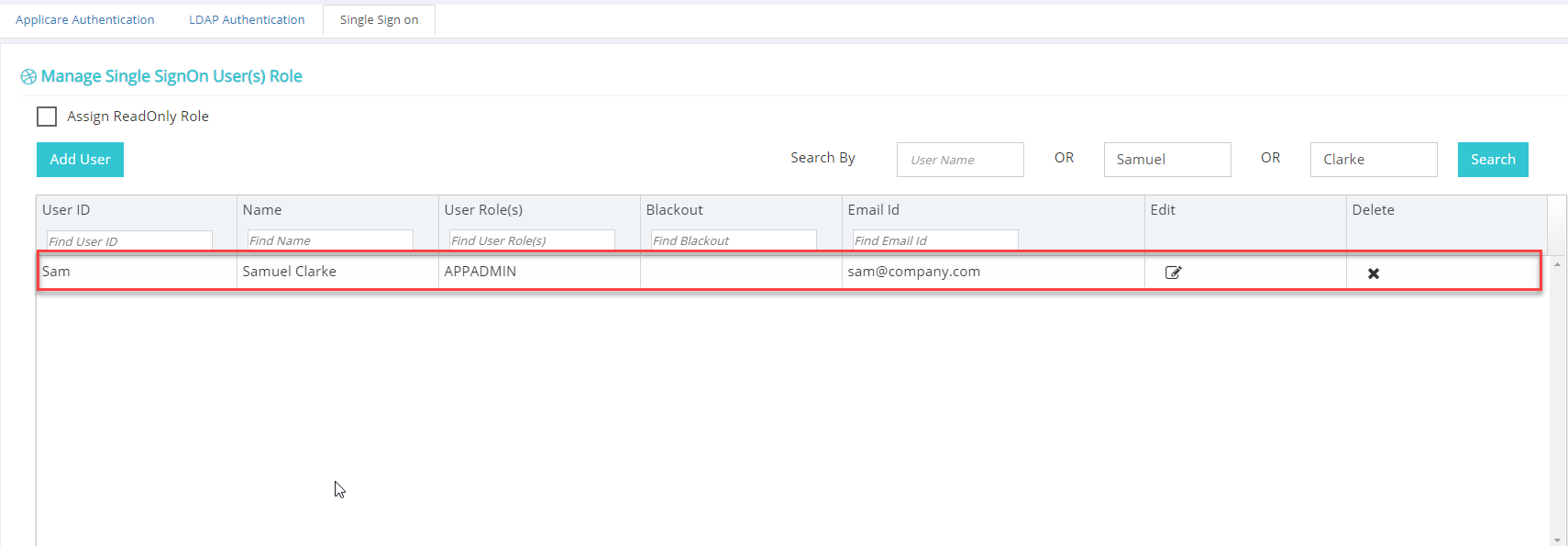
Adding a user
Creating a new Applicare user is straightforward. Enter the user's details, select the applications they should access and assign the appropriate role. Application for access control are application created in Applicare when adding app servers or server Agents to the system. These are NOT the .ear or .war applications deployed on app servers.