Create a new user account and designate the relevant permissions in Redis.
Step 1: Open the redis.conf file, Add the following line to the file to create a read-only user, and save it.
user <readonly_user> on ><readonly_password> ~* +@read +info +slowlogSubstitute <readonly_user> and <readonly_password> with the newly username and password you have just created.
Example: If the newly created username is appuser and the password is appuserpass, use these details in place of <readonly_user> and <readonly_password>."
user appuser on >appuserpass ~* +@read +info +slowlogStep 2: Once the file is saved, Restart Redis.
Step 3: Install Applicare SingleAgent in the machine where Redis database is running by following the provided installation steps. Follow the steps for Installing Applicare SingleAgent
Step 4: Select the newly added agent and click the Edit button.
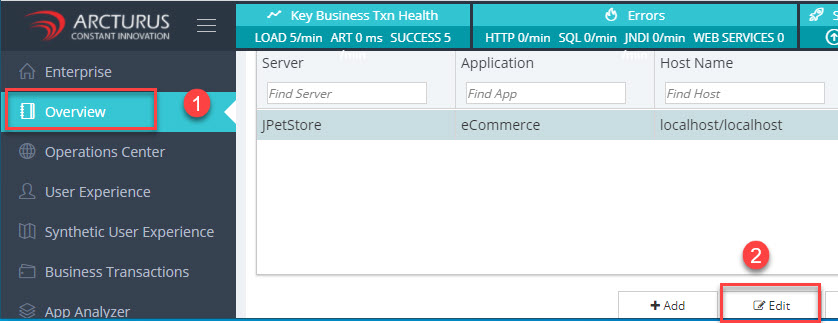
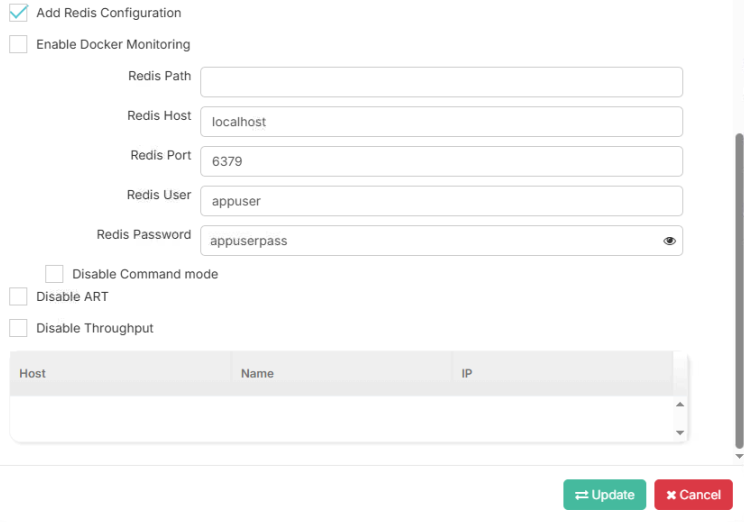
Step 5: Enable the Add Redis configuration checkbox. Then enter the Host, Port, User and Password then click the update button.
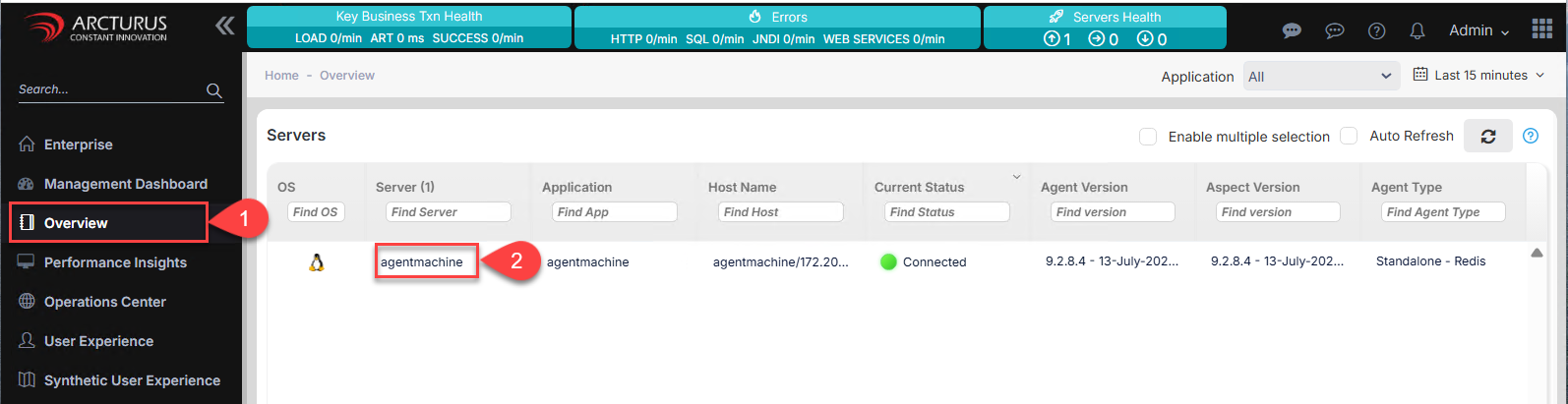
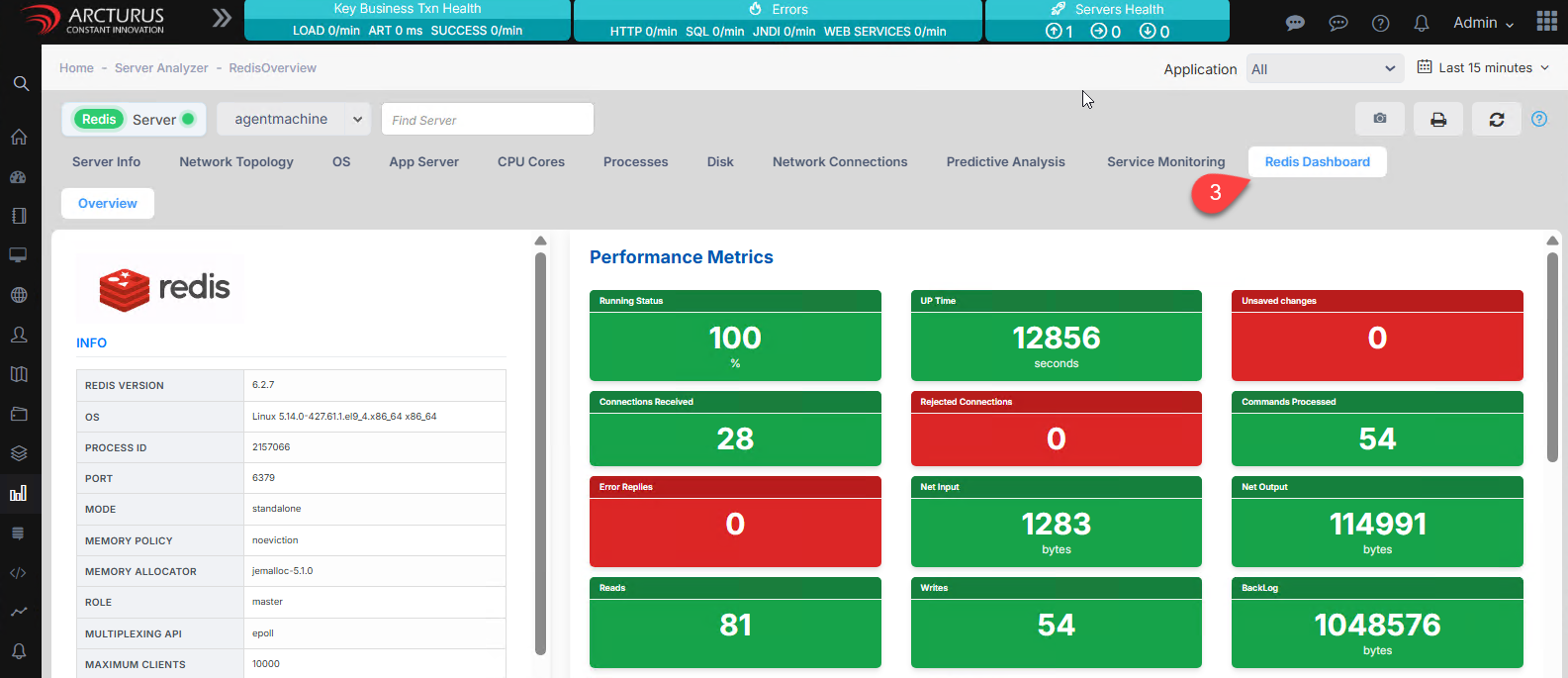
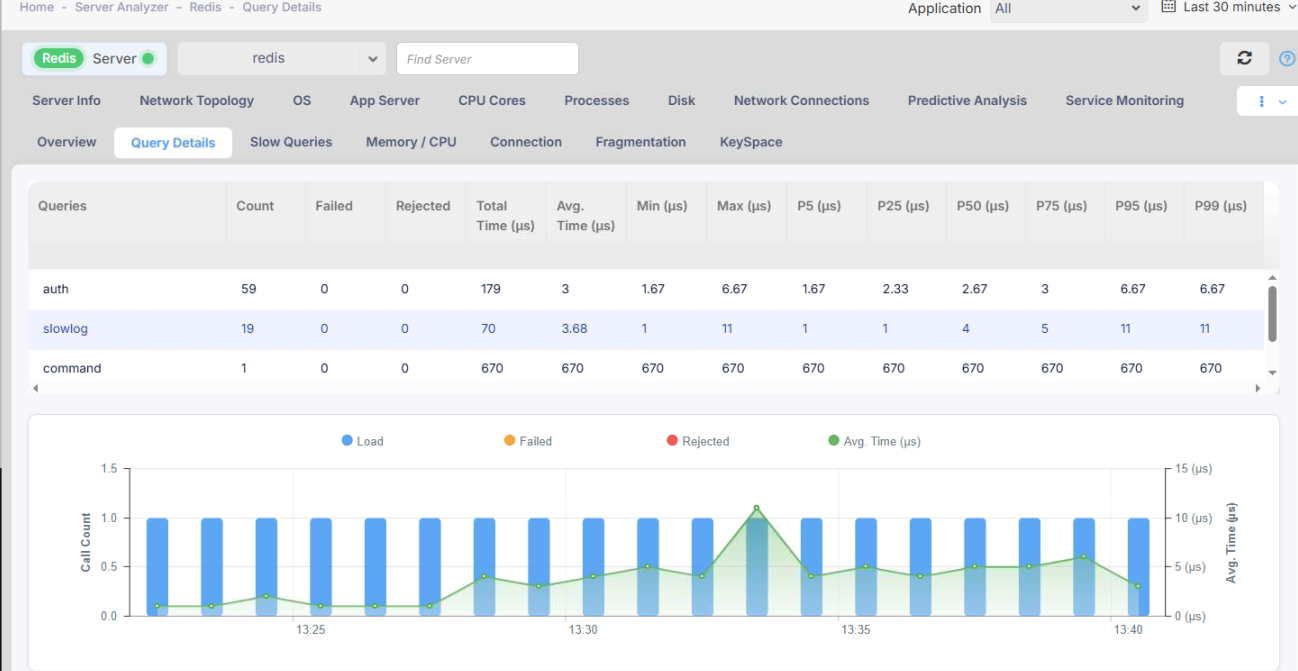
Step 5: After updating the configuration, to view the Redis data, click on the Redis configured server in the 'Server' column on the 'Overview' screen. Then, select the 'Redis Dashboard' tab.