
Step 1: Log in to Applicare console, navigate to the Remote Commands screen, and then click the setting button.
Step 2: Enter a name in the Name field, select a server with either sender or receiver application from the Server dropdown, paste the command into the command field and then click save button.
setapplicarearg arc.jms.thread true autoaddkbt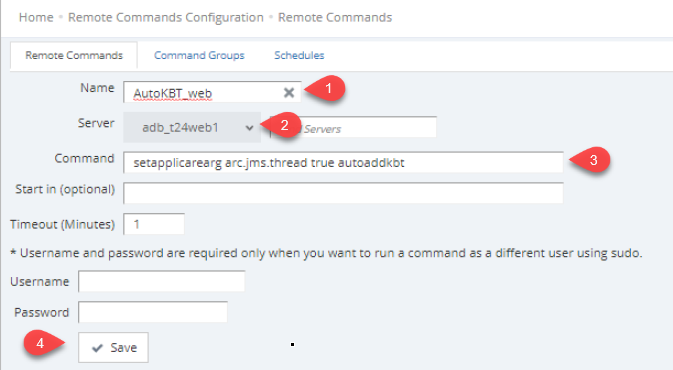
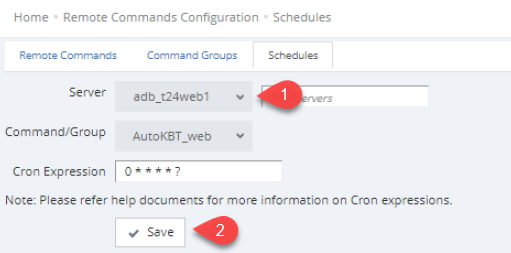
Step 3: On the same screen, click on the third tab schedules.
Step 4: Choose the server configured for the remote command from the server dropdown, then click the save button.
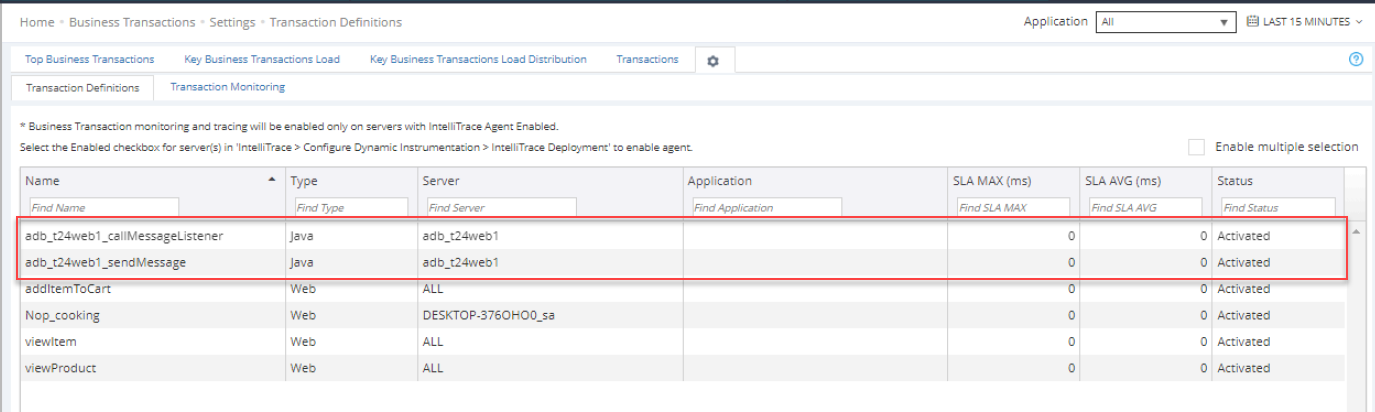
Step 5: After 2-3 minutes, navigate to Business Transactions-> Settings-> Transaction Definitions screen to verify that the KBT has been created.
KBT creation only occurs when a JMS transaction is executed.
If you prefer not to auto add KBT and only view KBT trace details in remote commands, remove the "autoaddkbt" keyword from the command.
setapplicarearg arc.jms.thread true