
Prerequisites
System Requirements for Applicare Controller and Database*
- Applicare controller and Agents must have Administrative rights
- Operating System: Windows 10 or later, or Windows Server 2012 or newer
Note that these requirements may vary depending on the number of agents deployed and the volume of data being collected and below should be used as a starting point.
System Requirements
- Disk Space: 100 GB (mostly for storing data) or 1 TB or higher for production monitoring.
- RAM: 16 GB (small POC environment) or 48 GB or higher for production.
- CPU: Intel i7 6-core equivalent, or higher.
Port Requirements
- The Agent must have access to Applicare Controller IP and port. (Default port 8880)
- The VM should be accessible to all agents via its IP address
Additional Required Products
- Java 1.8. Java downloads
- MySQL is optional if you prefer using Derby as your database. If you choose MySQL, you can download and install it from MySQL's official site. To get the latest Applicare installer, please register and log in to our support site and download it from there.
Installation
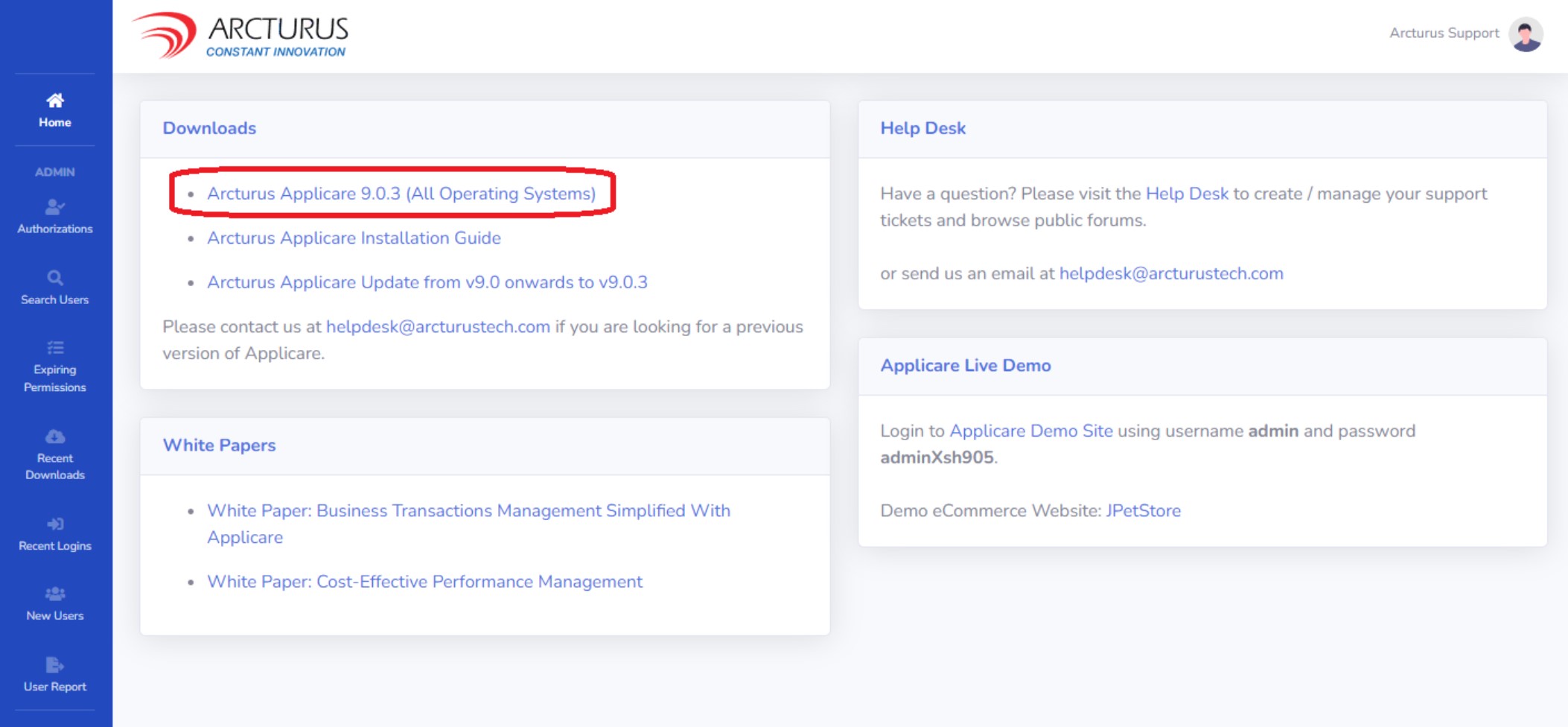
1. Transfer the downloaded installer to the machine where Applicare will be installed.
- Double-click the installer to begin the installation process.
- If double-clicking the installer doesn't work, open a command window, navigate to the directory where the installer is located and run the command. Execute the java -jar AP_XXX.jar command to start the installation.
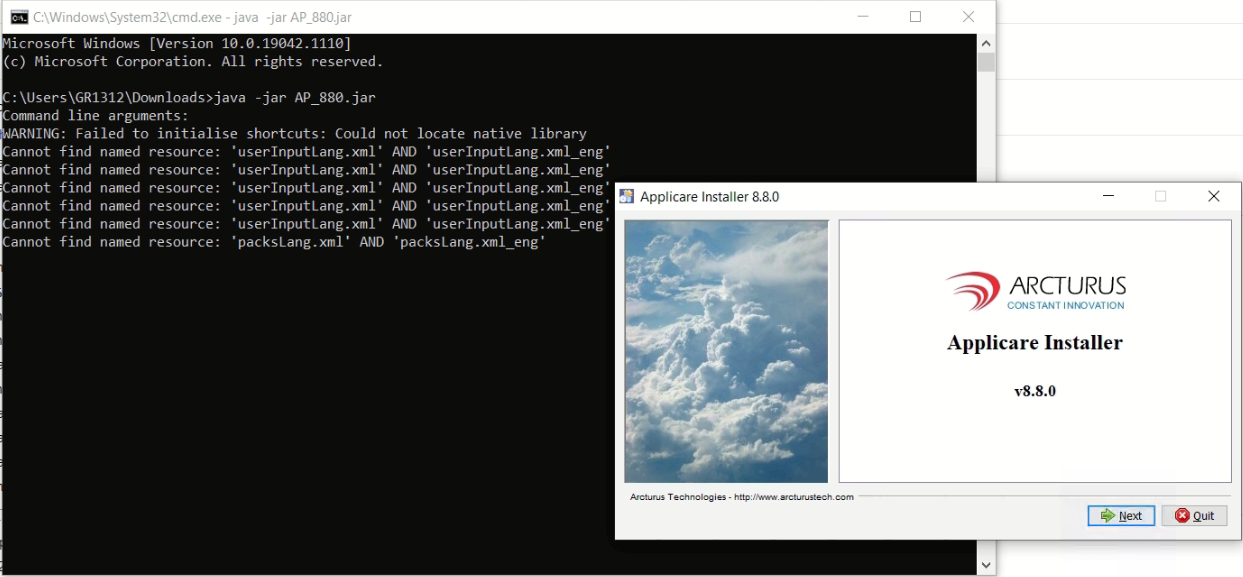
2. Click 'Next' to proceed with the installation.
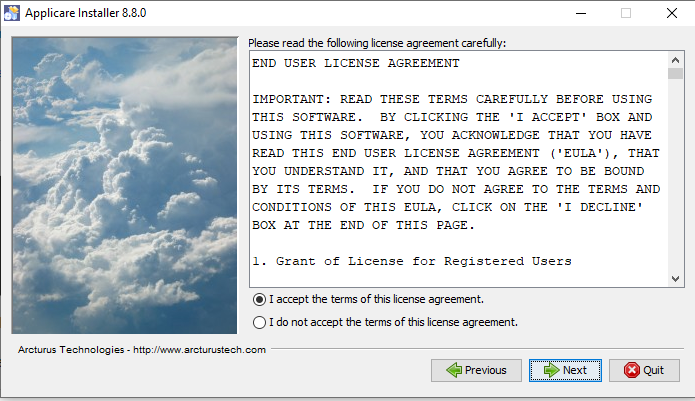
- Then, review and accept the license agreement, and click on Next.
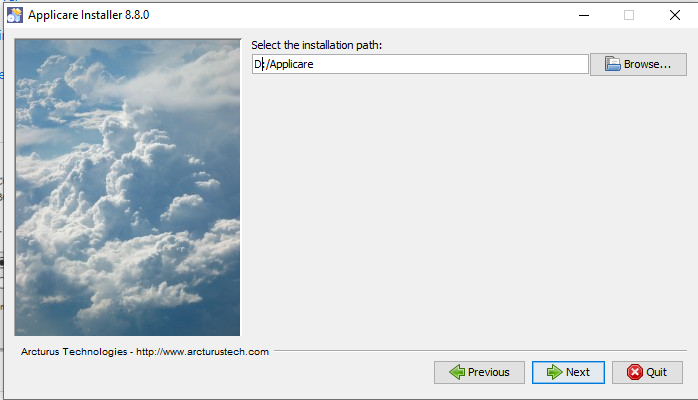
3. Select the directory where you want to install Applicare (APPLICARE_HOME) and click Next.
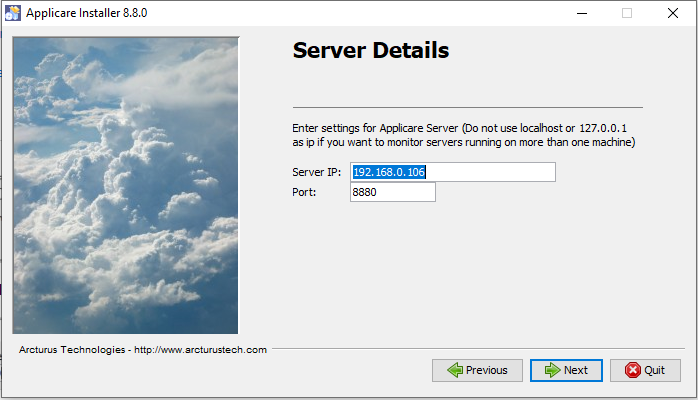
4. In the server details window, enter the IP address of the machine where Applicare is being installed and choose a preferred port.
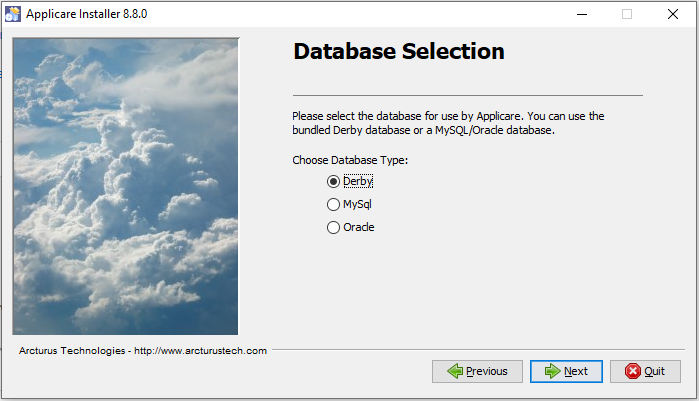
5. On the next screen, select your preferred database and click on Next.
- For proof of concept (POC) purposes, we recommend using the Derby database. For production environments or system with high load, we advise using MySQL or Oracle**.
** In case of MySQL or Oracle as the database, you will need to create the schema for Applicare before proceeding past this step.
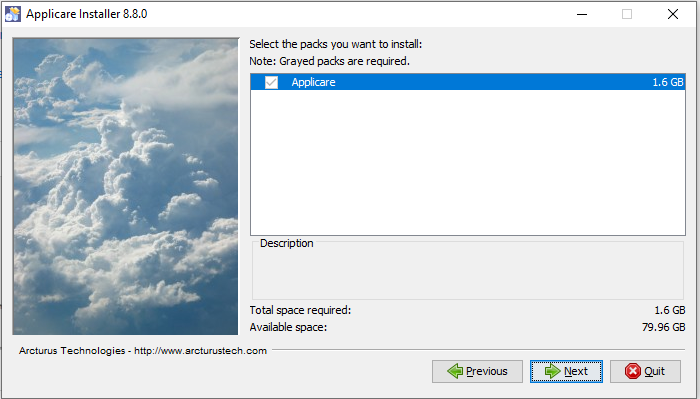
6. Choose the Applicare package and click on Next.
7. Review the settings and click on Next.
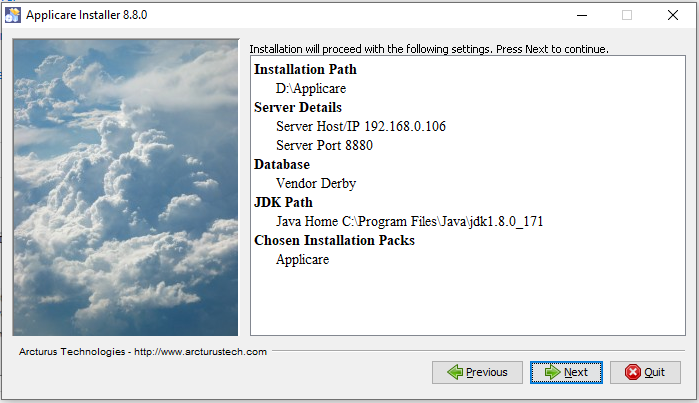
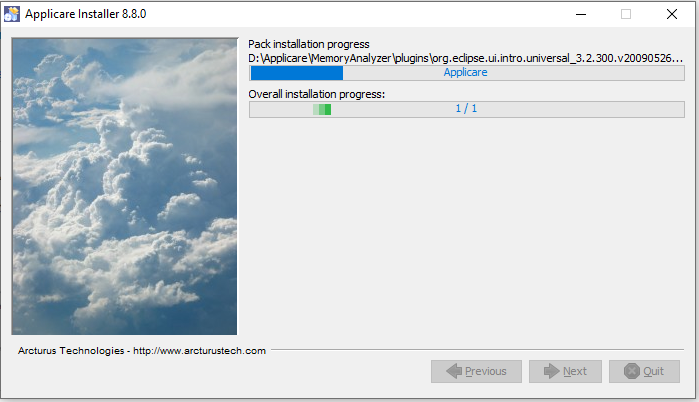
8. Click on the Next button once the package installation is completed.
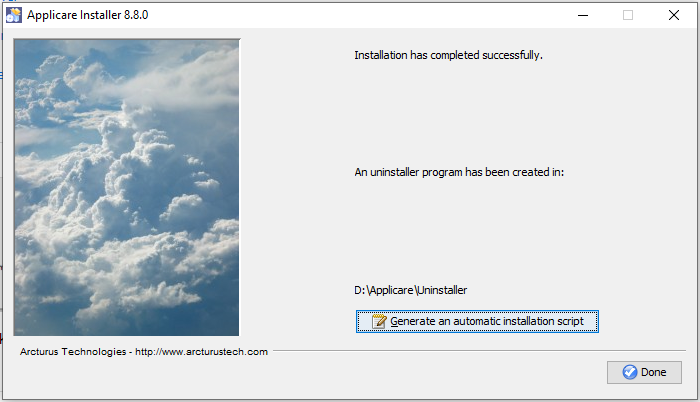
- Then, click on Done.
For other docs - click here
Configuring SQL Mode for MySQL in Applicare - click here