
Method 1 - Start the Controller Using Command mode
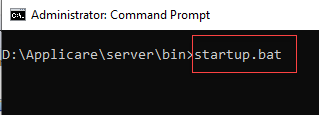
Open the command prompt as an administrator. Navigate to Applicare Controller installation directory then to the path /server/bin and run startup.bat to start the Applicare Controller.
Method 2 - Start the Controller Using Task Scheduler
a. Please open the command prompt as an administrator, navigate to the Applicare Controller home directory\controllerscripts directory and run createControllerTask.bat
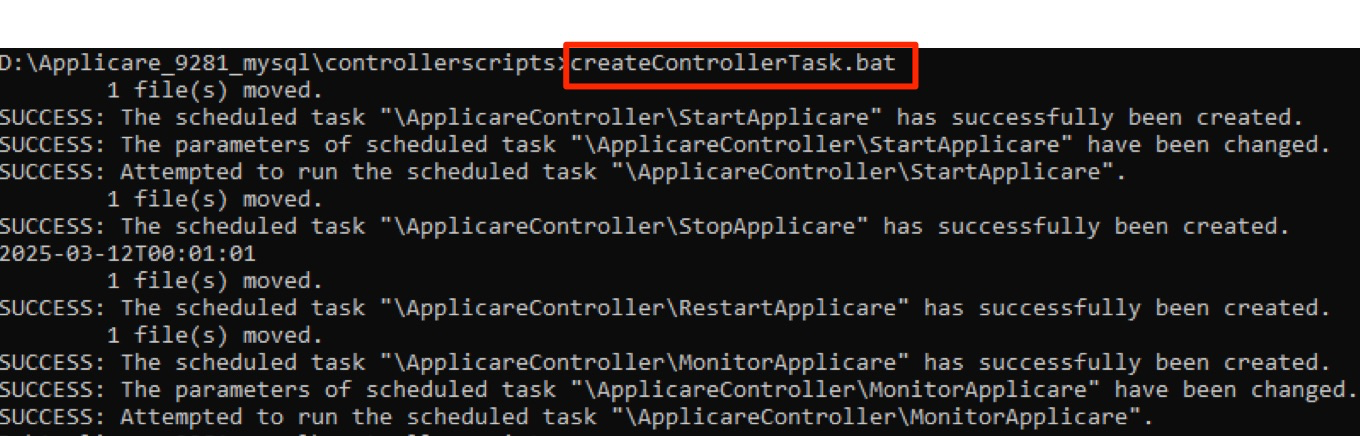
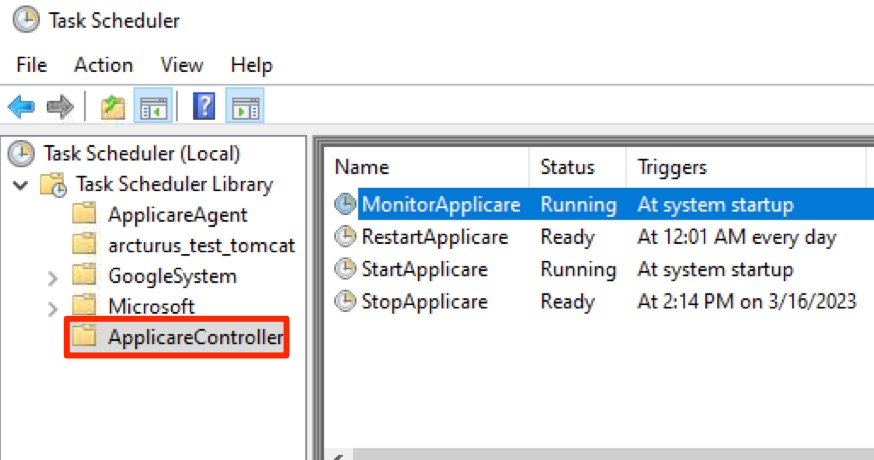
b. The controller will start automatically after executing the script. Open the task scheduler, expand the task scheduler library, and select the ApplicareController folder. Make sure that the task created in it is the same as the one for the controller start, stop, and restart.
Once the controller is running, you can browse the Applicare console using any browser with the IP address and port you chose during installation.
Applicare console URL : http://<IP>:<PORT>/applicare
e.g. If the controller IP is 192.168.0.106 and port is 8880 then the Applicare console URL would be: http://192.168.0.106:8880/applicare
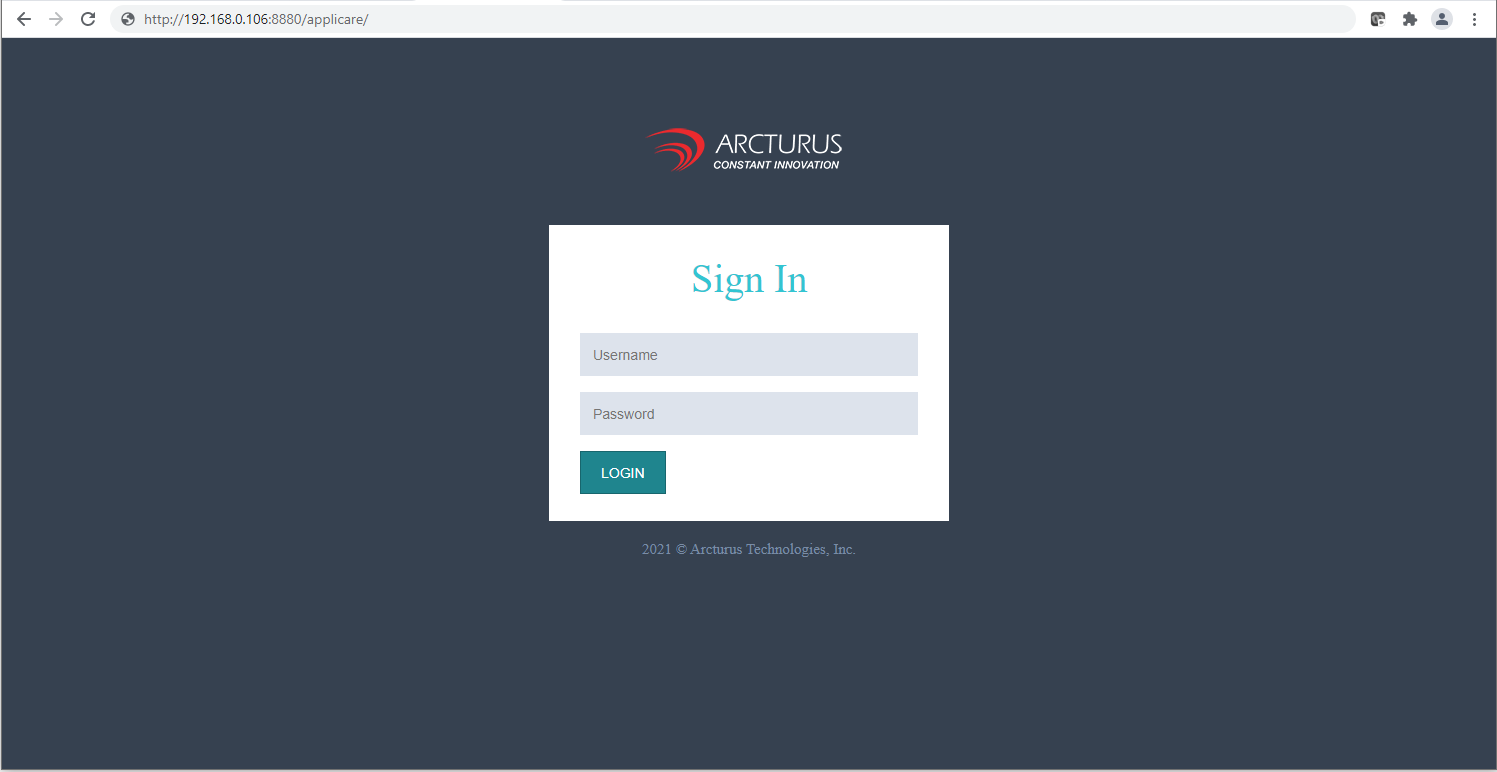
The default username and password to logging into the Applicare dashboard are both "admin".
Next Steps - Installing SingleAgent