
Step 1: Log in to Applicare controller and navigate to the Remote Deployment screen on left side menu.
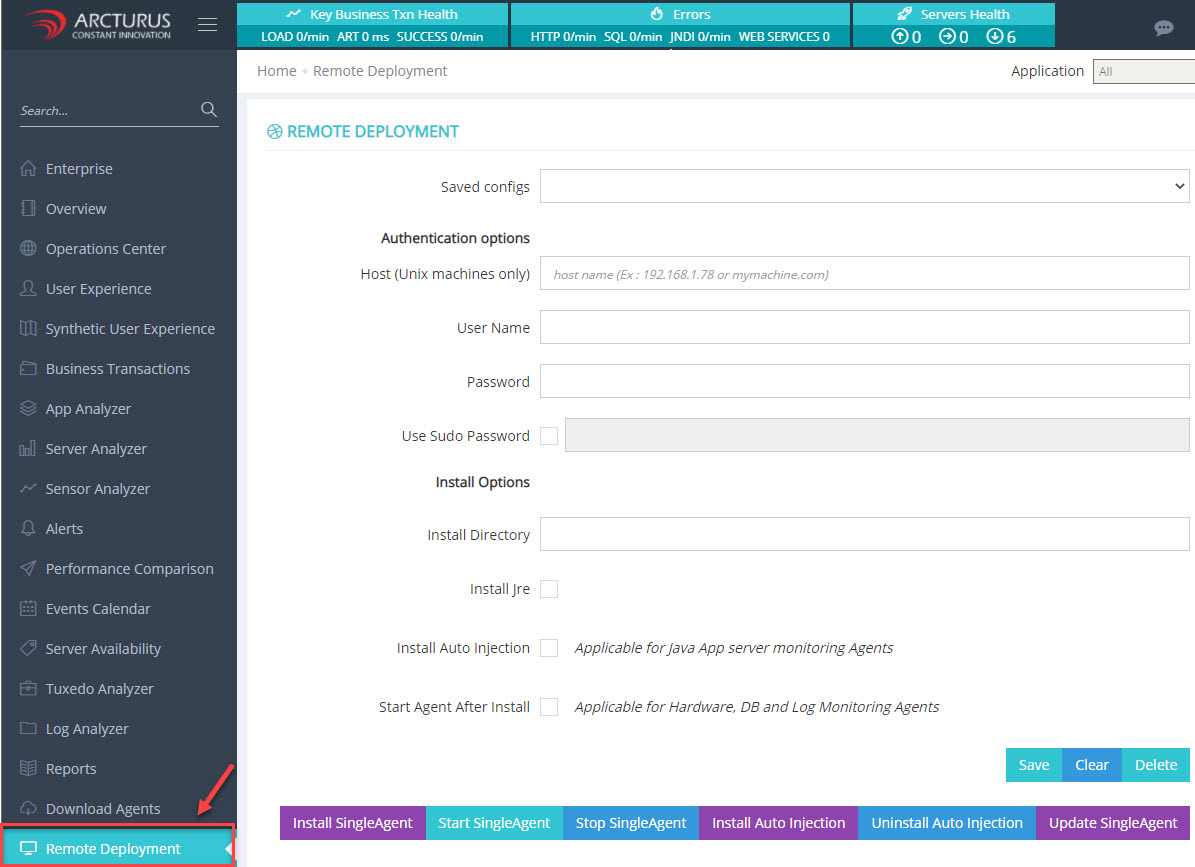
Step 2: Enter the configuration details of the machine where the agent will be deployed.
Host (Unix machines only) - Enter the hostname or IP address of the machine.
User Name - Enter the login user name.
Password - Enter the login user password.
Use Sudo Password - Enable this option if the login user does not have root permission.
Install directory - Specify the location where the agent will be deployed.
Start Agent After Install - Enable this option to start the agent immediately after installation, particularly if you plan to monitor hardware, database and logs.
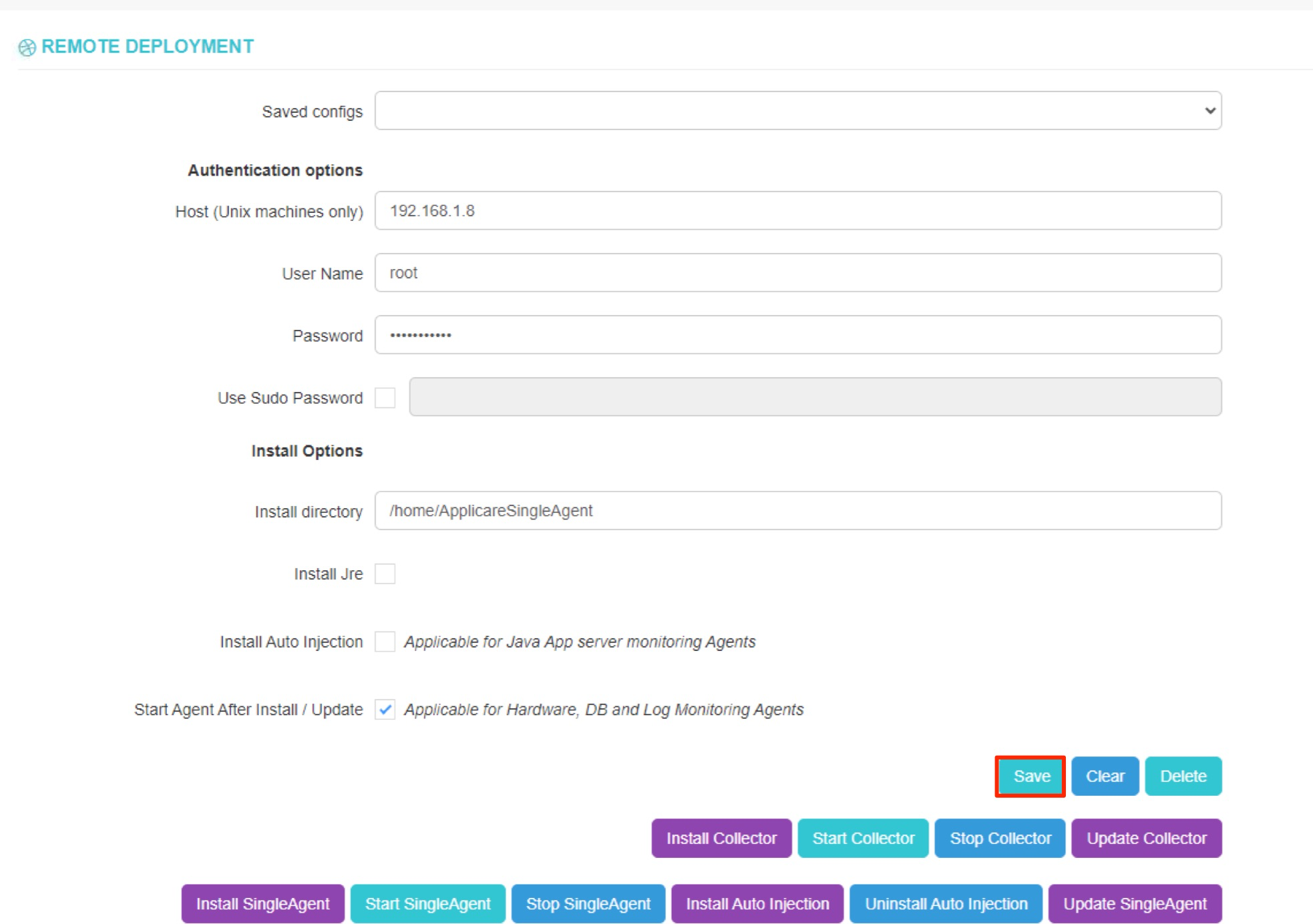
Step 3: After entering all the configuration details click the save button.
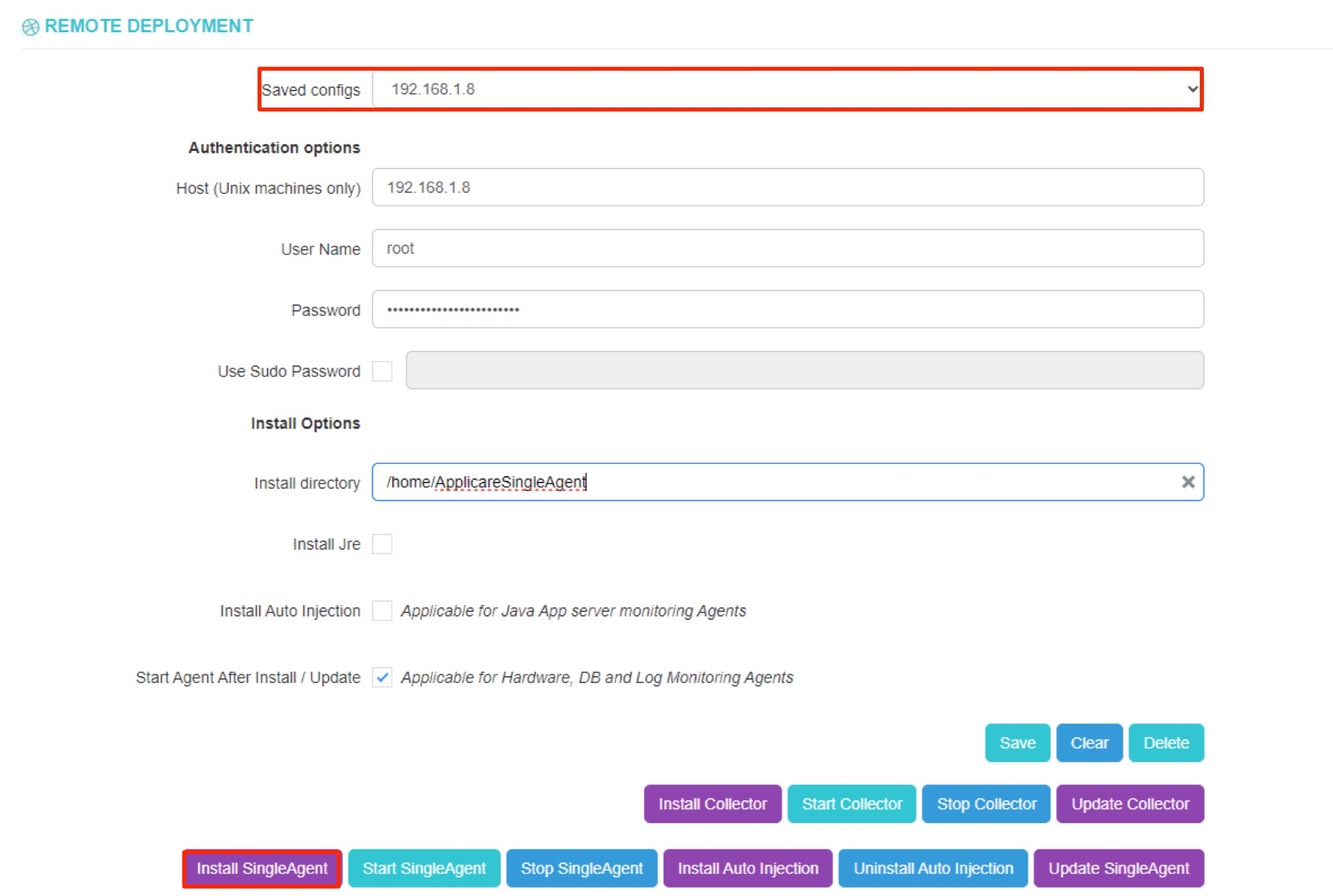
Step 4: Save the configuration, select the machine from the saved config dropdown. Then click on Install SingleAgent button.
Follow these steps only if you need to update the agent.
Step 1: Go to the Remote Deployment screen from the left-side menu. Step 2: Select the machine where the agent is running from the saved config dropdown, and then click the Update SingleAgent button.