
To installing Applicare SingleAgent, Follow these steps:
Before proceeding with the configuration verify the following:
1. Identify the location of the default log configuration settings for the Apache server.
2. Confirm that all Apache server requests are being logged in the currently configured log file.
Apache server Monitoring with Applicare
Step 1: Enable the server-status and custom log modules in Apache. Navigate to Apache installation directory and edit the conf file. (Default location: /etc/httpd/conf (or) /etc/apache/conf).
Step 2: Ensure the following modules are enabled in the conf file. If it is not enable it by removing '#’ at the start of the line.
If any of these modules are not present in the Apache conf file by default. add them below manually below the 'Listen' line in the directive conf file.
LoadModule status_module modules/mod_status.so
LoadModule log_config_module modules/mod_log_config.so
LoadModule unique_id_module modules/mod_unique_id.so
LoadModule setenvif_module modules/mod_setenvif.so
LoadModule headers_module modules/mod_headers.so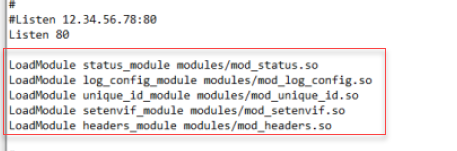
Module Details:
mod_status.so
Provides server performance and status information.
mod_log_config.so
Configures and customizes Apache logging, allowing precise control over what information is logged, its format, and its destination.
mod_unique_id.so
Sets environment variables based on client request characteristics the server.
mod_setenvif.so
It is used to set environment variables based on characteristics of the client request.
mod_headers.so
Adds custom headers to server responses.
Step 3: Ensure that the LogLevel is set to warn. If the LogLevel is different, comment out the existing LogLevel line.

Step 4: Create a new log folder within the Apache home directory and set its permission to '777' using the command "chmod -R 777".
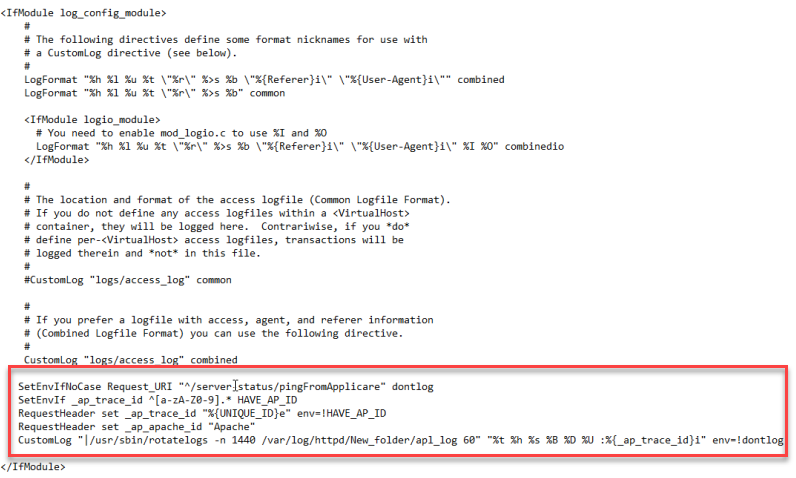
Step 5: Append the following 5 lines to the end of the log_config_module section in the configuration file. Do not modify the existing CustomLog path within the log_config_module.
SetEnvIfNoCase Request_URI "^/server-status/pingFromApplicare" dontlog
SetEnvIfNoCase Request_URI "^/applicare_agent/*" dontlog
SetEnvIf _ap_trace_id ^[a-zA-Z0-9].* HAVE_AP_ID
RequestHeader set _ap_trace_id "%{UNIQUE_ID}e" env=!HAVE_AP_ID
RequestHeader set _ap_apache_id "<Apache_servername>"
CustomLog "|<rotatelogs_path> -n 1440 <Apachelog_directory>/newlogfolder/apl_log 60" "%t %h %s %B %D %U :%{_ap_trace_id}i" env=!dontlog
1. Replace the <Apache_servername> with a unique custom name (without space) and including double quotes and without angle brackets. You can choose any name in the <Apache_servername>. But it must be unique.
2. The "_ap_trace_id" is an environment variable added to each request. Its value will be a random id.
3. Replace "<rotatelogs_path> " (removing the angle brackets too) with the path where 'rotatelogs' is installed. On Linux, you can find this path using the following command.
which rotatelogs (or) sudo which rotatelogs
4. Replace <newlogfolder>with the name of the folder you created within the Apache log directory (be sure remove the angle brackets).
Step 6: Append the following modules to the end of the conf file.
<IfModule mod_status.c>
<Location /server-status>
ProxyPass !
SetHandler server-status
Require local
</Location>
</IfModule>
Require local - It will restrict the server status access only from the local machine.
Step 7: Verify the configuration for any Syntax errors. If the output shows Syntax OK the configuration is correct.
For httpd
httpd -tFor apachectl
apachectl -t
(or)
apachectl configtest
For apache2ctl
apache2ctl -t
(or)
apache2ctl configtest
Step 8: If the configuration is successful, restart the Apache server.
After restarting, enter the following request in your browser's URL bar to display information about the Apache server.
To check in browser:
<Apache_Protocol>://<Apache_IP>:<Apache_Port>/server-status?auto
Example: http://127.0.0.1:80/server-status?auto
To check using curl:
curl <Apache_Protocol>://<Apache_IP>:<Apache_Port>/server-status?auto
Example: curl http://127.0.0.1:80/server-status?auto
<Apache_Protocol>://<Apache_IP>:<Apache_Port>/server-status?auto
<Apache_Protocol> - http (or) https <Apache_IP> - Apache server running IP <Apache_Port> - Apache server running port
ServerMPM: event
Server Built: Jan 27 2021 07:22:47
CurrentTime: Monday, 28-Jun-2021 18:11:40 EDT
RestartTime: Monday, 28-Jun-2021 18:08:24 EDT
ParentServerConfigGeneration: 1
ParentServerMPMGeneration: 0
ServerUptimeSeconds: 195
ServerUptime: 3 minutes 15 seconds
Step 9: After starting the agent, it will be automatically registered with the Applicare controller. Log in to the Applicare console and navigate to the Overview menu.
Step 10: Locate the newly added agent and click the Edit button.
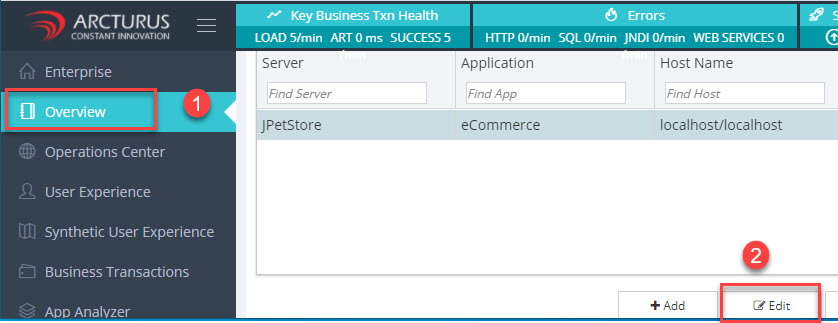
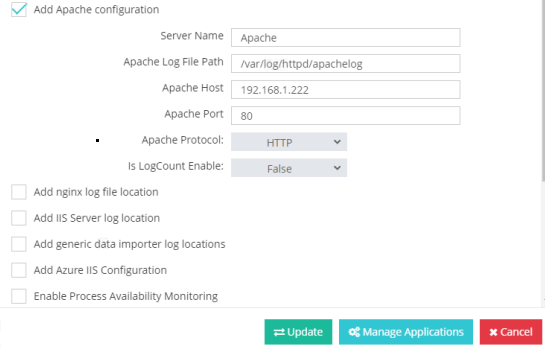
Step 11: Enable the "Add Apache Configuration" box and configure the setting as shown below. If the Apache is running in https select HTTPS in the Apache Protocol dropdown. Click the update button to save the change.
Note:
1. Other command to check the configuration and virtual hot details of apache server.
httpd -S, apachectl -S, apache2ctl -S and for version httpd -V
2. If the new log configuration does not take effect, verify if any custom configuration are included in the default configuration. Custom configuration may be included using the "IncludeOptional" directive.
3. To monitor only the error logs, append the following syntax to the end of the CustomLog.
"expr=%{REQUEST_STATUS} > 200"e.g.
CustomLog "logs/access.log" combined "expr=%{REQUEST_STATUS} > 200"

4. To capture only the specific request URL use this. This will capture only the /testrequest/order requests.
SetEnvIfNoCase Request_URI "^/testrequest/order" log_this
CustomLog "logs/access.log" combined env=log_this