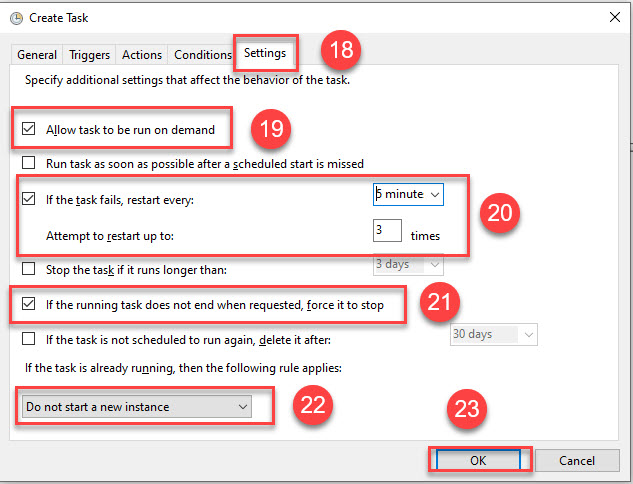
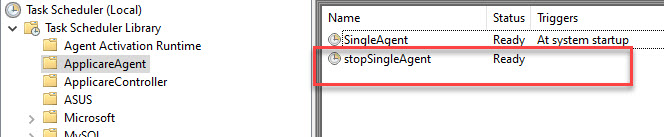
Task creation to stop the SingleAgent

1. Navigate to ApplicareSingleAgent home directory and create a stopAgent.bat file with the following content. Save the file once created.

@echo off wmic process where "commandline like '%%applicare.standalone=true%%' and name='java.exe'" delete

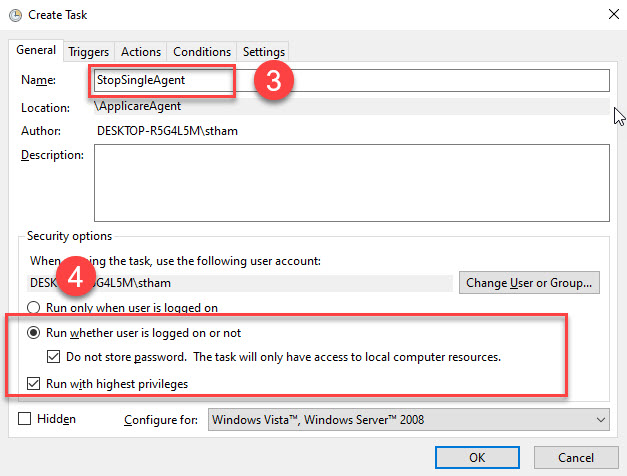
Screenshot 1 — Task creation to stop the SingleAgent

2. Open Task Scheduler and create the task as specified below.
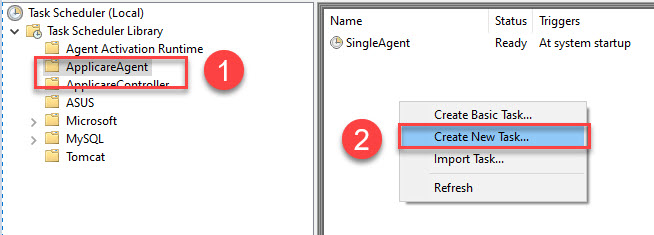
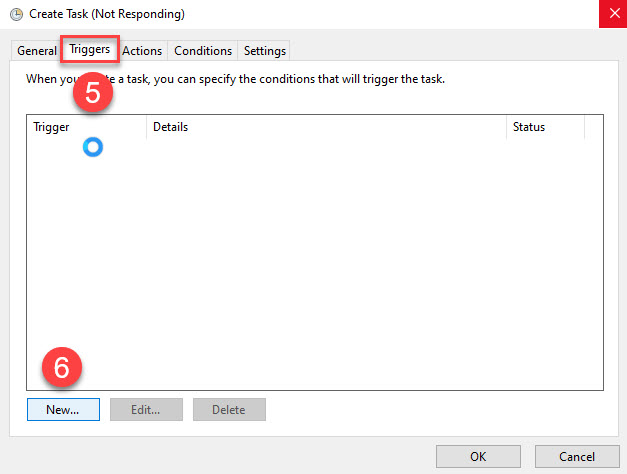
Screenshot 2 — Task creation to stop the SingleAgent

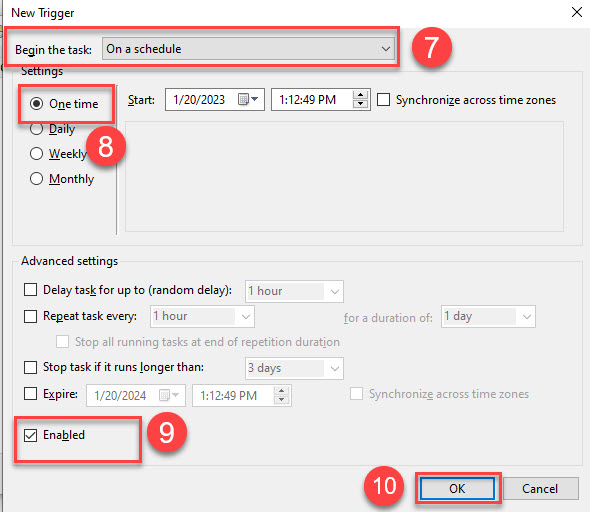
Screenshot 3 — Task creation to stop the SingleAgent

Screenshot 4 — Task creation to stop the SingleAgent

Do not alter the start time.

Screenshot 5 — Task creation to stop the SingleAgent

Program/script: AgentHomeDir\stopAgent.bat

Add arguments(optional): AgentHomeDir\stopAgent.bat

Start in (optional): AgentHomeDir\

Replace AgentHomeDir with the correct path.
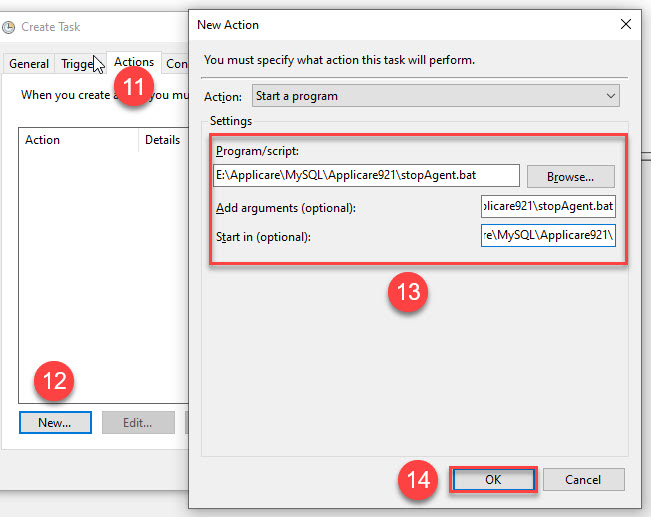
Screenshot 6 — Task creation to stop the SingleAgent

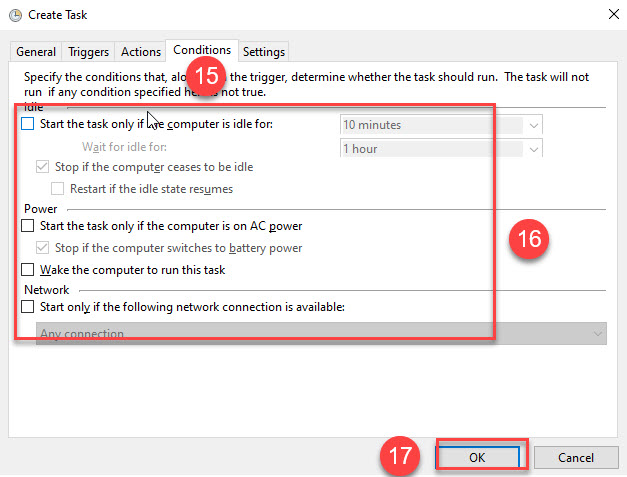
Screenshot 7 — Task creation to stop the SingleAgent

Screenshot 8 — Task creation to stop the SingleAgent

The task will be generated.

Screenshot 9 — Task creation to stop the SingleAgent

Running this task it will terminate all the Java processes, and the SingleAgent task Status will be changed to Ready. Next, right-click the SingleAgent task and select Run to start the agent.

Monitoring with Applicare

Was this article helpful?

Votes and follows are kept by Zendesk, so they need a Help Center account. These buttons open this article there.

Opens Zendesk · needs internet and sign-in

Still stuck? Contact support