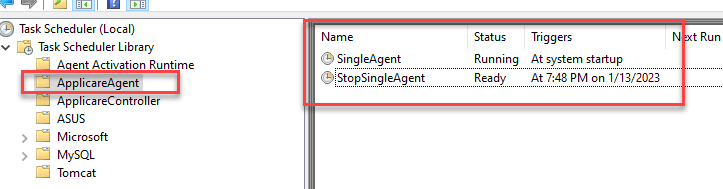
To Applicare SingleAgent start task is automatically added to Windows Task Scheduler when downloaded using the PowerShell command from the Agent Download page. Alternatively, it can be manually added by running createAgentTask.bat in Applicare SingleAgent home directory.
1. Open Task Scheduler, expand the Task Scheduler Library and select the ApplicareAgent folder. You will find two task.
- SingleAgent - To start the SingleAgent
- StopSingleAgent - To stop the SingleAgent