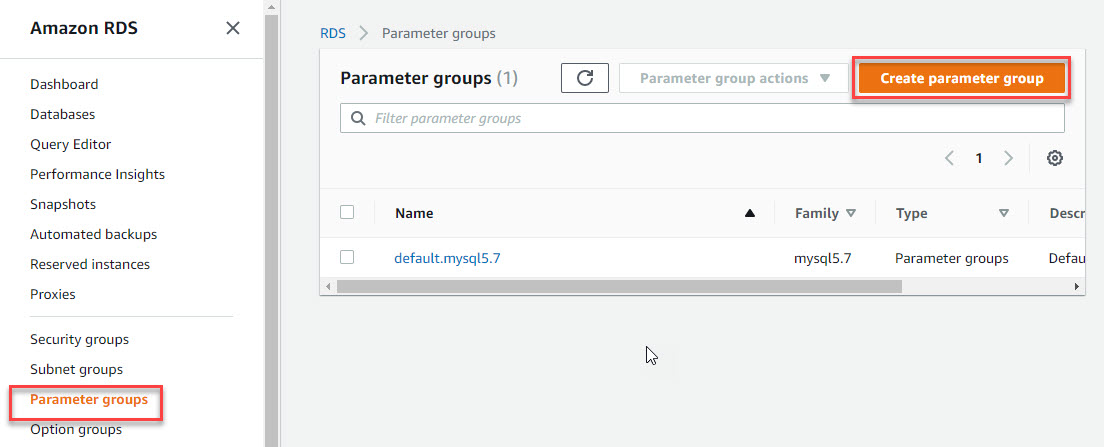
1. Navigate to RDS -> Parameter Groups and click the Create parameter group button.
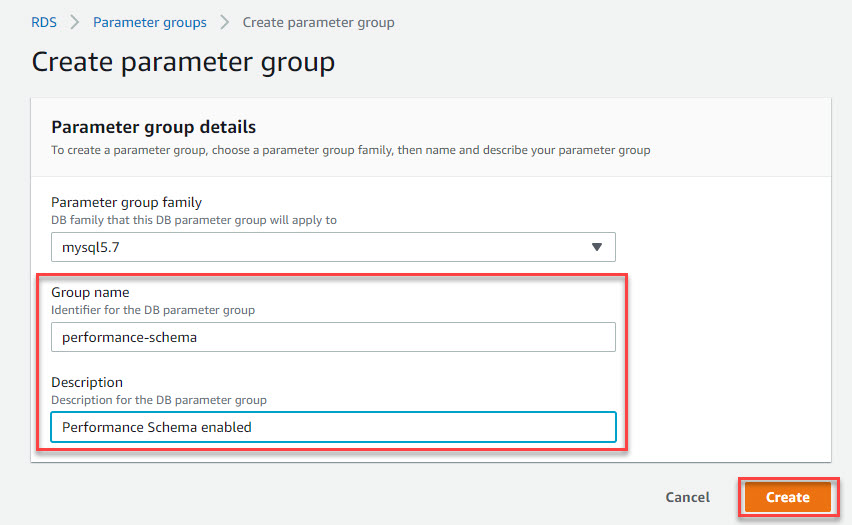
2. Enter the Group name and Description then click the Create button.
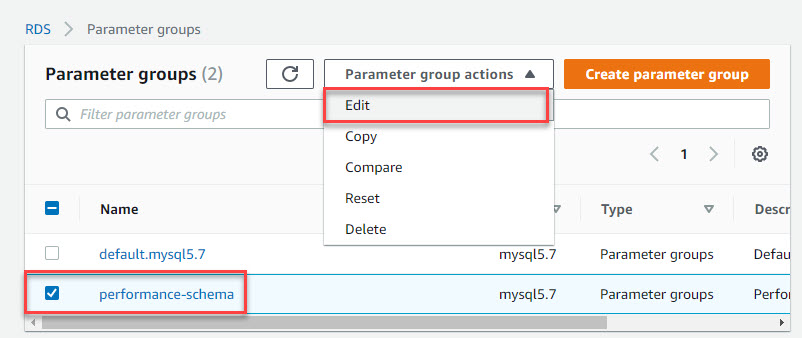
3. Select the newly created parameter groups and select the Edit option from the Parameter group actions dropdown.
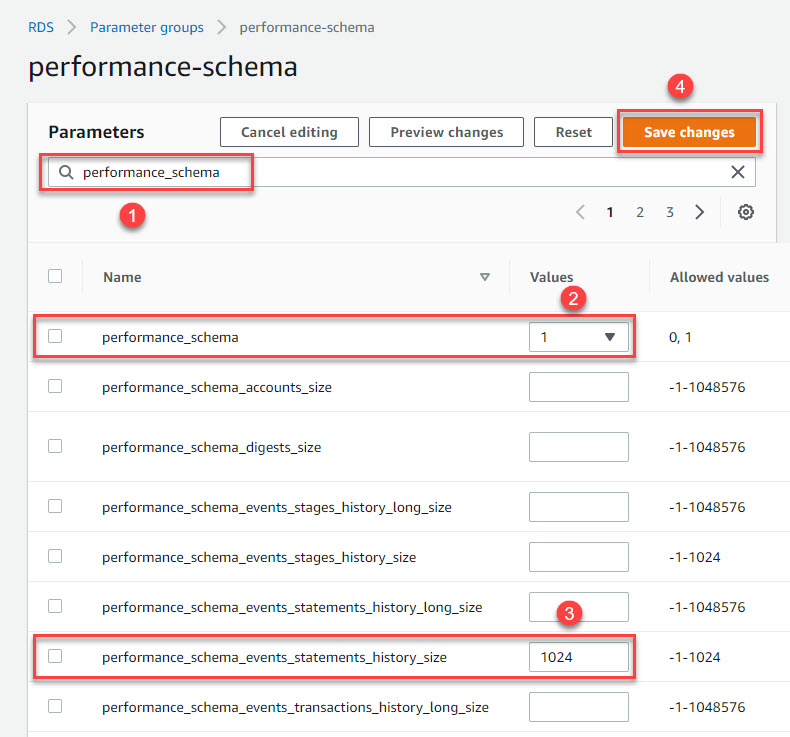
4. Search for performance_schema and set its value to 1 change performance_schema_events_statements_history_size to 1024 and click the Save changes button.
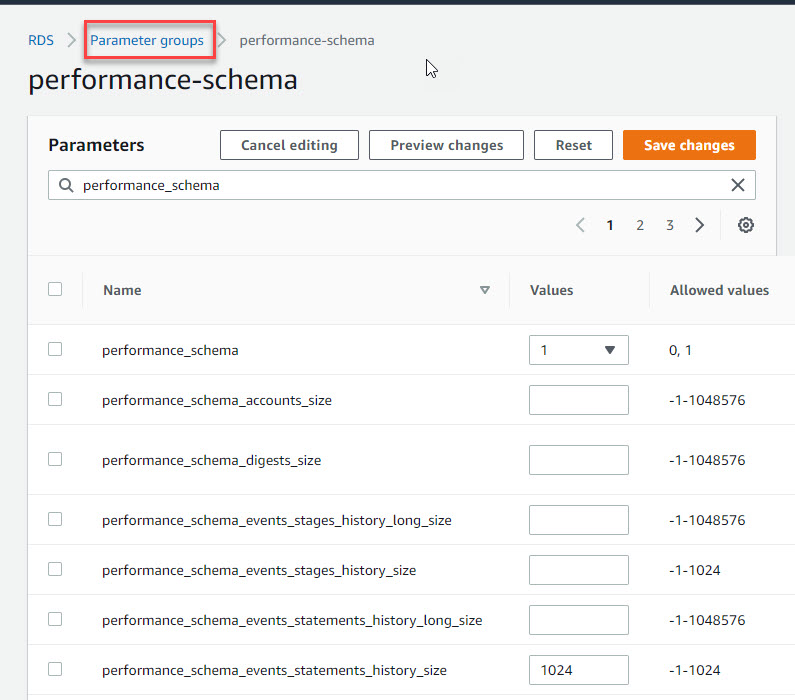
5. Navigate to the Parameter Groups screen.
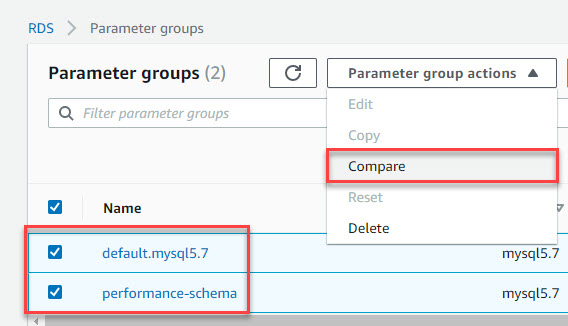
6. Select both the default and newly created parameter groups, then choose the Compare option from the Parameter group actions dropdown.
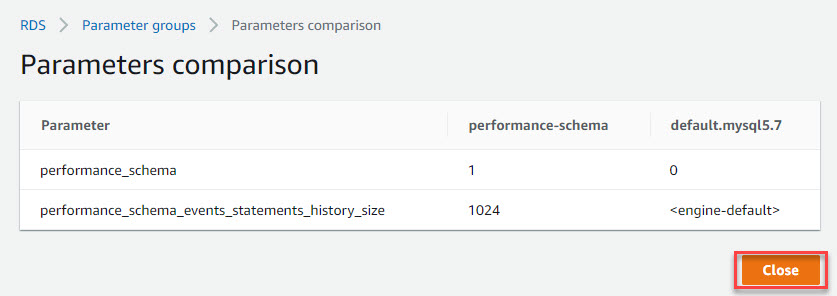
7. This will display a list of Parameters list that differ between the from default and the newly created groups. If there are additional changes beyond these parameters, edit the newly created parameter group to include those change and save your updates.
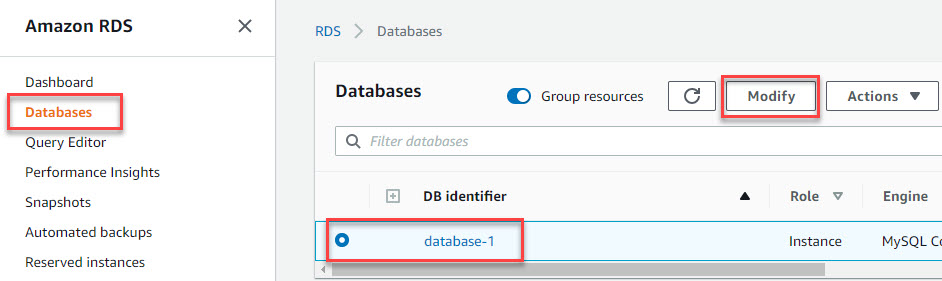
8. Navigate to RDS > Databases and click the Modify button.
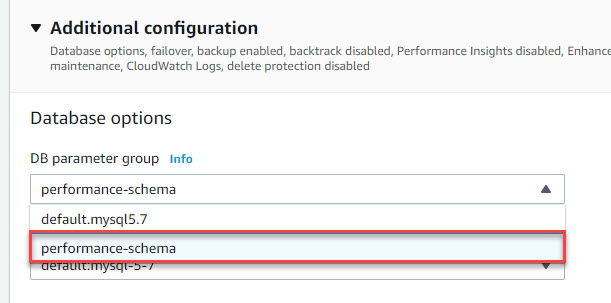
9. Choose the newly created parameter group from the DB parameter group dropdown and click the Continue button.
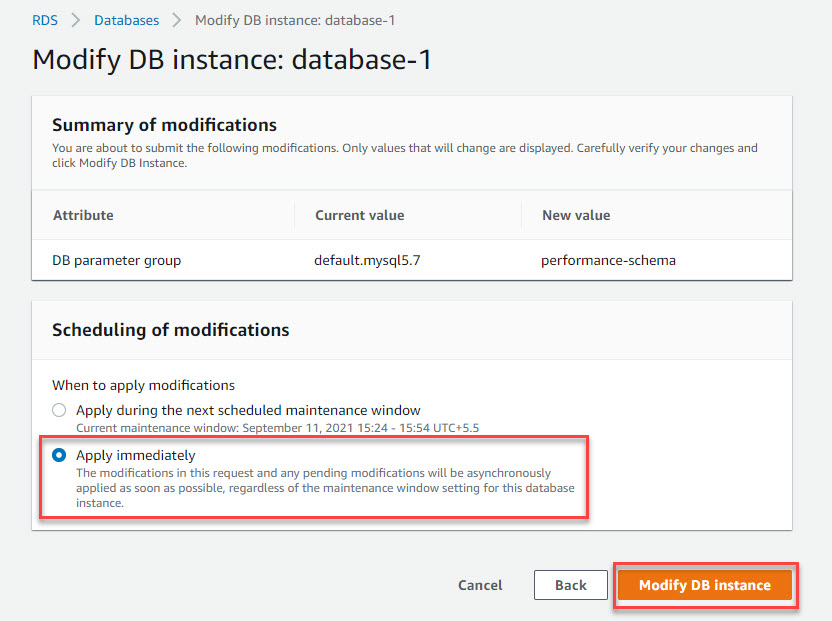
10. Select the Apply immediately option and click the Modify DB instance button.
11. Select the DB instance and click the Reload button to check the status. It will display the status as Modifying. Wait until the Status to became Available.
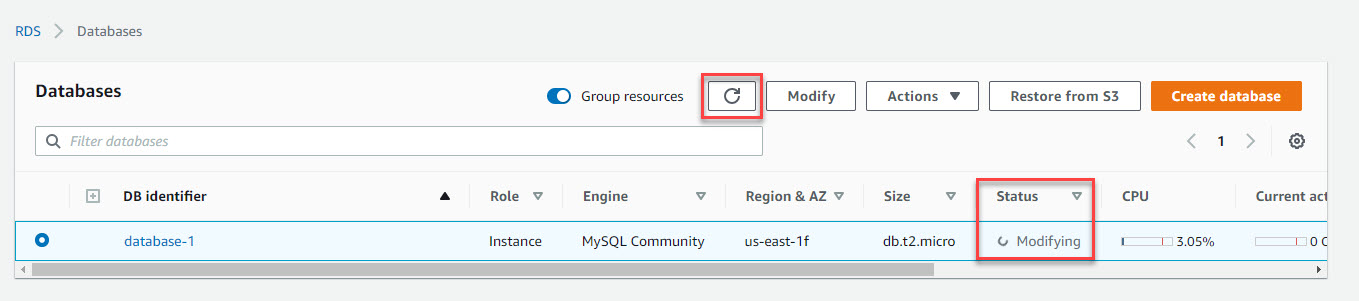
12. Click the Reload button to check the status frequently.
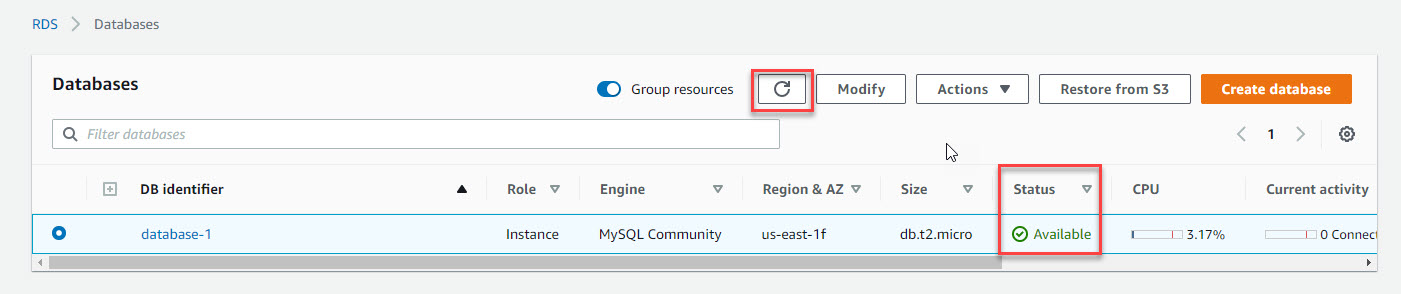
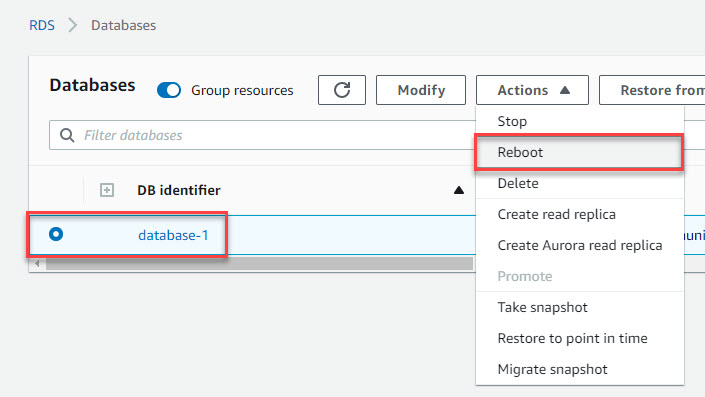
13. Once the status changes Available, select the Reboot option from the Actions dropdown.