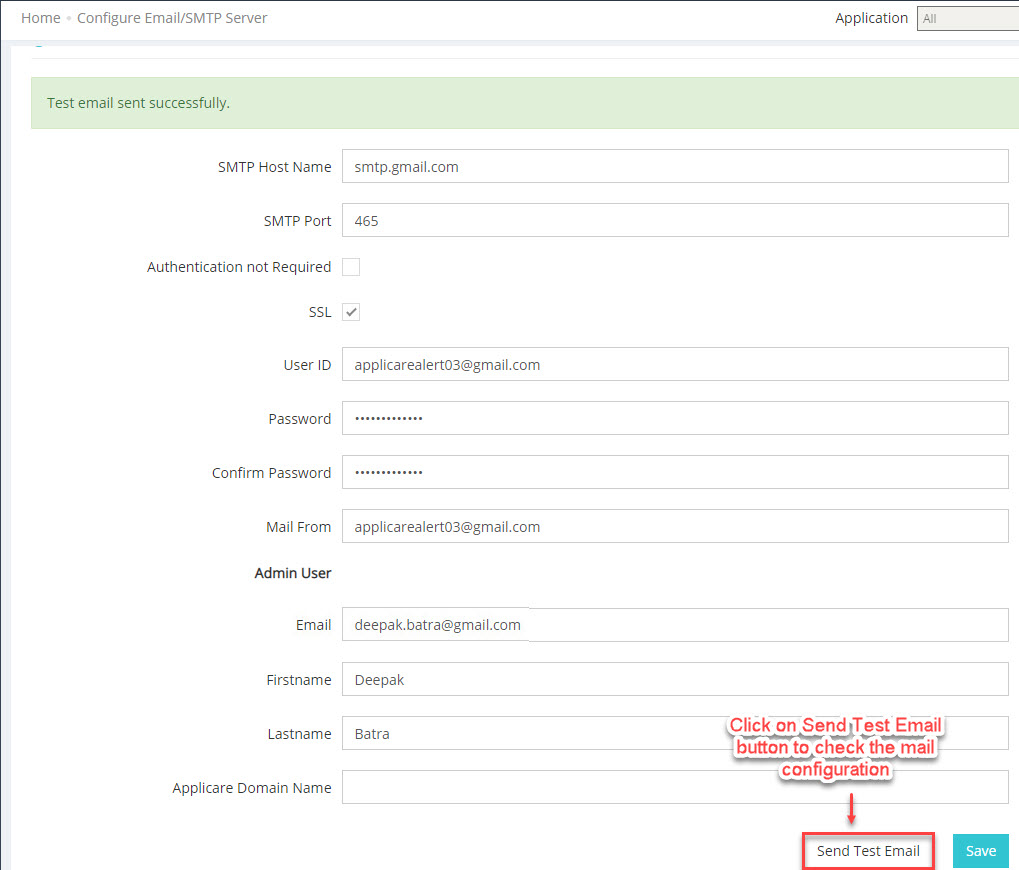
An app password must be created before setting up mail in Applicare.
Steps to Create an App Password for Gmail Here
Steps to Create an App Password for yahoo mail Here
To enable email and alert configuration in Applicare, you need to set up the SMTP server details in the SMTP & ADMINISTRATOR CONFIGURATION dashboard.
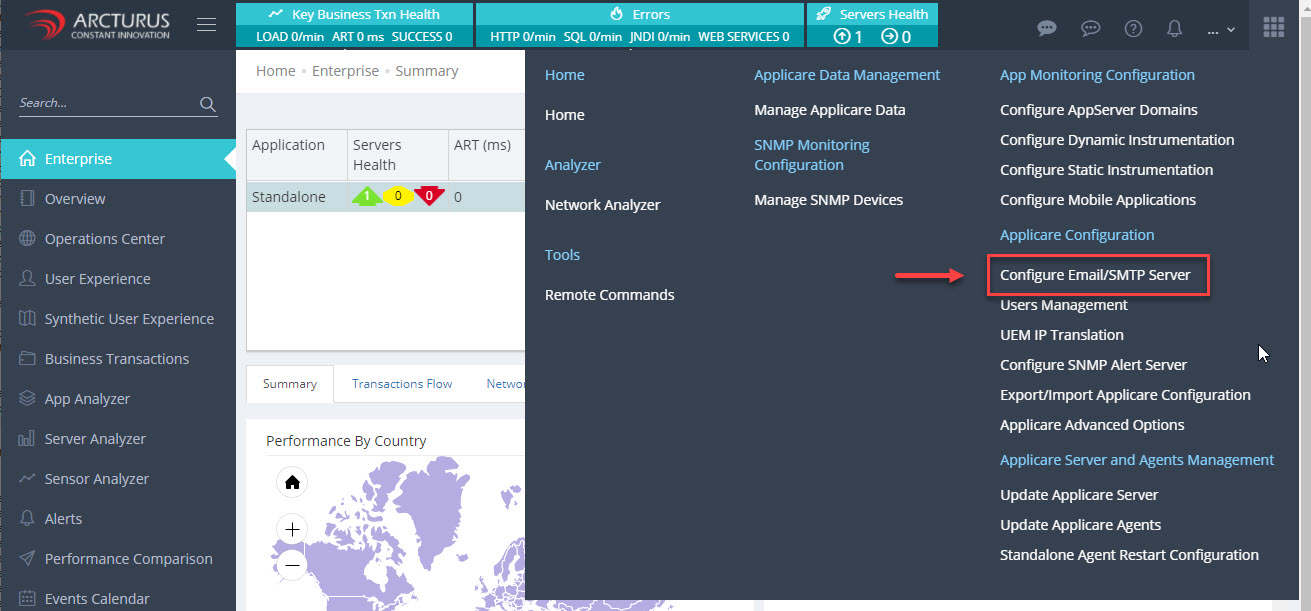
In Applicare dashboard, navigate to the top menu on the right and click on Configure Email/SMTP Server under Applicare Configuration section.
In SMTP & ADMINISTRATOR CONFIGURATION dashboard, enter the SMTP server details.
Here is an example of the SMTP server details for Gmail:
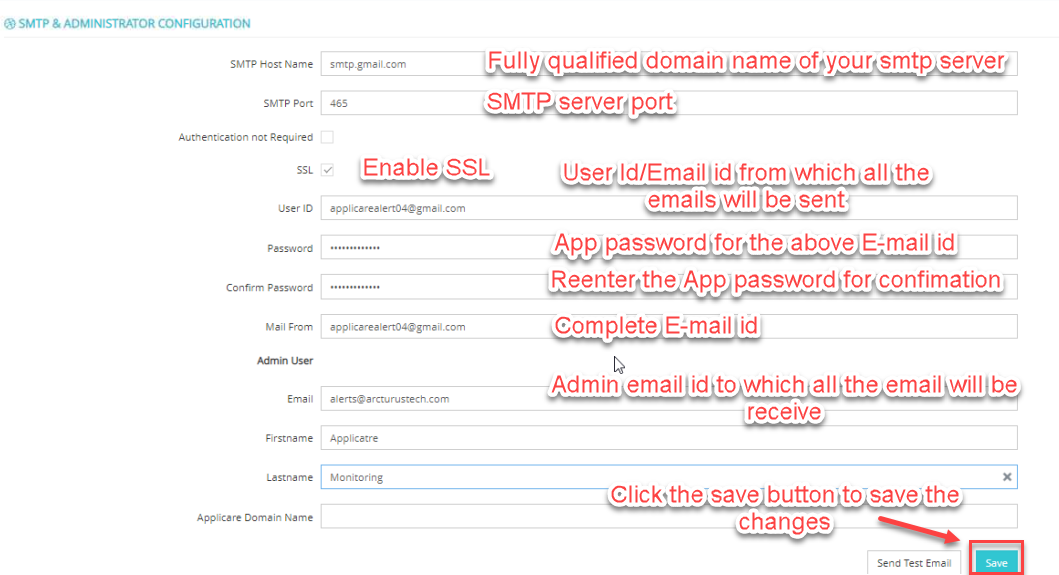
You can add multiple admin email addresses, separated by commas.
After entered the details, click the Send Test Email button to verify the configuration.