
Applicare provides the capability to deploy agents remotely, ensuring a smooth and efficient setup process.
Step 1: Download the machine_details.txt file in the Host machine and add the Machine IPs, Login Usernames and passwords.
- Download the machine_details.txt from here and add the list of target machines with their IP addresses, login usernames and passwords.
Example:
#MachineIP,MachineUserName,Password
192.168.0.0,testuser,testpass
192.168.0.1,testuser,testpass
192.168.2.0,userone,pass2
192.168.2.3,userone,pass2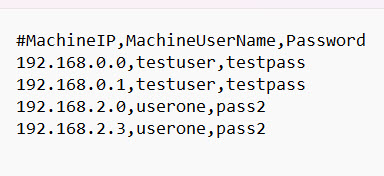
Step 2: Download the windows_agent_instalation_script.ps1 file in the Host machine and add Controller Protocol, IP, and Port.
- Downlaod the windows_agent_instalation_script.ps1 from here and configure the controller protocol, ip and port details in the script using the following variables.
Template:
$env:PROTOCOL = 'Controller-protocol'
$env:IP = 'Controller-ip'
$env:PORT = 'Controller-port'
$ProgressPreference = 'SilentlyContinue'

# Download and execute the script
Invoke-WebRequest -Uri Controller-protocol://Controller-ip:Controller-port/applicare/standalone?filename=windowsagentinstall.ps1 -OutFile $pwd\windowsagentinstall.ps1
.\windowsagentinstall.ps1
Example:
$env:PROTOCOL = 'http'
$env:IP = '192.168.0.154'
$env:PORT = '8880'
$ProgressPreference = 'SilentlyContinue'

# Download and execute the script
Invoke-WebRequest -Uri http://192.168.0.154:8880/applicare/standalone?filename=windowsagentinstall.ps1 -OutFile $pwd\windowsagentinstall.ps1
.\windowsagentinstall.ps1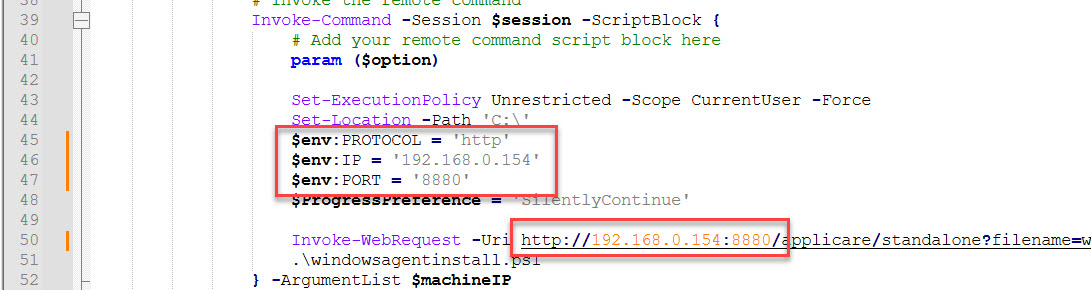
Step 3: Enable the following PowerShell settings on both the host and remote machines to ensure proper communication and functionality
On the Host Machine:
Set Network Profile to Private
Powershell
Get-NetConnectionProfile | Set-NetConnectionProfile -NetworkCategory PrivateExplanation: Setting the network category to private allows trusted communication with other devices on the network and enables protocols like WinRM for remote management.
Enable WinRM
Powershell
winrm quickconfig -ForceExplanation: WinRM (Windows Remote Management) is required for PowerShell remoting. This command ensures WinRM is enabled and ready to communicate with remote machines.
Enable the ExecutionPolicy
Powershell
Set-ExecutionPolicy Unrestricted -Scope CurrentUserExplanation: PowerShell to execute scripts without any restrictions, but only for the current user.
On the Remote Machine:
Set Network Profile to Private
Powershell
Get-NetConnectionProfile | Set-NetConnectionProfile -NetworkCategory PrivateExplanation: A private network category allows trusted communication with other devices in the network and enables protocols like WinRM for remote management.
Enable PowerShell Remoting
Powershell
Enable-PSRemoting -ForceExplanation: This command configures the remote machine to accept PowerShell commands from the host.
Allow Traffic on Port 5985 Ensure the firewall allows traffic on the WinRM default port (5985) TCP.
Explanation: This opens the required port to enable communication via WinRM over HTTP.
Machine IP, Login Username and Password Ensure that the login user has Administrator privileges on the machine.
Explanation: Administrator access is required to enable remote communication protocols, and execute scripts with elevated permissions.
Step 4: Open PowerShell in Administrator mode in the Host machine and navigate to the directory where the script is located and execute the following command
.\windows_agent_instalation_script.ps1Note: Ensure that both the machine_details.txt and windows_agent_instalation_script.ps1 are located in the same directory before running the script.