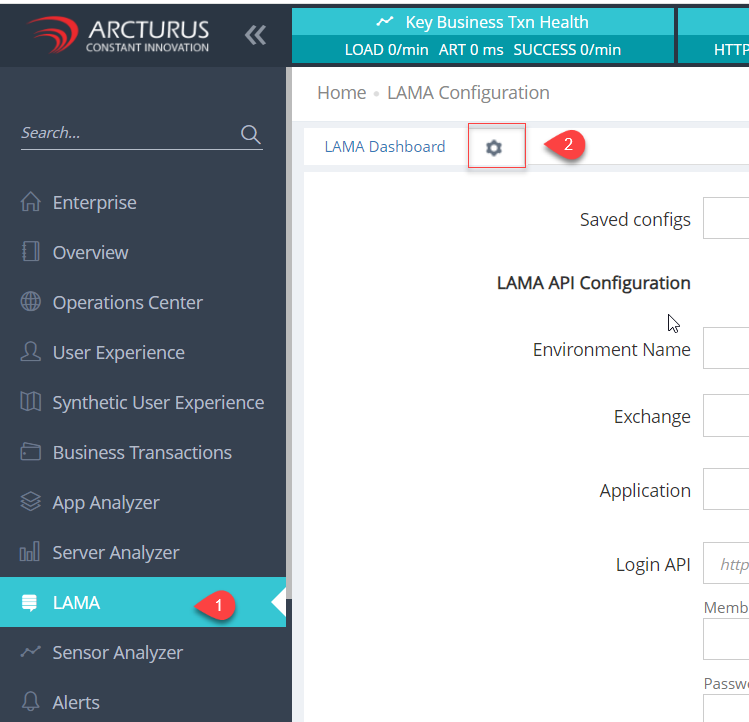
1. Log in to Applicare console. Go to LAMA menu and click the settings icon.
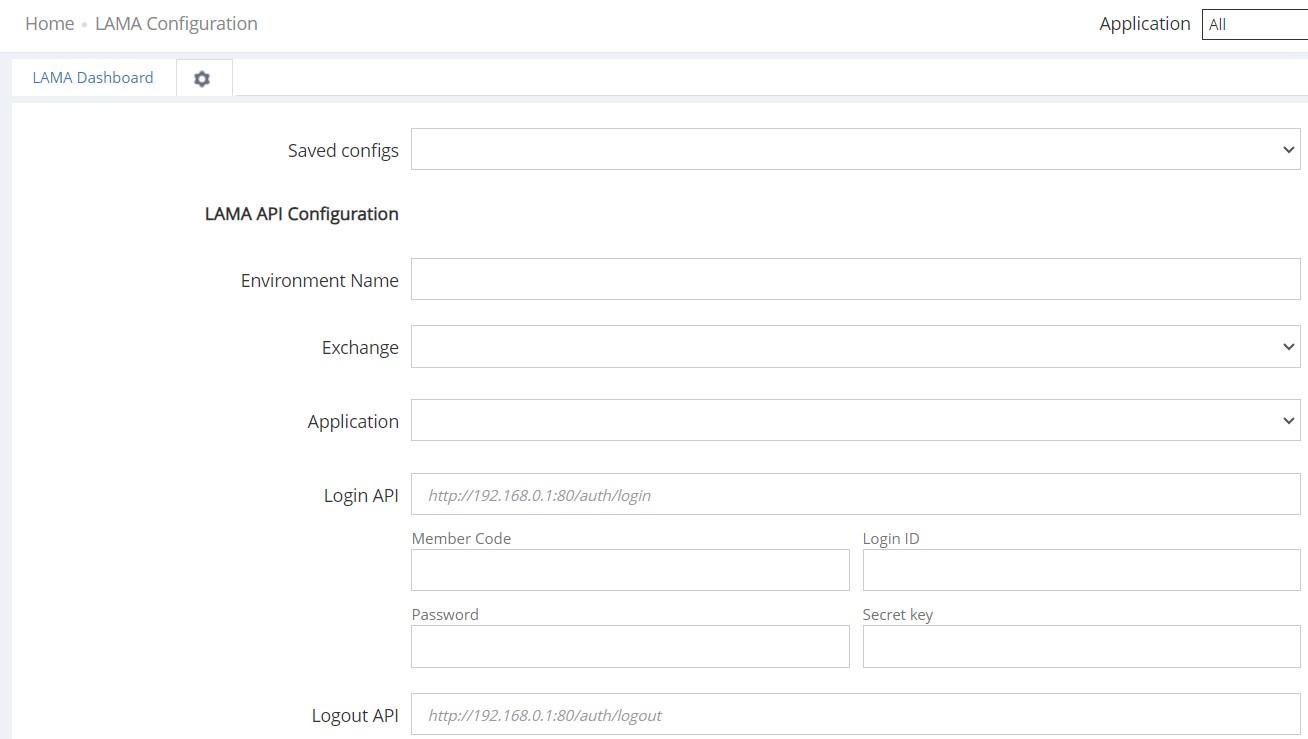
2. Follow the below steps to configure LAMA API.
a. Enter the required name in the Environment Name text box.

b. Click on Exchange dropdown and choose the desired stock exchange.
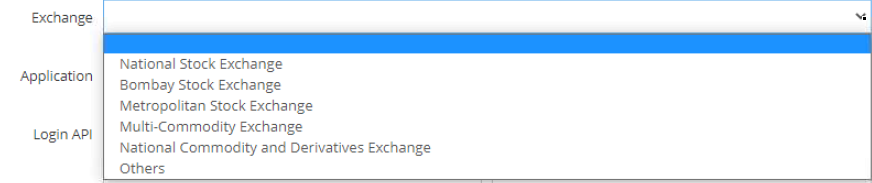
c. Click on Application dropdown and select any required application.

d. Enter the API login URL and your login credential.

e. Enter the API logout URL

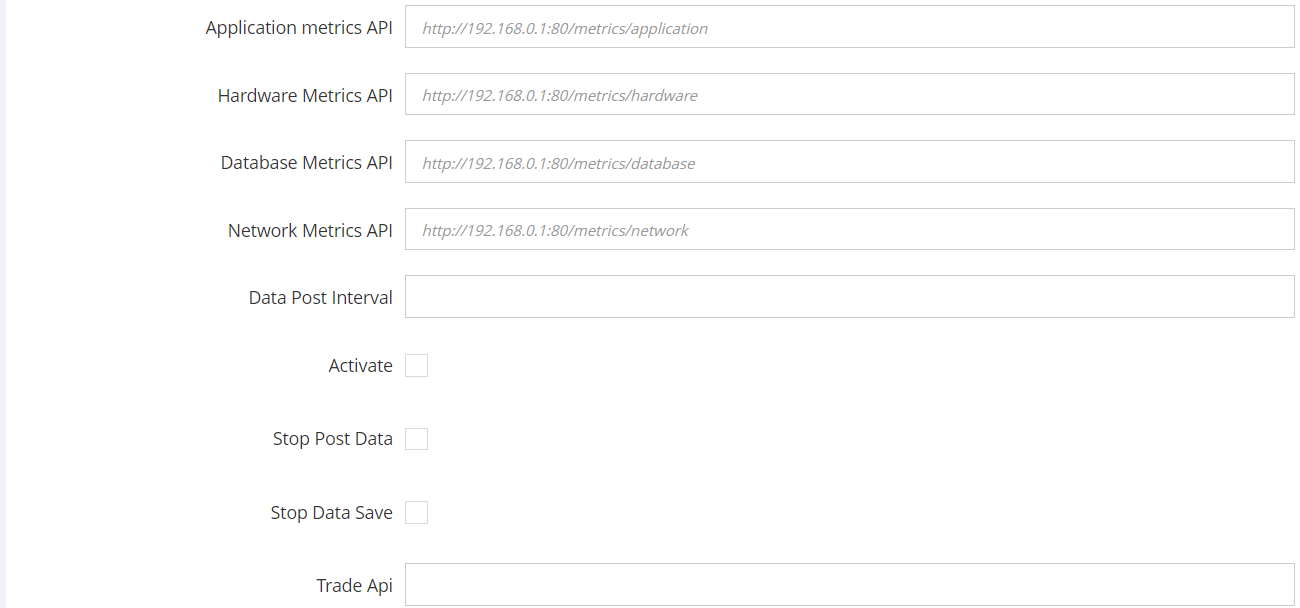
f. Enter the Application metrics API URL.

g. Enter the Hardware Metrics API URL.

h. Enter the Database Metrics API URL.

i. Enter the Network Metrics API URL.

j. In the Data Post Interval textbox, Enter the time interval for posting the data.

k. To post data, You need to check the "Activate" checkbox.
To avoid posting data, Uncheck the checkbox.
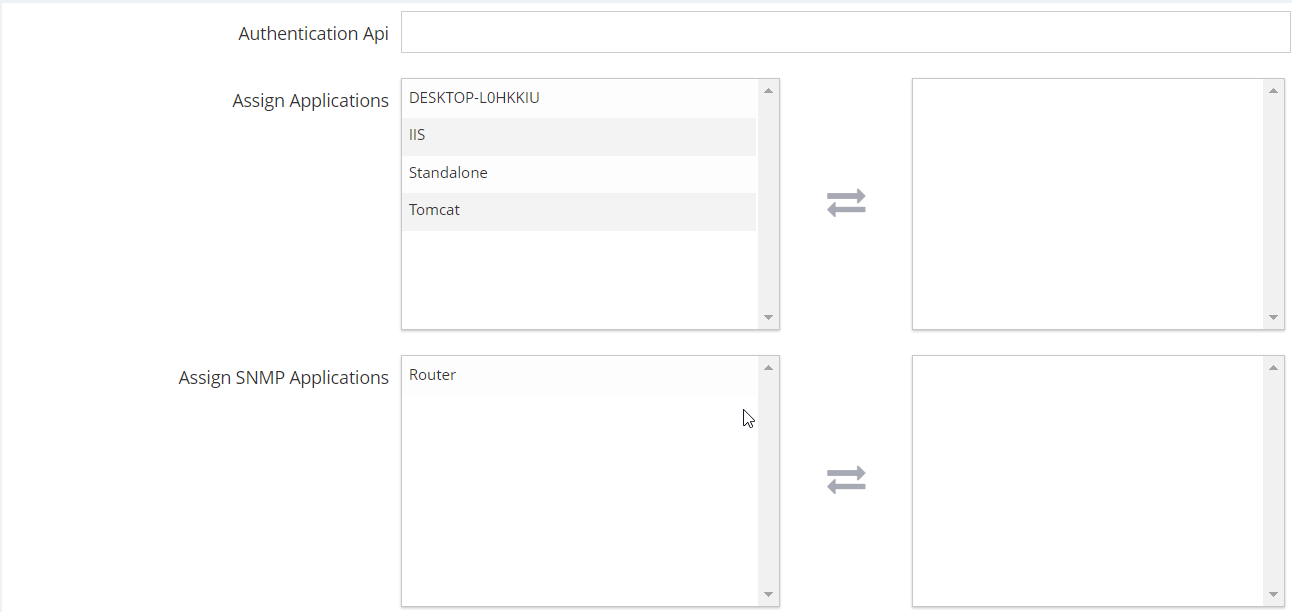
l. Choose the application to which you want to post data from the Assign Application box.
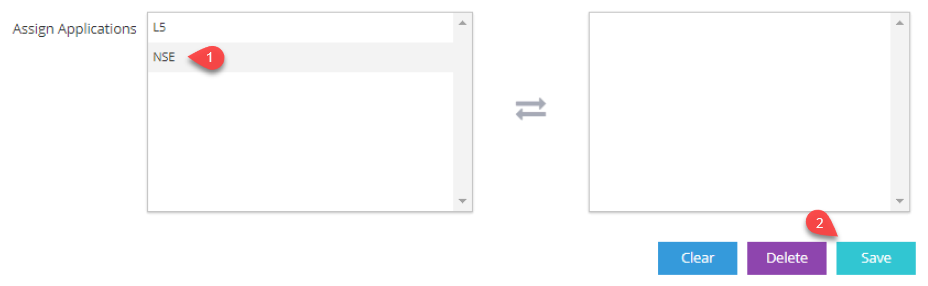
m. Select the application for posting network data from the Assign SNMP Application box.
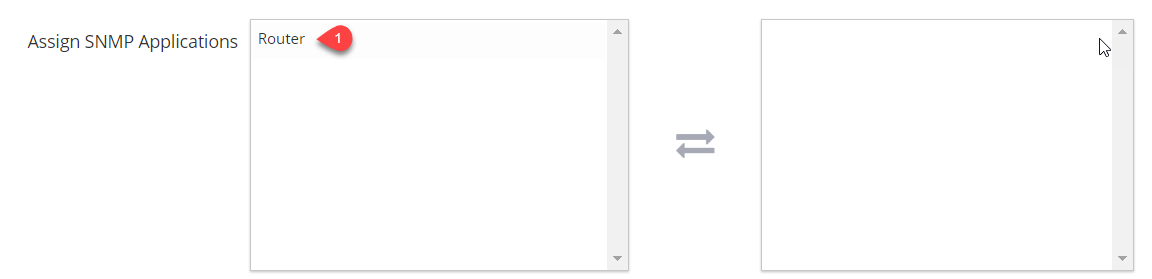
n. Enter the index details for APPs in the "SNMP Index Details" section and click the "Save" button..
INERR - IfInErr Index
OUTERR - IfOutErr Index
IN - IfInOctets Index
OUT - IfOutOctets Index
SP - IfSpeed Index

e.g.
1. For Single App entry : {"Router":"INERR_16OUTERR_16IN_16OUT_16SP_16"}
2. For Multiple App entry
{"Router":"INERR_16OUTERR_16IN_16OUT_16SP_16", "Router2":"INERR_29OUTERR_29IN_29OUT_29SP_29"}
To find the index, follow these steps:
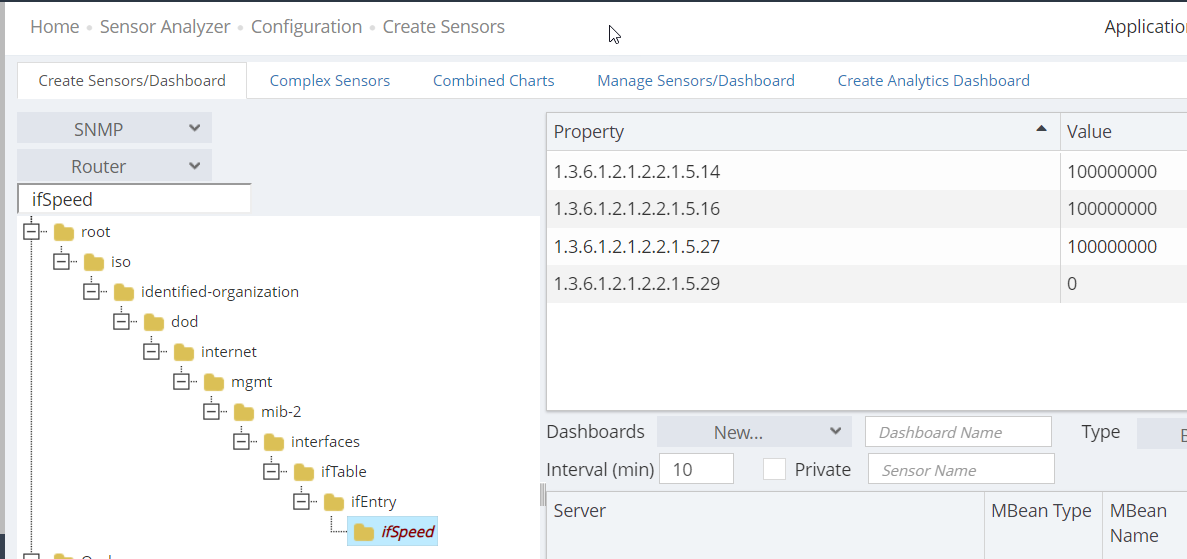
- The index refers to the interface. To locate the index for a specific interface, go to the Sensor Analyzer screen.
- Set the type to SNMP and select the server.
- In the search box, type 'ifDescr' and select that field from the left-hand side.
- On the right-hand side, you will see a list of interfaces and their OIDs. The last value in the OID is the index for that interface. Typically, this index will be the same for the IN, OUT, and SP values.
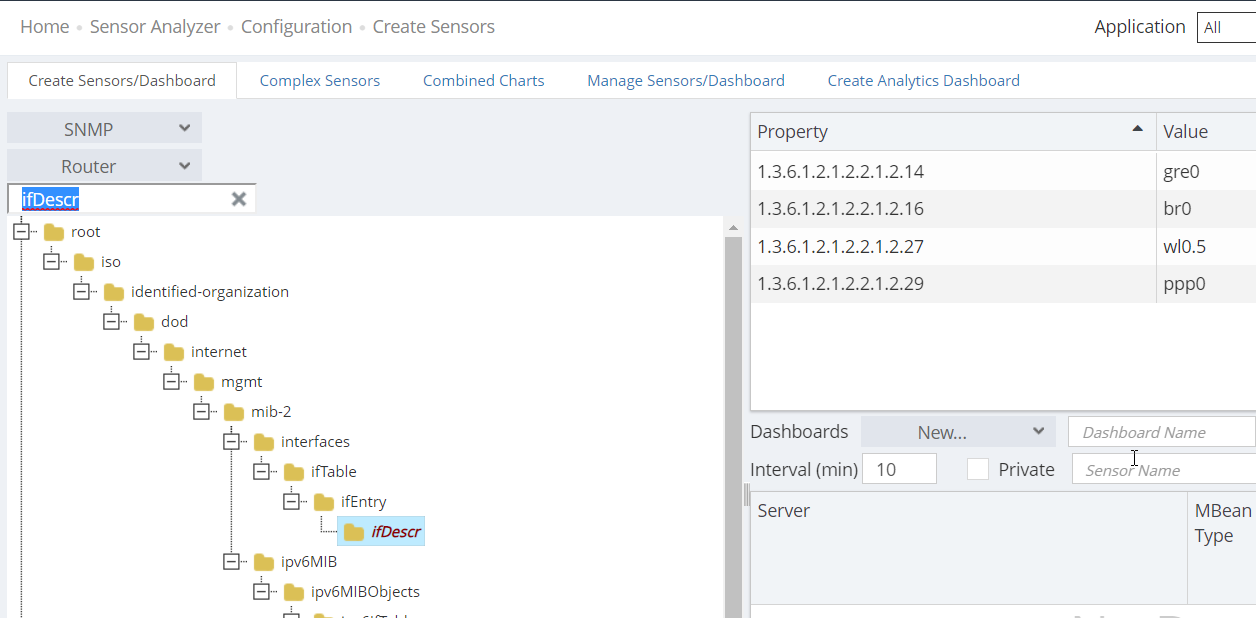
The index for gre0 interface is 14
The index for br0 interface is 16
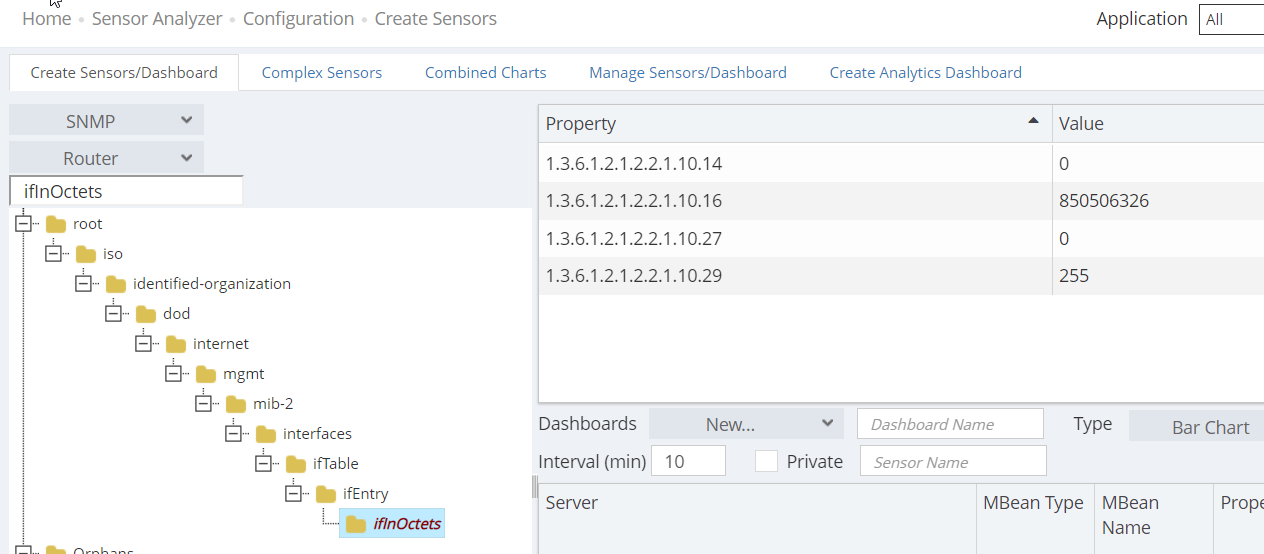
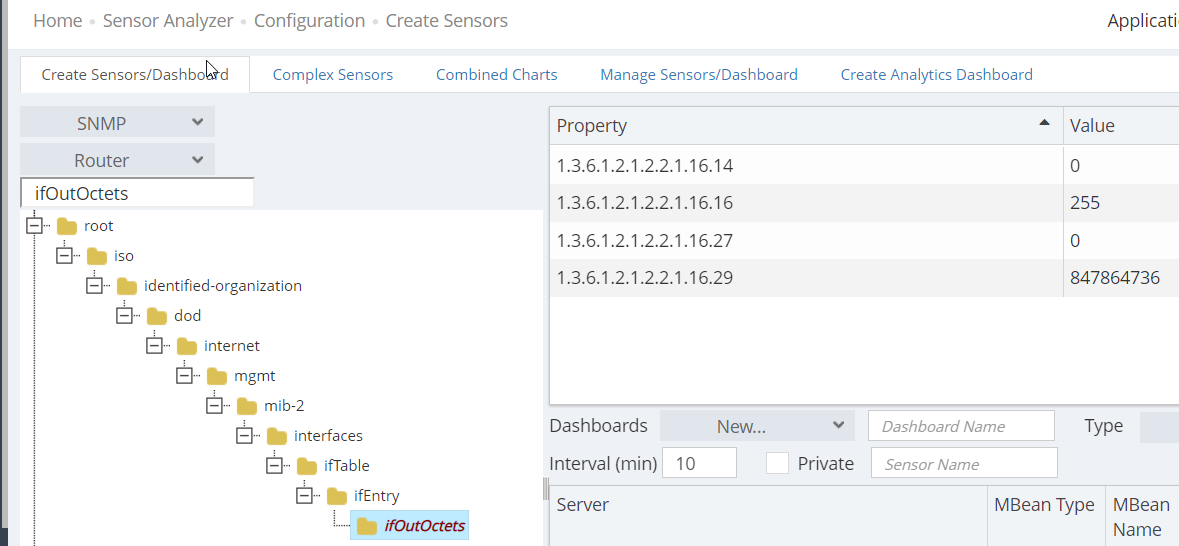
Likewise we can find the index for IN, OUT and SP values.
For Database Metrics
1. For oracle we need to add few custom values in the LAMA Settings in the overview screen.
PNAME_<VALUE>,TMBPS_<VALUE>
e.g.
PNAME - Process Name indicating Replication Availability
TMBPS - Total Megabits per second of internet speed
PNAME_MRP0,TMBPS_1000
MRP0 - It is the process name. If this process is not available then the replication is not active.
1000 - 1000 Megabits per second.
LAMA Configuration