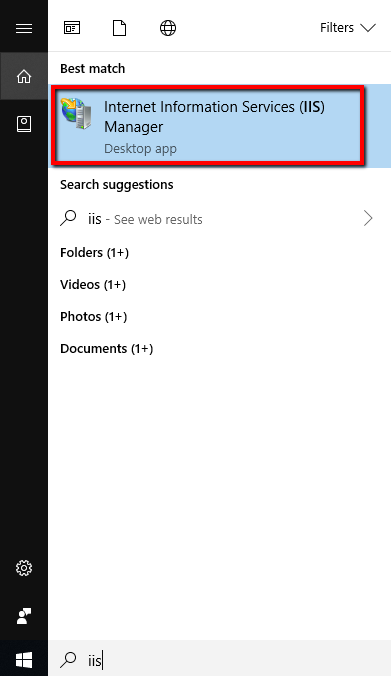
Step 1: On the Agent machine (i.e IIS machine), type “IIS” in the start menu search and select “Internet Information Services (IIS) Manager”.
Step 2: Ensure you have access to all the IIS Log folders and log files for all the sites.
To view the IIS log folder and files select the site and double-click the Logging option, copy the path in the Directory field.
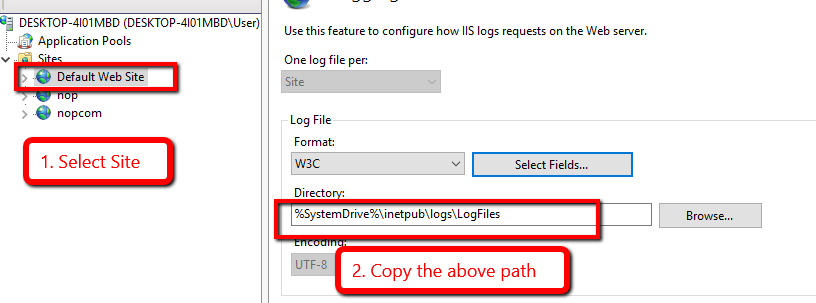
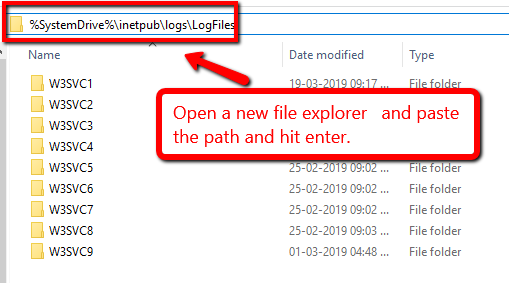
Ensure that the Applicare Agent has access to all the folders and files in the specified path.
e.g.
Let's check the "Default Web Site".
Follow the steps below and verify if you can view the log folder and log files of the "Default Web Site".
1. Open IIS, expand Sites, and make a note of the ID for the site you are checking.
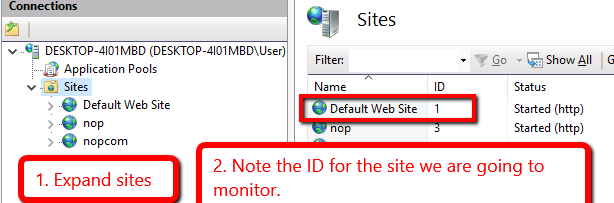
2. Navigate to the IIS Log folder path and open the "W3SVC1" folder (i.e"W3SVC" + "ID of the site". Here the Default Web Site, ID is "1". So you should check the "W3SVC1" folder). Ensure you have access to all the files within this folder.
First, attempt to open the folder and files manually. If prompted for permission while accessing them, grant the necessary permission.