
Step 1: Follow the steps for Installing Applicare SingleAgent
Nginx Configuration
Step 2: Stop the Nginx server.
Step 3: Navigate to the directory <Nginx_Installed_Directory>/conf and open the nginx.conf file for editing. On Linux, the default path is (/etc/nginx).
Step 4: Comment out the current format and insert the following log_format.
log_format main '$remote_addr - $remote_user $time_iso8601 [$request_time] "$request" ' '$status $body_bytes_sent || "$request_body" || "$http_referer" ' '"$http_user_agent" "$http_x_forwarded_for" ' '"$scheme://$host:$server_port"';

Step 5: If the access_log line is commented out, Please uncomment it.

Step 7: Insert the following lines within the server module
location /nginx-status { stub_status on; allow 127.0.0.1; deny all; }
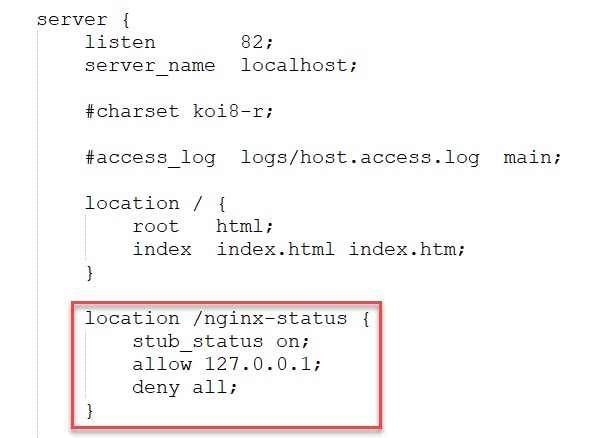
Step 8: Start the Nginx server.
Integrating Nginx to Applicare
Step 9: Once the agent is started, It will be automatically registered with the Applicare controller. Log in to the Applicare console and go to the Overview menu.
Step 10: Select the newly added agent and click the Edit button.
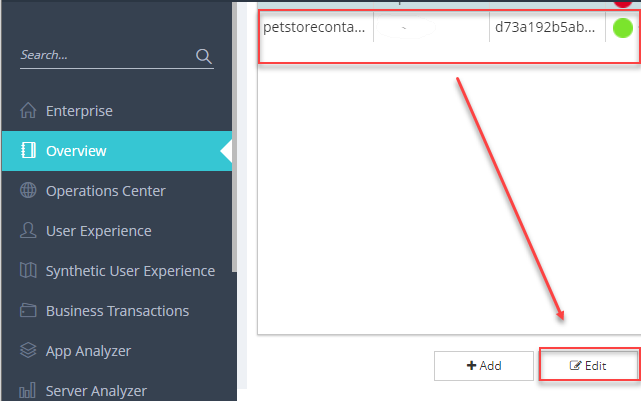
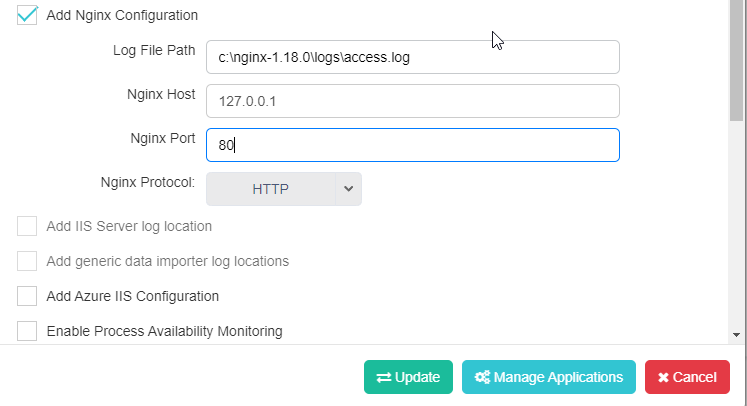
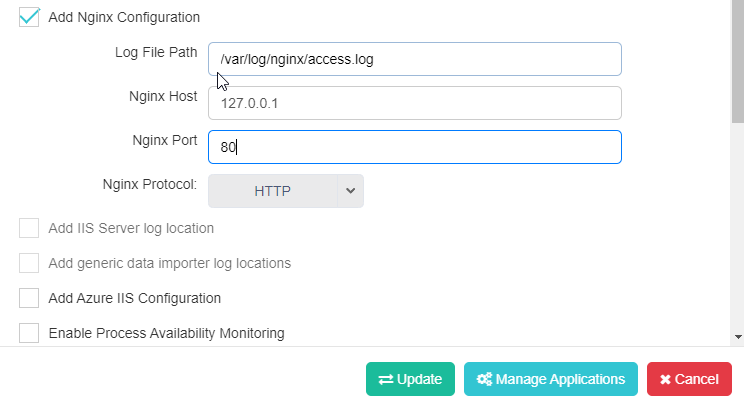
Step 11: Enable the "Add Nginx Configuration" checkbox and add the below value.
1. Log file path
2. Nginx Host
3. Nginx Port
4. Nginx Protocol
Click the update button to save.
Windows
Linux
Note:
1. Configuration to capture the base url and save and restart the NGINX.
Remove the semicolon after the "$http_x_forwarded_for"' keyword and add the '"$scheme://$host:$server_port"'; in the new line.
log_format main '$remote_addr - $remote_user $time_iso8601 [$request_time] "$request" ' '$status $body_bytes_sent || "$request_body" || "$http_referer" ' '"$http_user_agent" "$http_x_forwarded_for"'
'"$scheme://$host:$server\_port"';