
Step 1: Open a command prompt with administrator privileges.
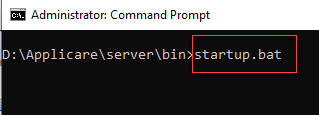
Step 2: Navigate to the directory where the Applicare controller is installed, then go to the /server/bin path and run startup.bat to start the Applicare controller.
Step 3: After the controller is started, you can access the Applicare console in any web browser using the IP address and port specified during installation.
Applicare console URL : http://<IP>:<PORT>/applicare
For the above case Applicare console URL would be: http://192.168.0.106:8880/applicare
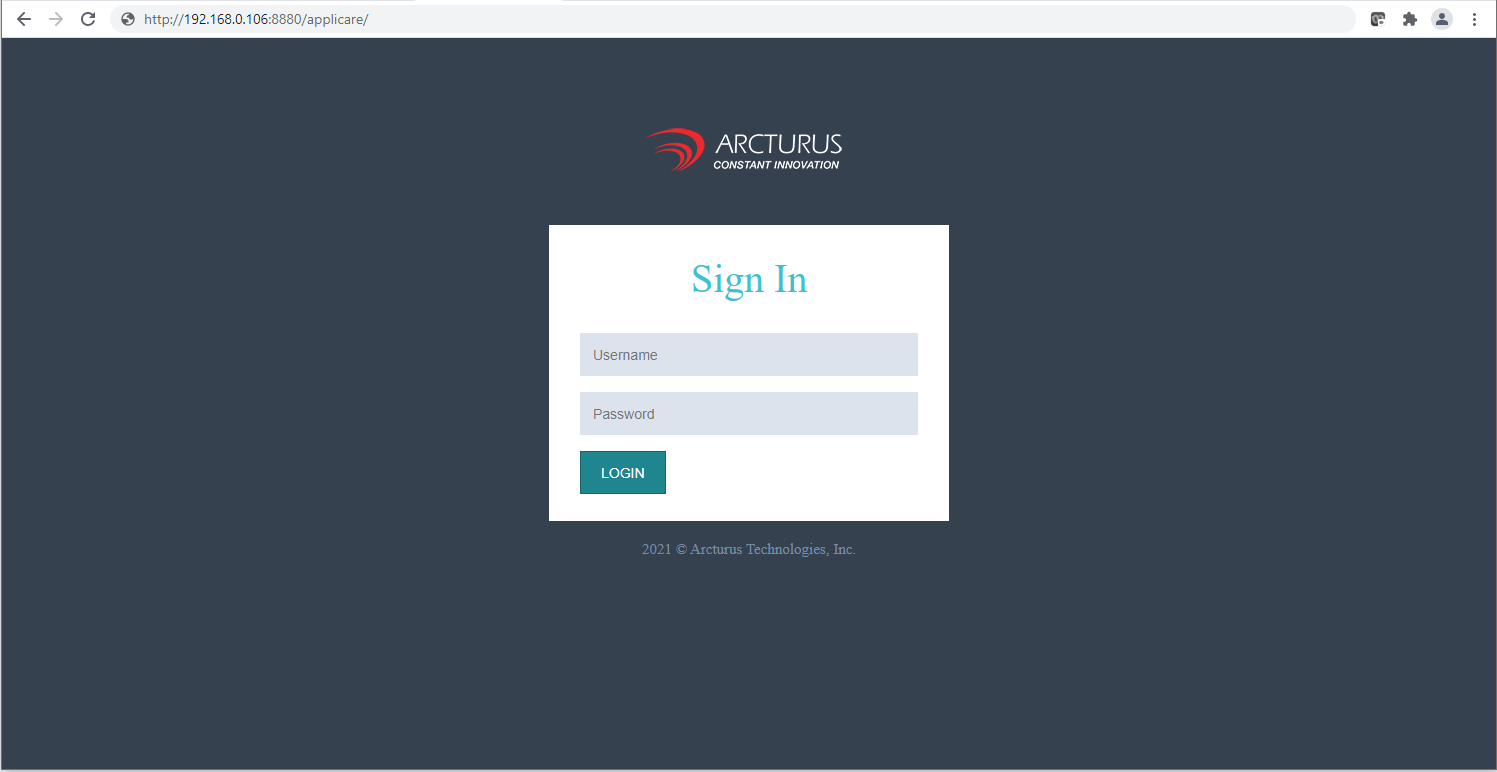
The default username and password for logging into the Applicare dashboard are both "admin".
Next Steps - Installing SingleAgent