
Note: We can easily download our agent directly into the container, but some containers don't have commands like curl or wget and unzip, so we have to download our agent manually and mount the volume to the container.
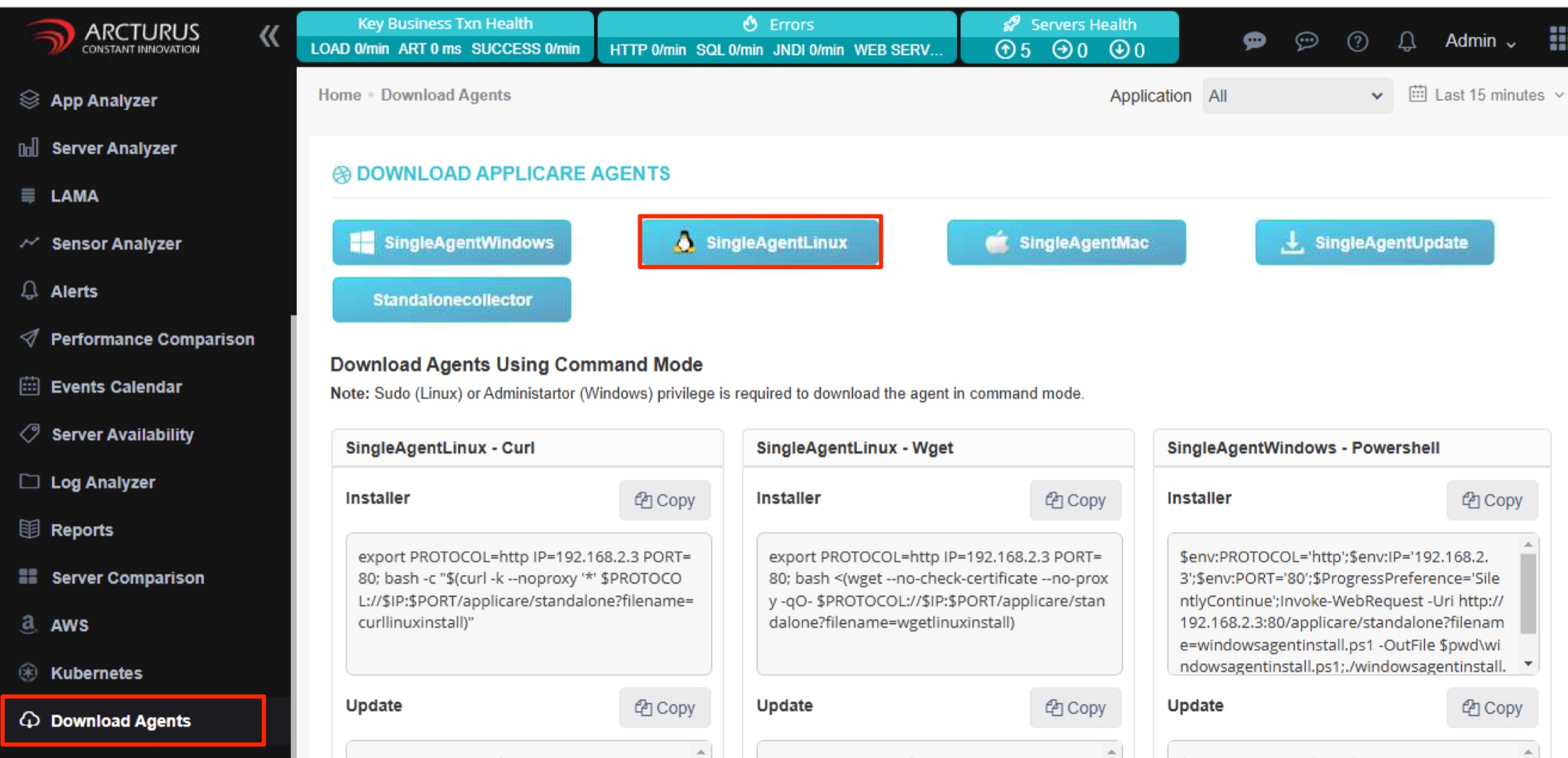
Step 1: Login to Applicare console. Go to the Download Agent screen in the left-side menu, Download the SingleAgentLinux agent and extract it into the designated directory ApplicareSingleAgentLinux in local machine.
Step 2: We need to delete the container in which you want to deploy the agent and then run the following command when you recreate the container.
-v ApplicareSingleAgentLinuxDirectory:/usr/local/ApplicareSingleAgentLinux
--hostname The name which we need to add the agent in Applicare
Example:
docker run -dit -p 8080 --name tomcat-petstore -v /root/ApplicareSingleAgentLinux:/usr/local/ApplicareSingleAgentLinux --hostname petstore tomcatStep 3: Once the container starts, execute the following command to start the agent.
docker exec -d <container_name> nohup /usr/local/ApplicareSingleAgentLinux/agentscripts/startAgent.sh>/dev/null 2>&1 &Step 4: After a while, confirm that the new agent has been added to the Overview screen in the Applicare console.