
We can start the SingleAgent in two ways
Background mode
- To enable background mode, Navigate to the directory where ApplicareSingleAgent/agentscripts and run following command.
nohup ./startAgent.sh &
Service Mode
- Administrative permission required to install or uninstall singleagent.service
- Navigate to the directory where ApplicareSingleAgent/agentscripts.
- Execute ./installAgentService.sh to install singleagent.service. and start singleagent.service.

- To check the status of service, use the command systemctl status singleagent:
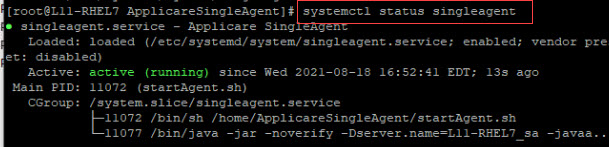
- To stop the service, run the command systemctl stop singleagent:

- To Start the service, execute the command systemctl start singleagent:

- To Uninstall the service, execute ./uninstallAgentService.sh:
