When End User Experience Profiling is enabled, Applicare captures the URLs the users are accessing on the server.
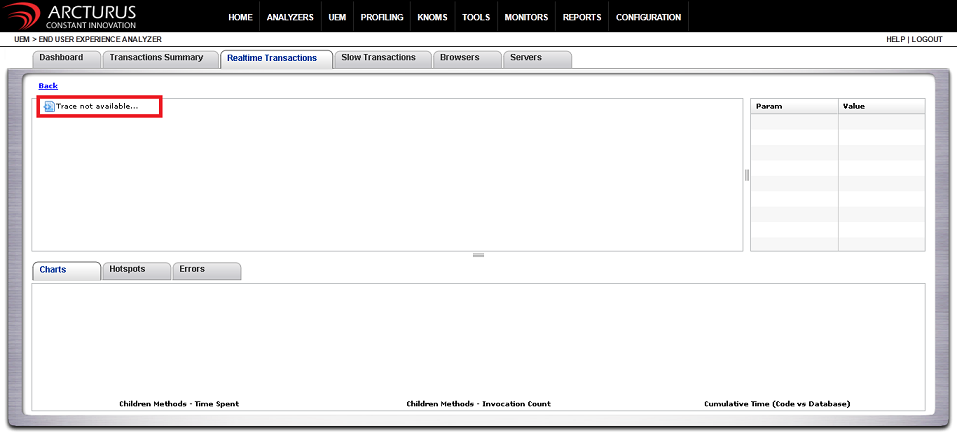
If you access the Realtime Transaction section of the End User Experience Analyzer and double click on any URL you may encounter the message "Trace not available...".
In order to enable tracing on End User Experience, take the following steps:
- Go to Profiling > IntelliTrace Analyzer > HTTP.
- Right click on the URL on which you want to enable detailed tracing and select Add as a Business Transaction.
- Add the URL to Business Transactions. You can directly visit Profiling > Configure Business Transactions and add the URL to Business Transaction Monitoring.
- Go to Profiling > Configure Business Transactions > Transaction Monitoring.
- Enable Per-Transaction Monitoring.
- Enable Transaction Tracing.
Once you have followed the above steps please restart the agent server.
Now you can visit UEM > End User Experience Analyzer > Realtime Transactions and double click on the URL.
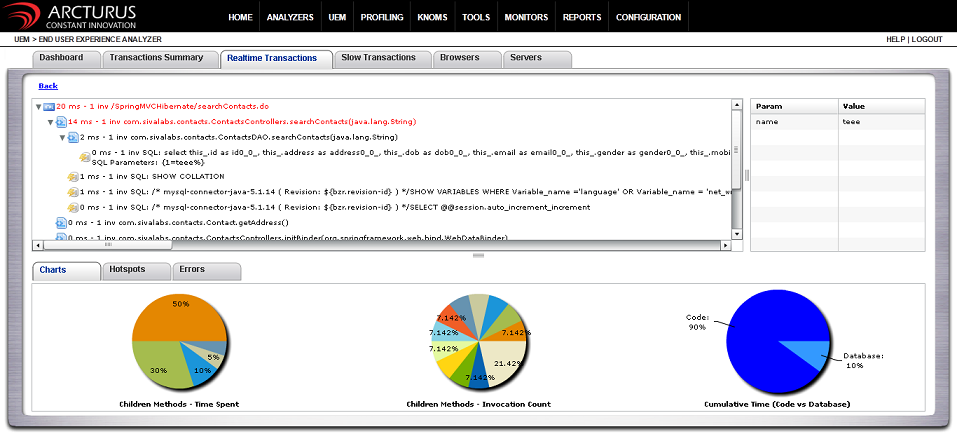
If you have added the URL to Configure Business Transactions, a detailed trace will be displayed as shown in the following image.