Please follow the below instructions to resolve the problem.
Stop Applicare and the WebLogic server.
Create WebLogic full client jar using the following steps:
To create a wlfullclient.jar file when using JDK 1.6:
i. On the WebLogic server change directories to the server/lib directory:
cd WL_HOME/server/lib ii. Use the following command to create **wlfullclient.jar** in this directory:java -jar wljarbuilder.jarUse the following steps to create a wlfullclient.jar file when using JDK 1.5:
i. On the WebLogic server change directories to the **server/lib** directory:cd WL_HOME/server/lib ii. Use the following command to create **wlfullclient.jar** in this directory:java -jar wljarbuilder.jar -profile wlfullclient5Please refer the following link if you need any clarification.
http://docs.oracle.com/cd/E12840_01/wls/docs103/client/jarbuilder.html
- Start the WebLogic server.
- Make sure that the SSL listening port is enabled for the server.
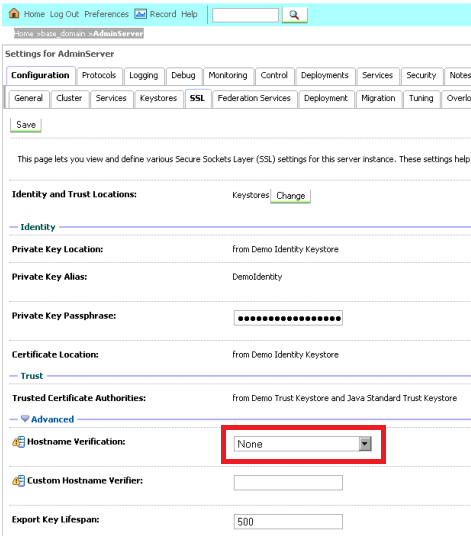
- Disable Host Name Verification from the Admin Console.
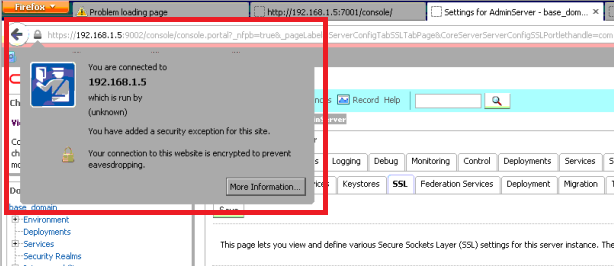
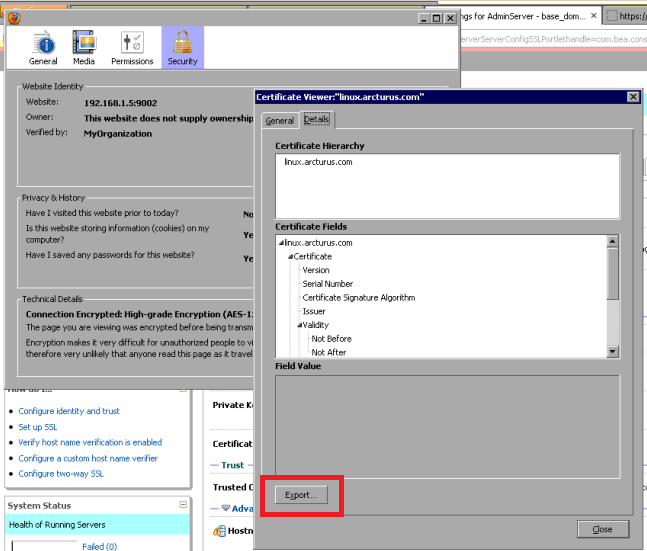
- Obtain a WebLogic SSL certificate by accessing the Admin console using Mozilla Firefox. Please refer the following screenshot.
Step 1: Access the Admin console URL from Mozilla Firefox. Click on the lock symbol then click on More Information.
Step 2: Click on View Certificate.
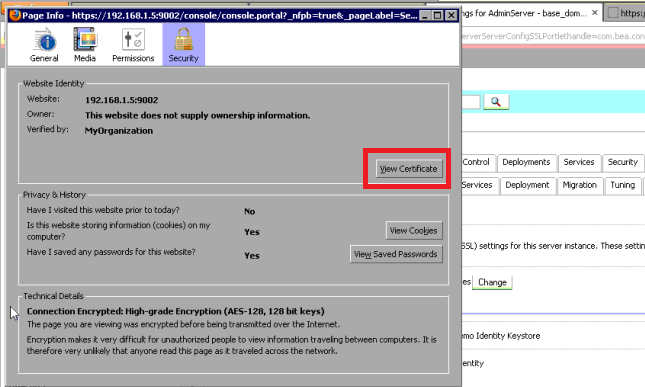
Step 3: From the details tab click on Export.
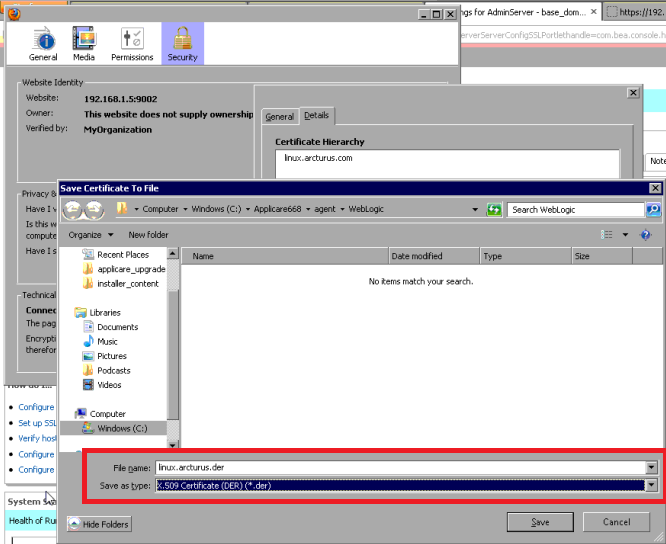
Step 4: Save the certificate as servercert.der.
Step 5: Stop the Weblogic server.
You have now obtained the server certificate which needs to be added to the Java trust store.
- Identify the location of the JDK used by running Applicare. Please refer to the following screenshot.

- Stop Applicare.
- From the command prompt change the directory to the JDK\bin directory identified in the above step.
- Execute the following command to add the server certificate to the Java truststore. Please note that servercert.der is the certificate file obtained from the Mozilla Firefox browser.
keytool -importcert -keystore "<Path to JDK used by Applicare>\jre\lib\security\cacerts"
-storepass changeit -file "C:\servercert.der"
You will be asked to trust the certificate when you execute the above command, enter yes.
Please refer the following screenshot for help.
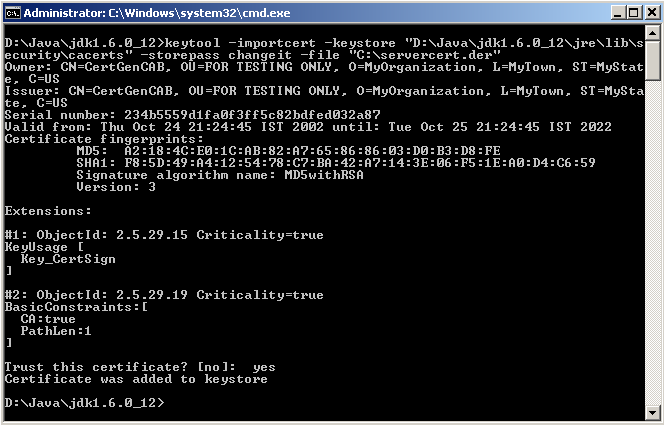
You have now added the obtained certificate to the JDK's trust store.
- Open <Applicare Dir>/server/bin/catalina.bat/sh.
- Find the following line in the file:
set JAVA_OPTS=%JAVA_OPTS% -Xmx500m -Dserver.name=ApplicareAdmin -Dapplicare.admin=trueAppend following two parameters to the line:
-Dweblogic.security.SSL.ignoreHostnameVerification=true -Dweblogic.security.SSL.enforceConstraints=offSave the catalina.bat/sh file.
Now you need to modify the WebLogic startup script.
a. If you are using startup scripts to start Weblogic server, you need to edit the startWebLogic.cmd/sh script from your domain's bin directory. Add the following lines right after the @REM START WEBLOGIC or # START WEBLOGIC line and replace <APPLICARE DIR PATH> with actual values as per your environment:
ARCTURUS_HOME=<APPLICARE DIR PATH>
export ARCTURUS_HOME

CLASSPATH=$ARCTURUS_HOME/applicare-aspects.jar:$CLASSPATH:
export CLASSPATH

JAVA_OPTIONS="$JAVA_OPTIONS
-javaagent:$ARCTURUS_HOME/applicare-aspects.jar=verbosity=0,logfile=false,norestart-intellitrace=false
-Darcturus_home=$ARCTURUS_HOME "
export JAVA_OPTIONS
b. If you are using Node manager to start the server, add the following arguments to the server start configuration and replace the values in bold with actual values as per your environment:
i. On Windows Systems
Class Path:
<Applicare Dir>\applicare-aspects.jar;<WL Dir>\server\lib\weblogic_sp.jar;
<WL Dir>\server\lib\weblogic.jar
Arguments:
-javaagent:<Applicare Dir>\applicare-aspects.jar=verbosity=0,logfile=false
-Darcturus_home=<Applicare Dir> -Djava.library.path=<Applicare Dir>\bin;<WL DIR>\server\native\win\32
ii. On Unix Systems
Class Path:
<Applicare Dir>/applicare-aspects.jar:<WL Dir>/server/lib/weblogic_sp.jar:
<WL Dir>/server/lib/weblogic.jar
Arguments:
-javaagent:<Applicare Dir>/applicare-aspects.jar=verbosity=0,logfile=false
-Darcturus_home=<Applicare Dir>- Add the wlfullclient.jar file to the CLASSPATH.
- Start Applicare.
- Start the Weblogic server.
- Deploy applicare_agent.jar from <Applicare Dir>/agent/WebLogic.
- Add the Weblogic domain to Applicare.
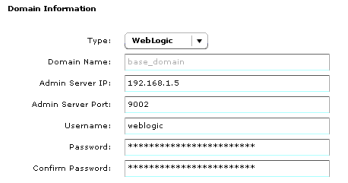
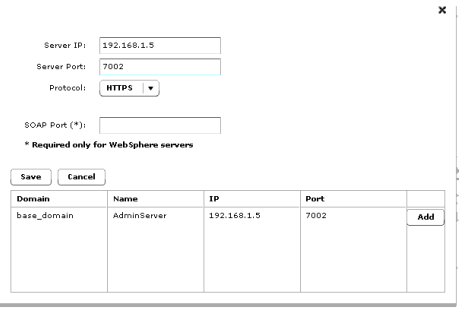
- Provide the IP and port the Weblogic server is listening to, select the appropriate protocol (HTTP/HTTPS) and click save. If the server appears in the auto detected server list, you can click the Add button next to the server instead of entering the details manually.