
User Experience: An Overview
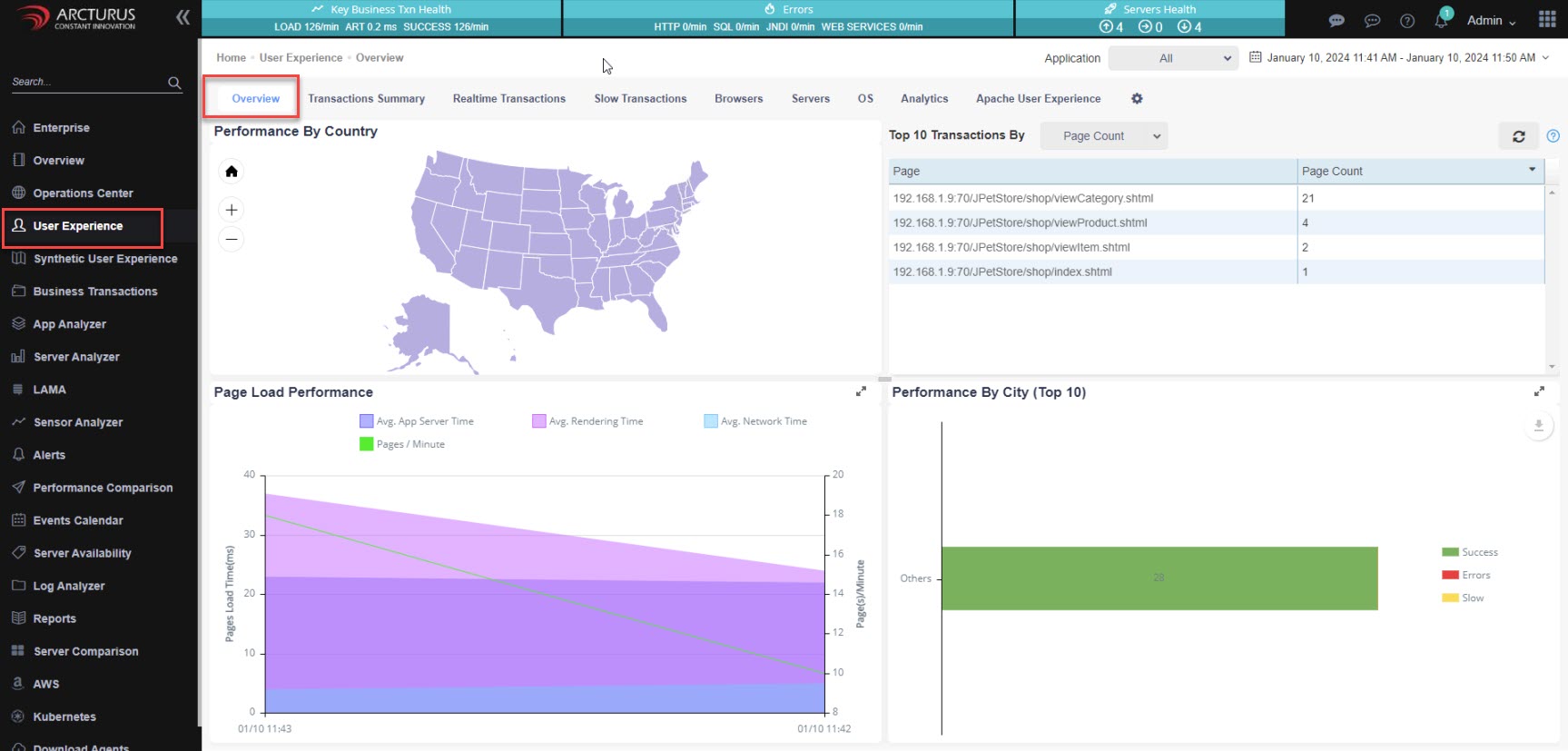
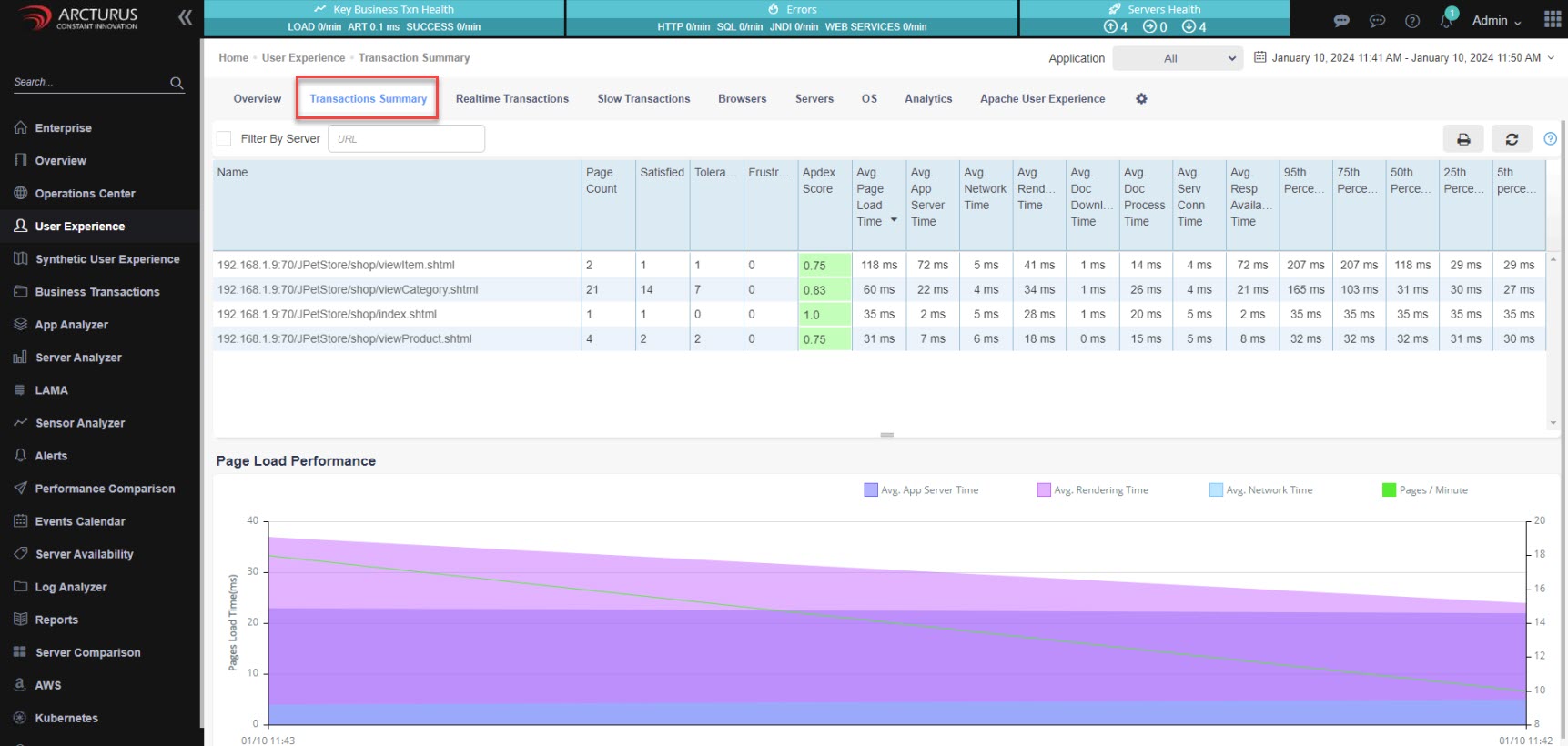
User Experience: Transaction Overview
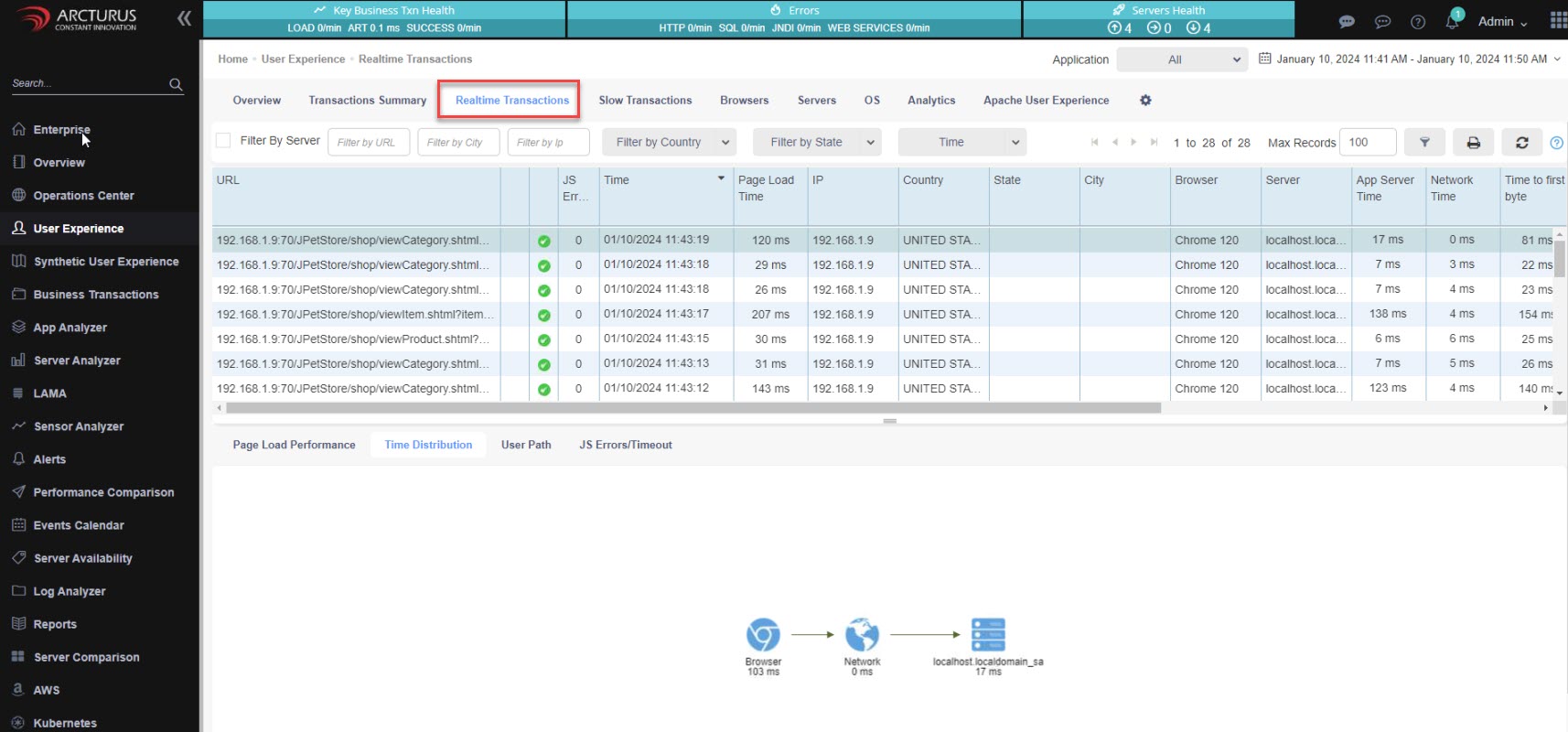
User Experience: Real-Time Transactions
Steps to configure the Applicare reverse proxy server
Step 1: Download the Applicare Reverse Proxy Server from this link download here.
Step 2: Navigate to the path <applicare_reverseProxy>/conf and modify the reverseproxy.conf file.
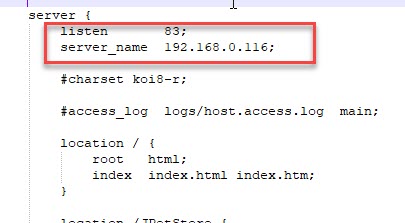
Step 3: Change the listen port and server_name value inside the server { block.
listen -> Applicare reverse proxy server PORT
server_name -> Applicare reverse proxy server IP
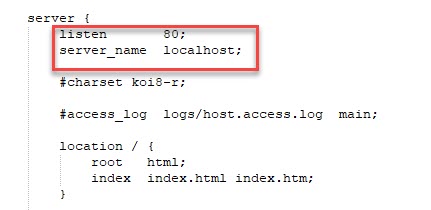
e.g.
Step 4: Add the upstream configuration before the server { block
Syntax:
upstream UPSTREAM_REDIRECTOR_NAME {
    ip_hash;
    server REDIRECTOR_APPLICATION_IP:REDIRECTOR_APPLICATION_PORT;
}
Example:
upstream petstoreredirect {
    ip_hash;
    server 192.168.0.165:8881;
}
Step 5: Add the new location block after the location / { block
Syntax:
location /REDIRECTOR_APPLICATION_BASE_URL {
    proxy_pass REDIRECTOR_APPLICATION_PROTCOL://UPSTREAM_REDIRECTOR_NAME;
    proxy_set_header X-Forwarded-For $proxy_add_x_forwarded_for;
    sub_filter '</body>' '</body>new_string';
    sub_filter_once off;
}
Step 6: Replace the REDIRECTOR_APPLICATION_BASE_URL with the application base url.
REDIRECTOR_APPLICATION_BASE_URL -> JPetStore
location /JPetStore {Step 7: Replace the REDIRECTOR_APPLICATION_PROTCOL and UPSTREAM_REDIRECTOR_NAME.
REDIRECTOR_APPLICATION_PROTCOL -> http
UPSTREAM_REDIRECTOR_NAME -> petstoreredirect
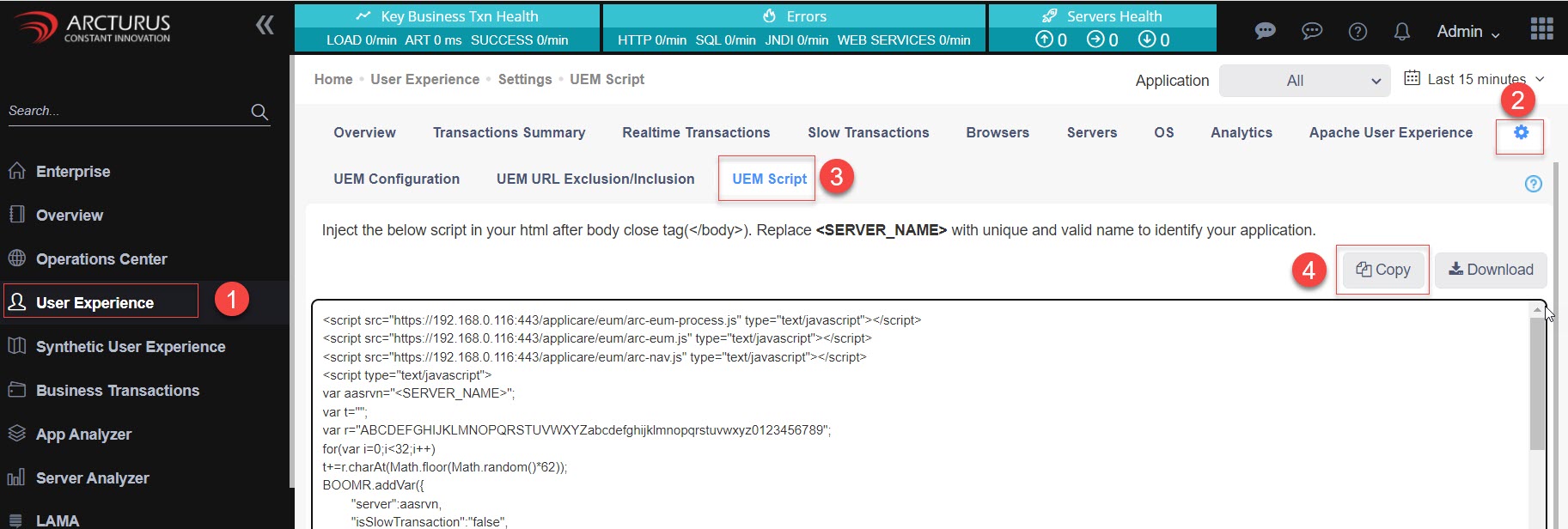
proxy_pass http://petstoreredirect;Step 8: Login to Applicare console and go to User Experience -> Settings -> UEM Script screen and copy the script and replace it in the place of new_string keyword in the sub_filter in the Nginx sever conf file.
The conf file will appear as shown below.
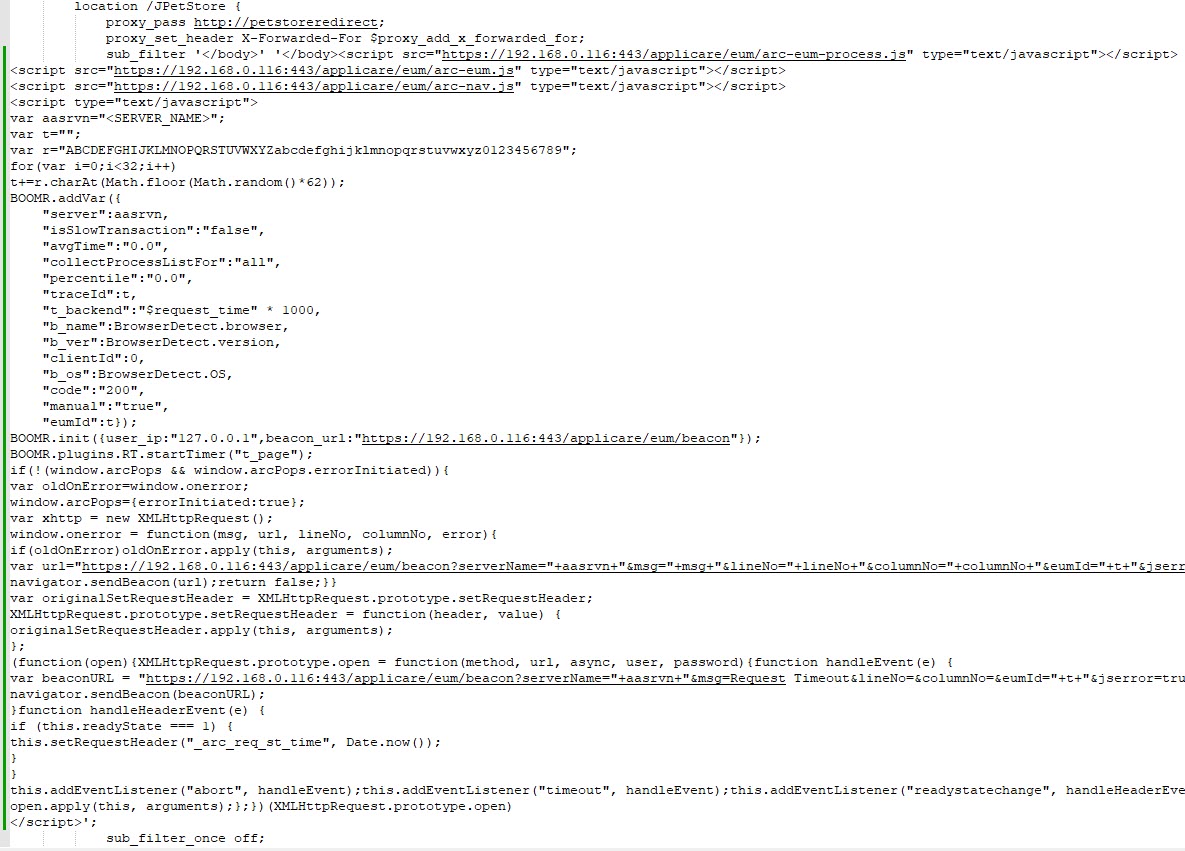
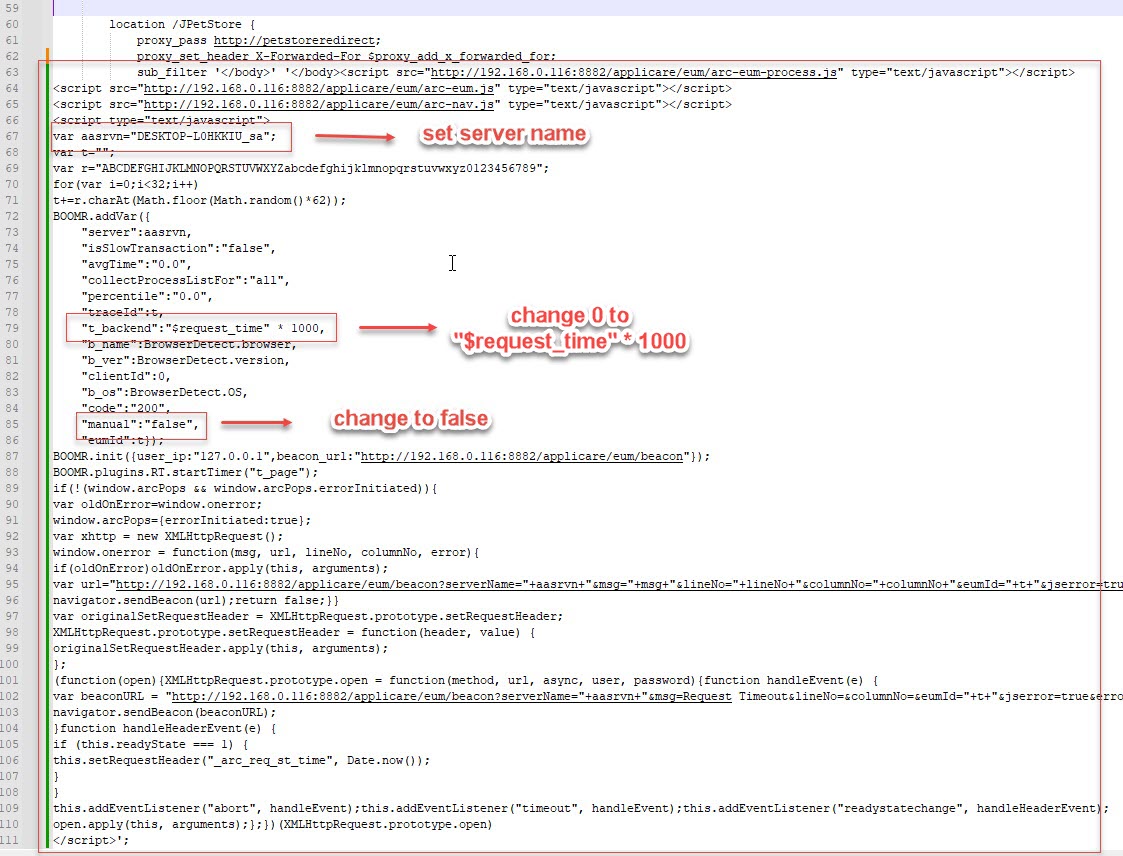
Step 9: Substitute the following values.
a. Replace <SERVER_NAME> with a unique identifier for your application.
b. Set the value from "true" to "false".
c. In the "t_backend" section, update the value from "0" to "$request_time" * 1000
Step 10: Navigate to the <applicare_reverseProxy> home directory and run the following command to start.
startreverseproxy.batStep 11: Access the application through the Reverse Proxy server.
Syntax:
<REVERSE_PROXY_PROTOCOL>://<REVERSE_PROXY_IP>:<REVERSE_PROXY_PORT>/REDIRECTOR_APPLICATION_BASE_URLe.g.
http://192.168.0.113:83/JPetStoreStep 12: Navigate to the <applicare_reverseProxy> home directory and run the following command to stop the Reverse Proxy Server.
stopreverseproxy.bat