Custom Search in LogAnalyzer

Check this against your version

This article was last updated on Sep 13, 2024, before Applicare 10.0 was released (Jun 19, 2026), and has not been re-checked for Applicare 10.0. Confirm the steps in your environment or contact Support.

1. Go to Log Analyzer menu and click the Custom Search button.
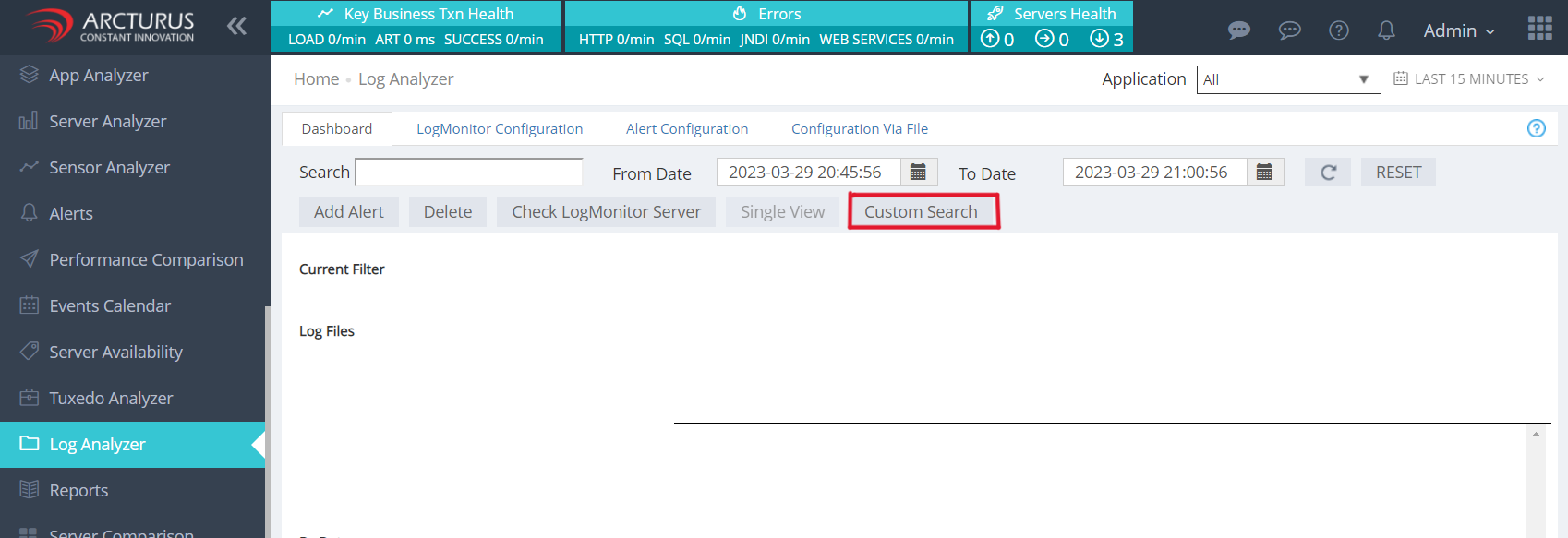
Screenshot 1 — Custom Search in LogAnalyzer

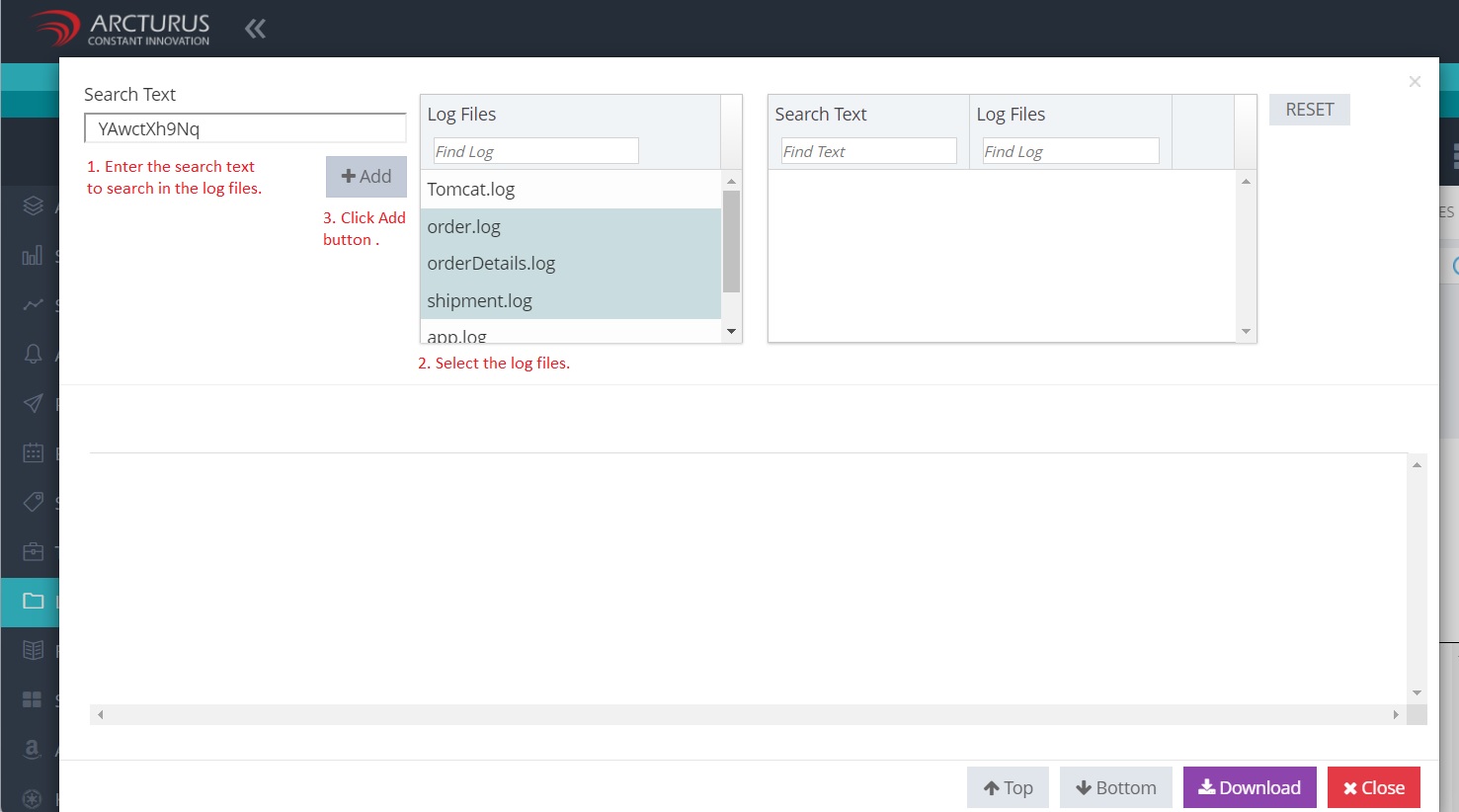
2. In the Custom Search popup

  1. Enter the search text.
  2. Select the log files.
  3. Click the Add button.

Screenshot 2 — Custom Search in LogAnalyzer

3. A tab will appear with the name of the search text. Click on the tab to view the results.
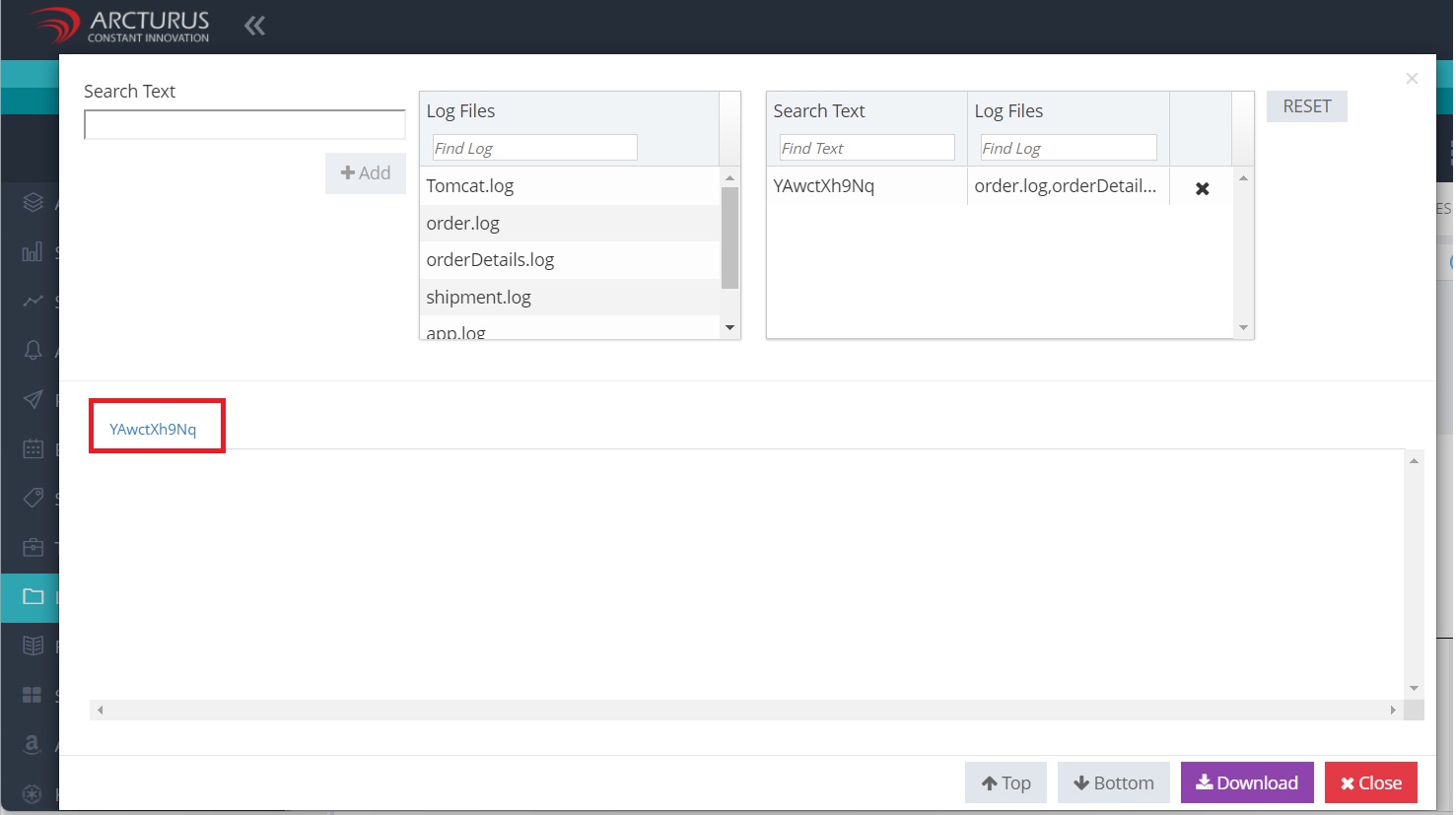
Screenshot 3 — Custom Search in LogAnalyzer

By default, it will display the top 1000 records in descending order based on the log time.
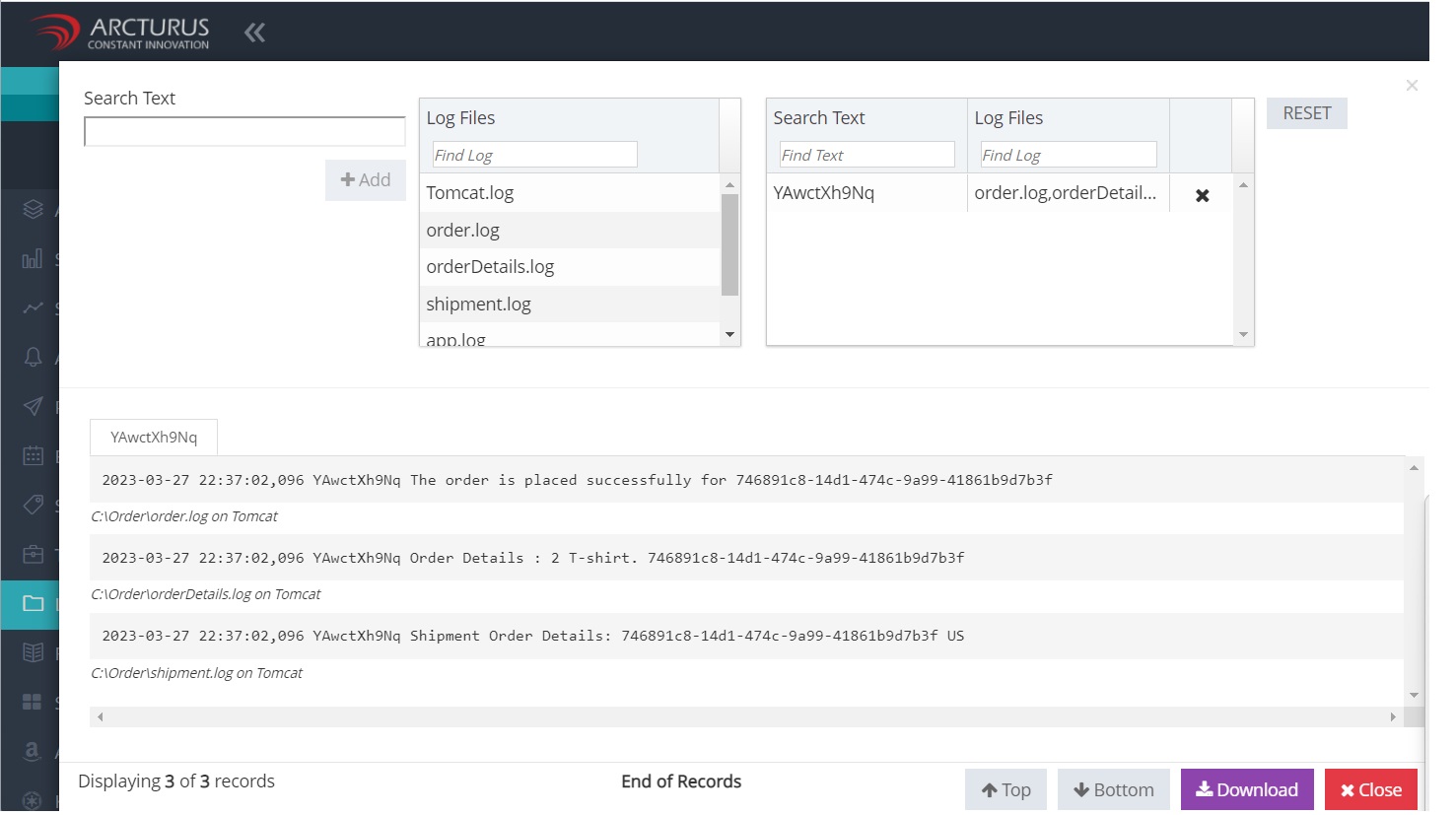
Screenshot 4 — Custom Search in LogAnalyzer

To view the records in the descending order based on date-time click the DESC button.
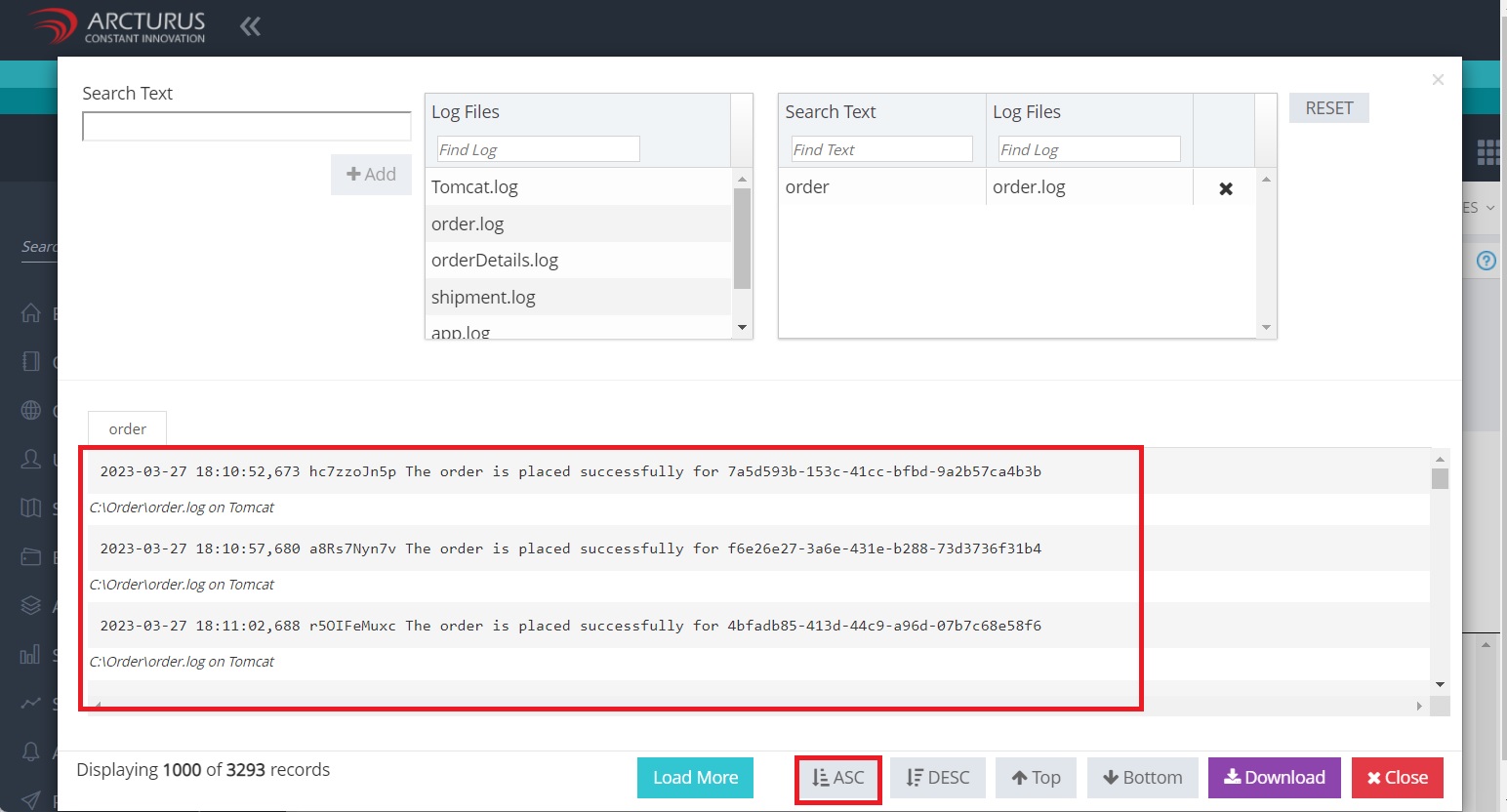
Screenshot 5 — Custom Search in LogAnalyzer

To load the records in the descending order based on datetime click the DESC button.
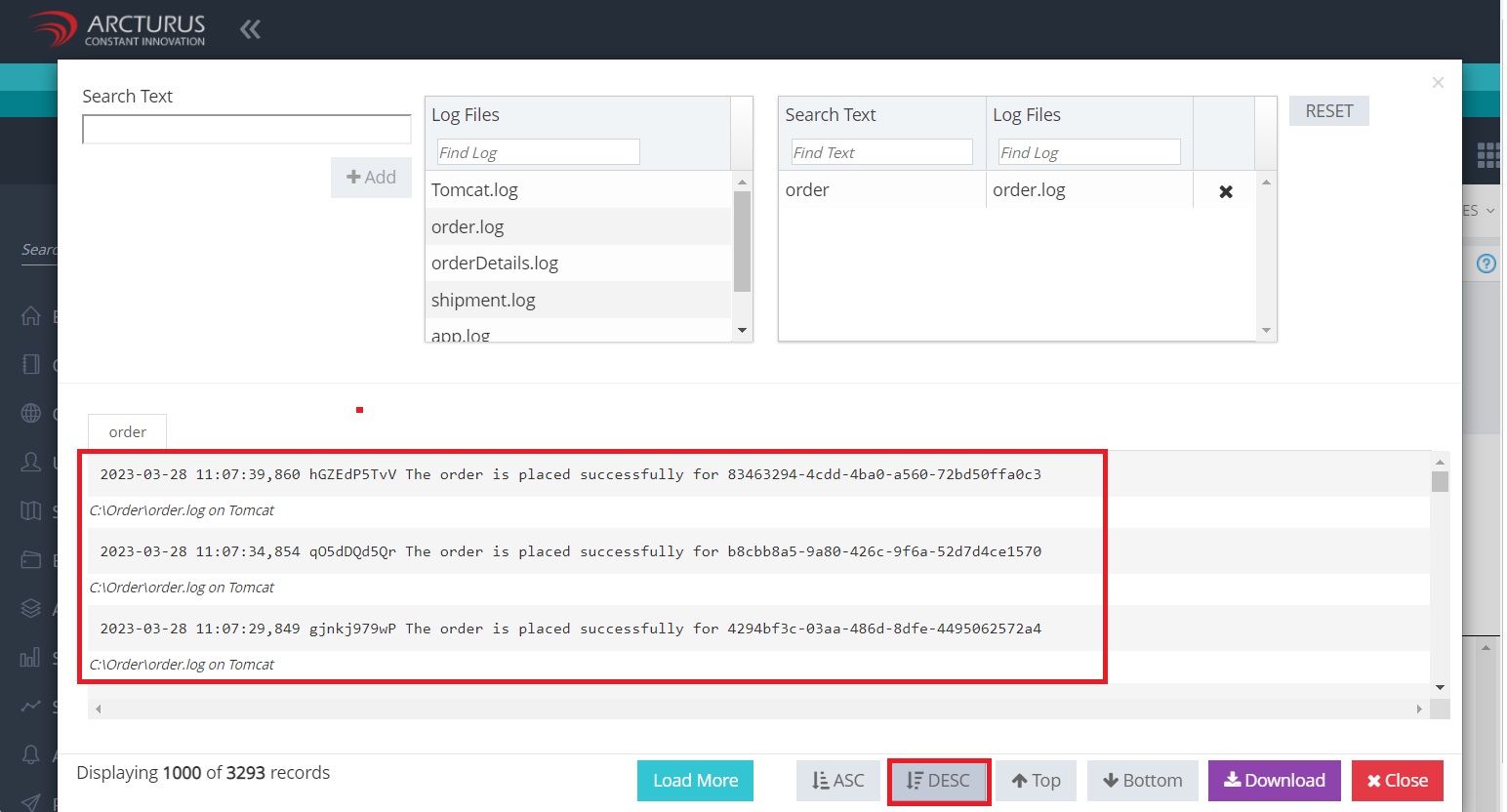
Screenshot 6 — Custom Search in LogAnalyzer

4. If there are more than 1000 records the Load More button will be displayed. Click the Load More button to load next set of 1000 records.
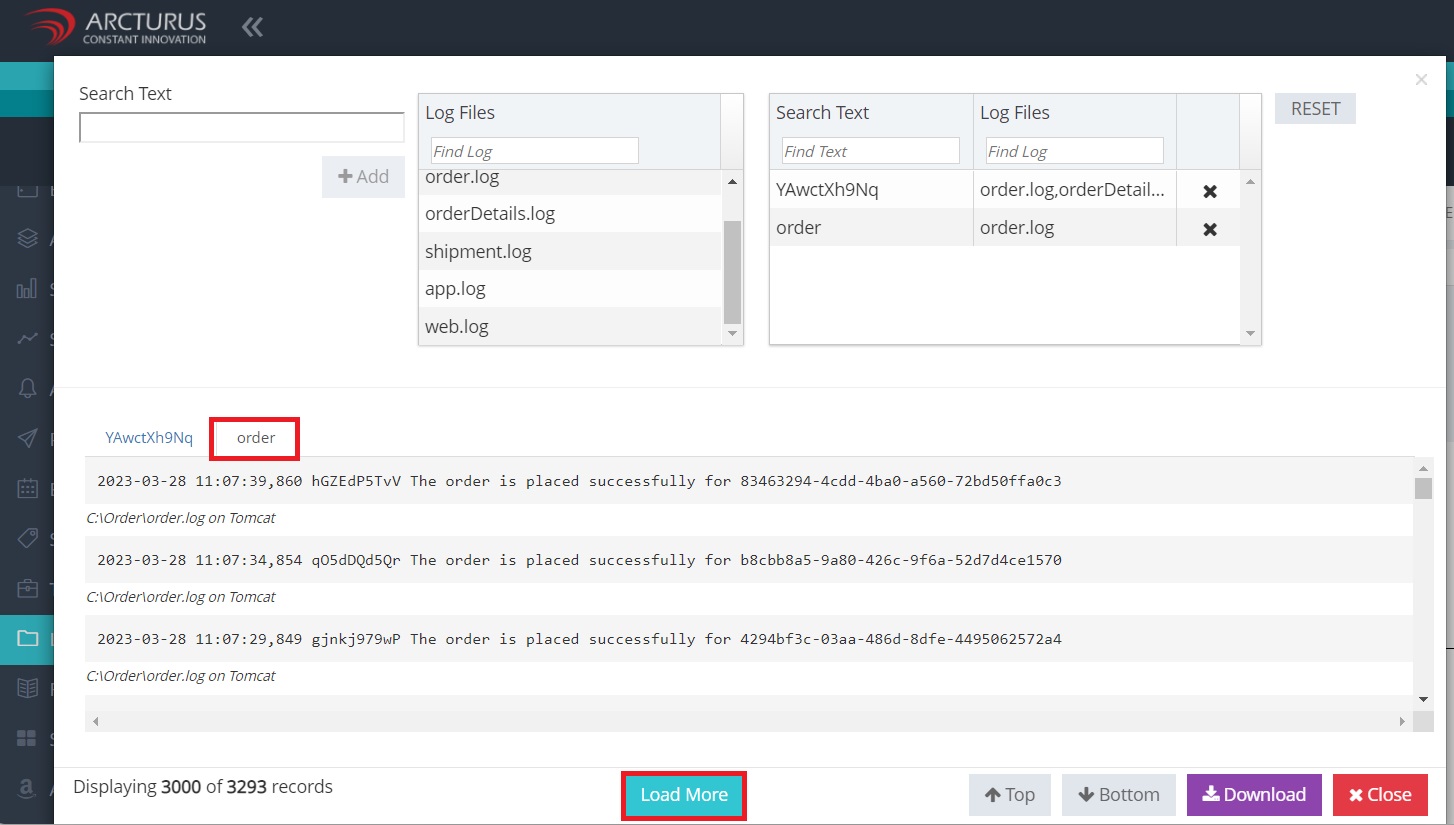
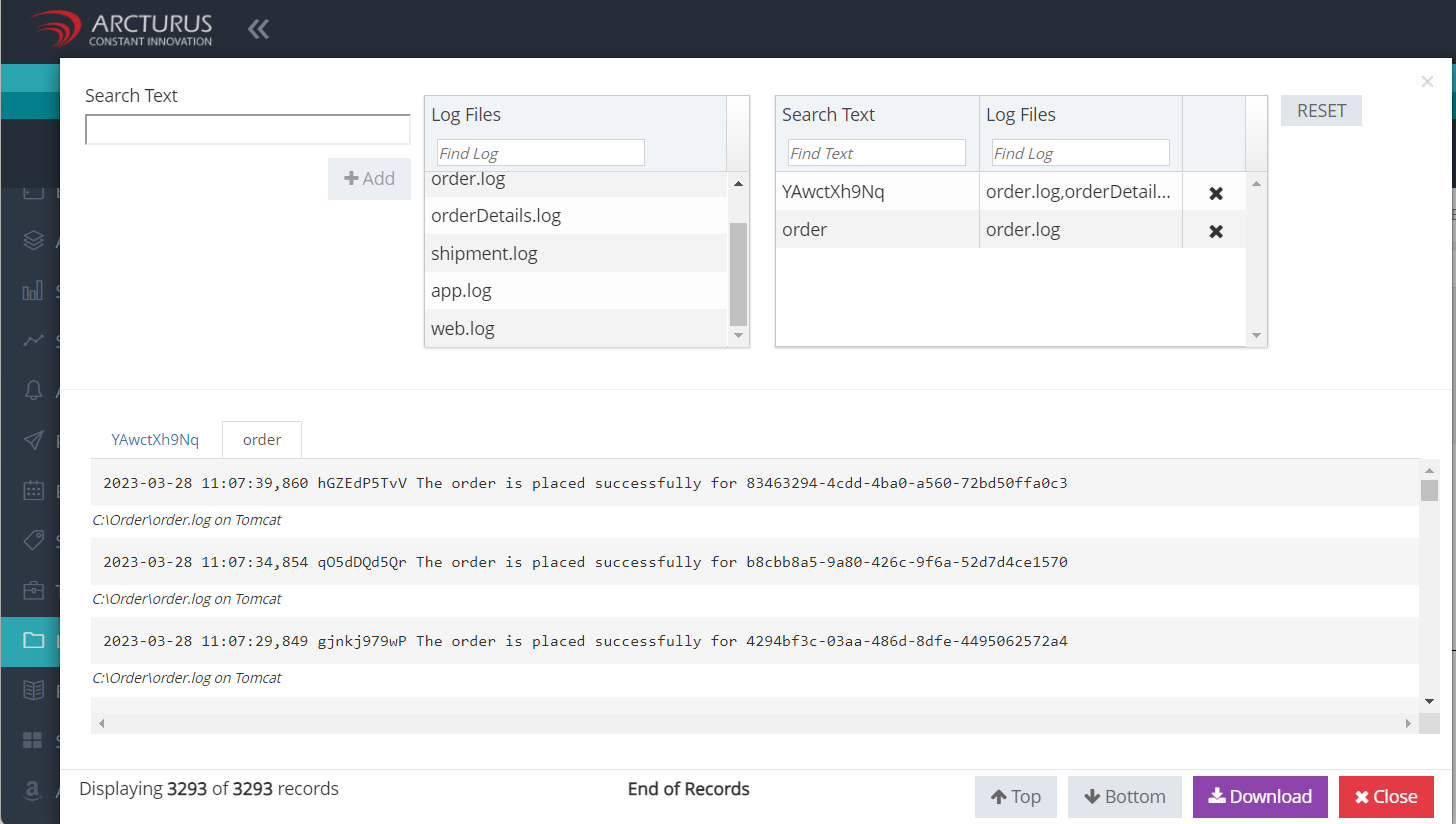
Screenshot 7 — Custom Search in LogAnalyzer

Screenshot 8 — Custom Search in LogAnalyzer

5. Click the Download button to download the records.
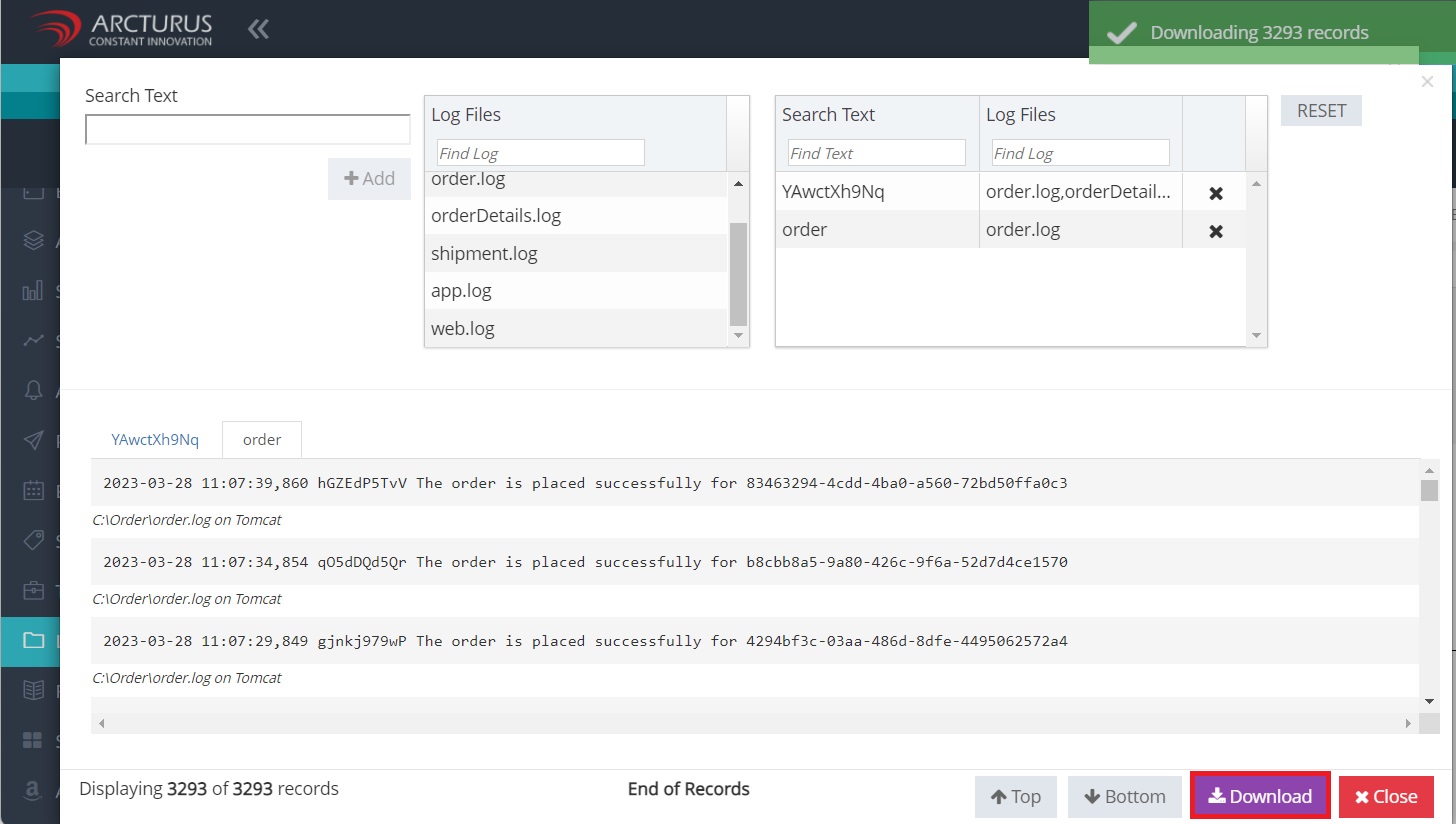
Screenshot 9 — Custom Search in LogAnalyzer

Monitoring with Applicare

Was this article helpful?

Votes, comments and follows are kept by Zendesk, so they need a Help Center account. These buttons open this article there.

Opens Zendesk · needs internet and sign-in

Still stuck? Contact support