1. Navigate to the ApplicareSingleAgent home directory.
2. Copy and Paste the StopAgent.bat file within the same directory. This will create a file stopAgent - Copy.bat.
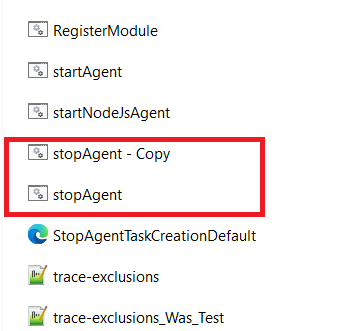
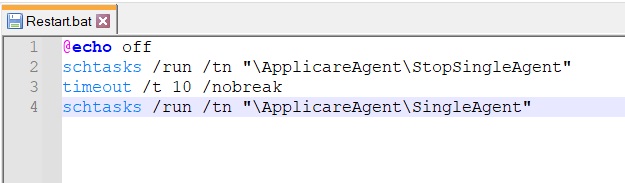
3. Rename the stopAgent - Copy.bat file to Restart.bat Open the file, replace its existing content with the provided content, save the changes.
@echo off
schtasks /run /tn "\ApplicareAgent\StopSingleAgent"
timeout /t 10 /nobreak
schtasks /run /tn "\ApplicareAgent\SingleAgent"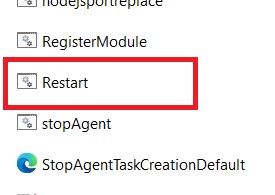
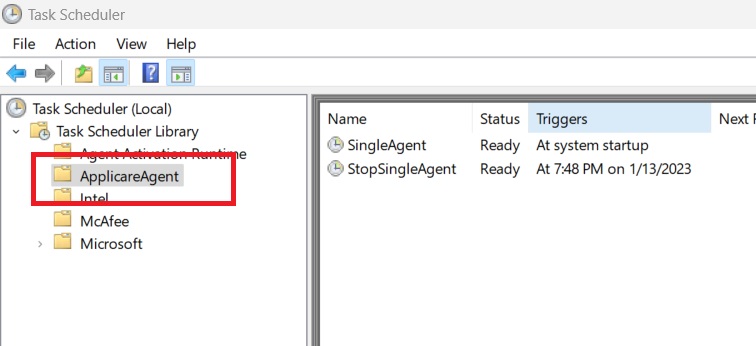
4. Open Task Scheduler in Administrator mode and choose the ApplicareAgent directory.
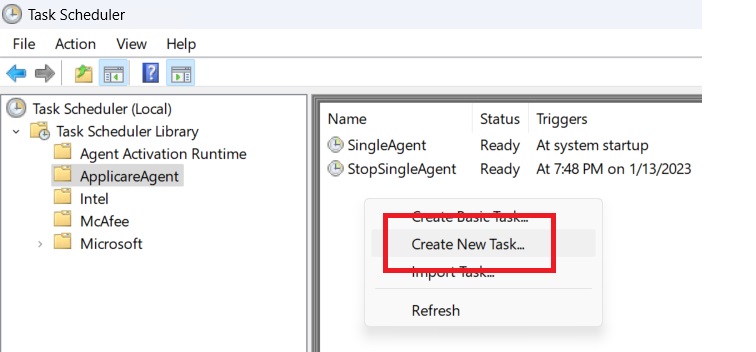
5. Right-click inside the Task Scheduler and select the Create New Task option.
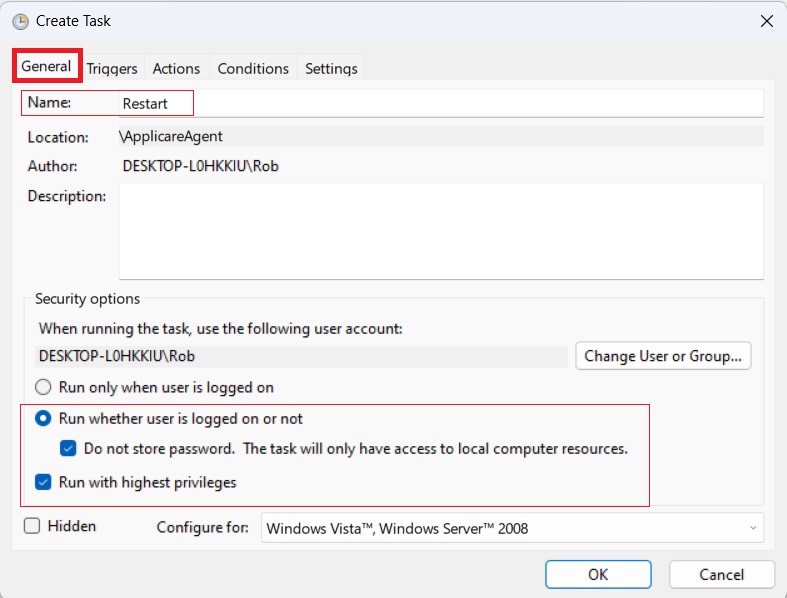
6. In the General tab:
a. Enter the name Restart.
b. Choose Run whether user is logged on or not.
c. Select Do not Store Password.
d. Select Run with highest privileges.
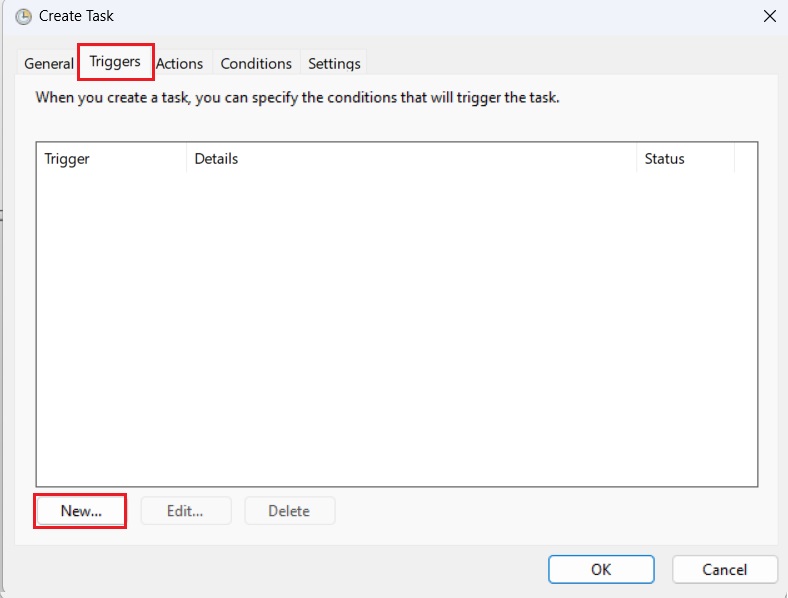
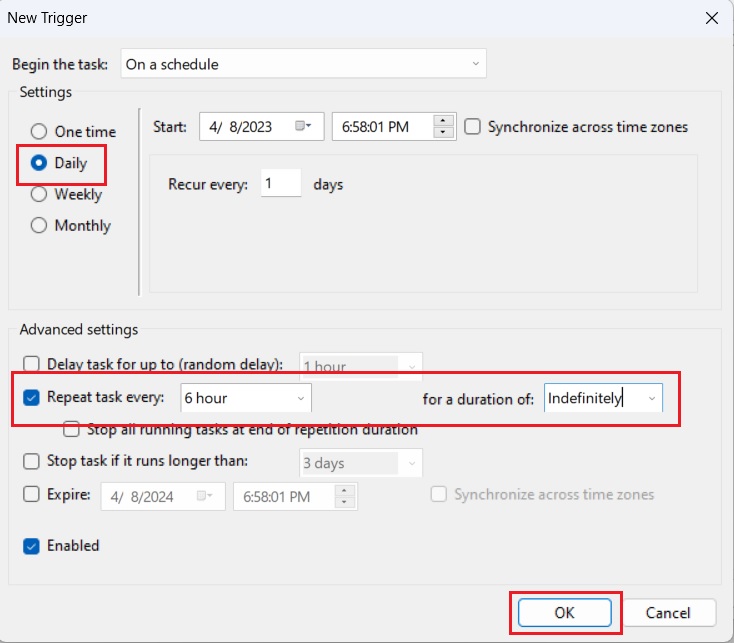
7. Go to the Triggers Tab and click the New button.
8. Set the below options.
a. Choose Daily.
b. Select the Repeat Task Every option.
c. Set it to 6 hours manually (this option may not be available in the dropdown).
d. Set the duration to Indefinitely and click OK.
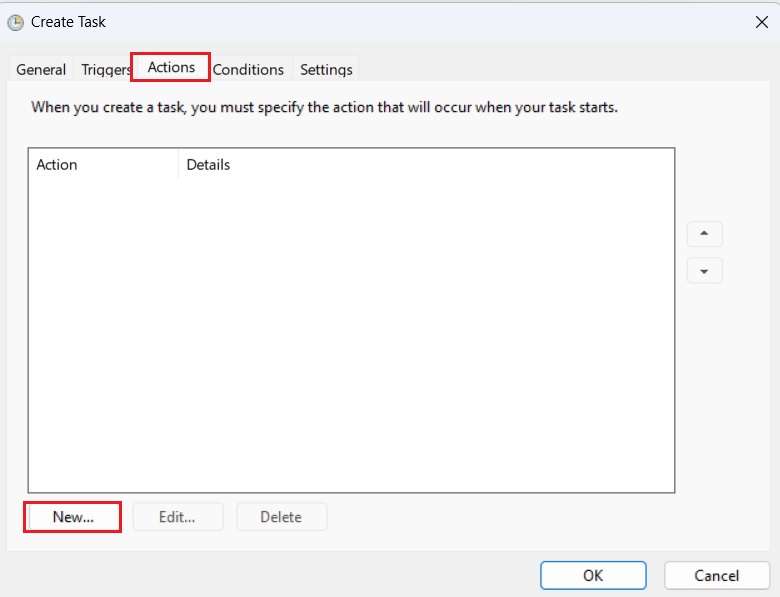
9. Go to the Actions Tab and click the New button.
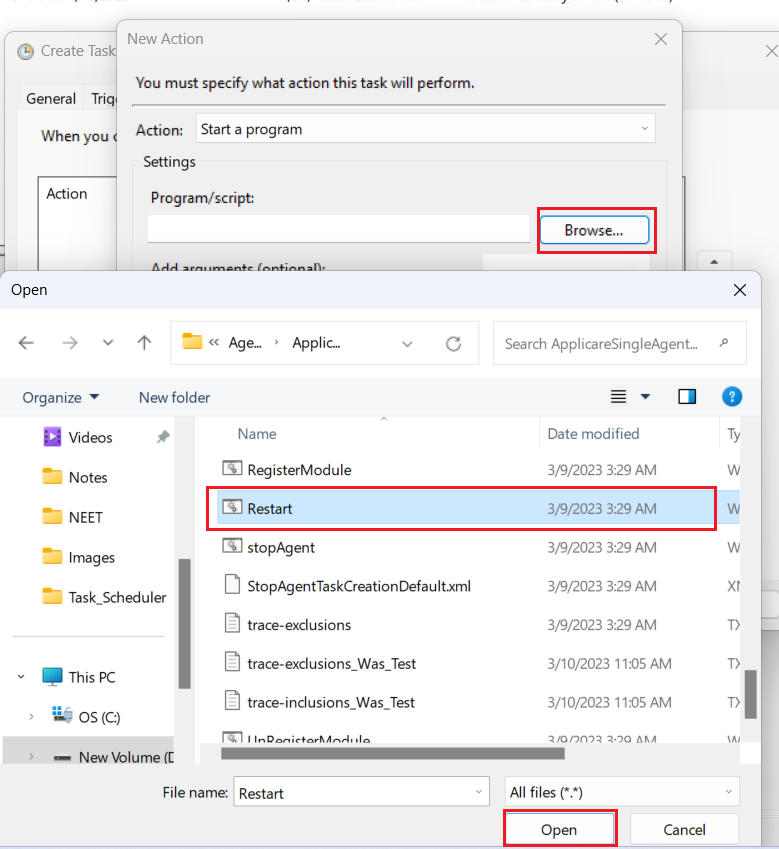
10. Click the Browse button, select the Restart.bat file, and then click the Open.
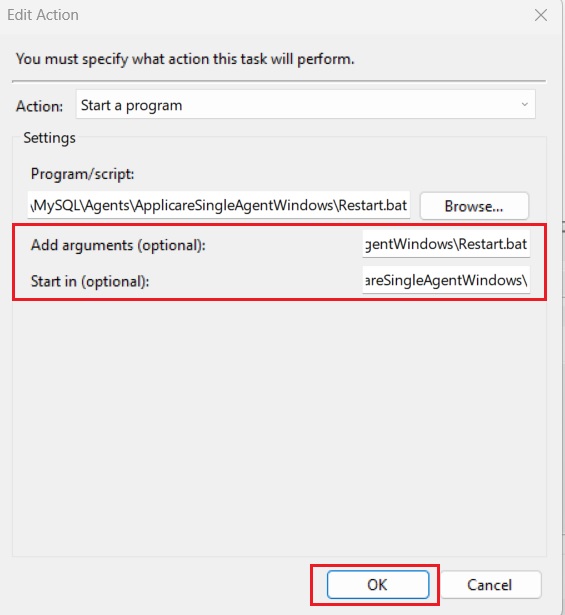
11. Copy the full Program/script path and paste it into both the Add Arguments (optional) and start in (optional) fields.
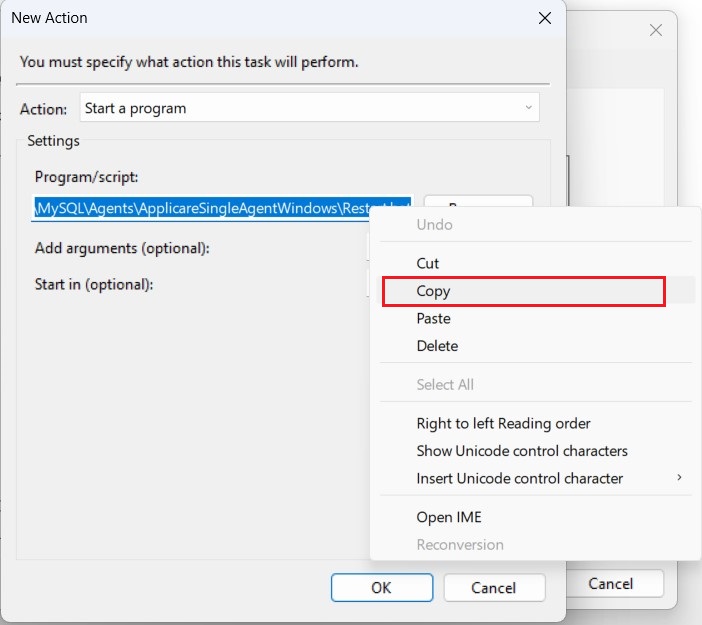
12. In the Start in (optional) field, remove the Restart.bat keyword, and then OK.
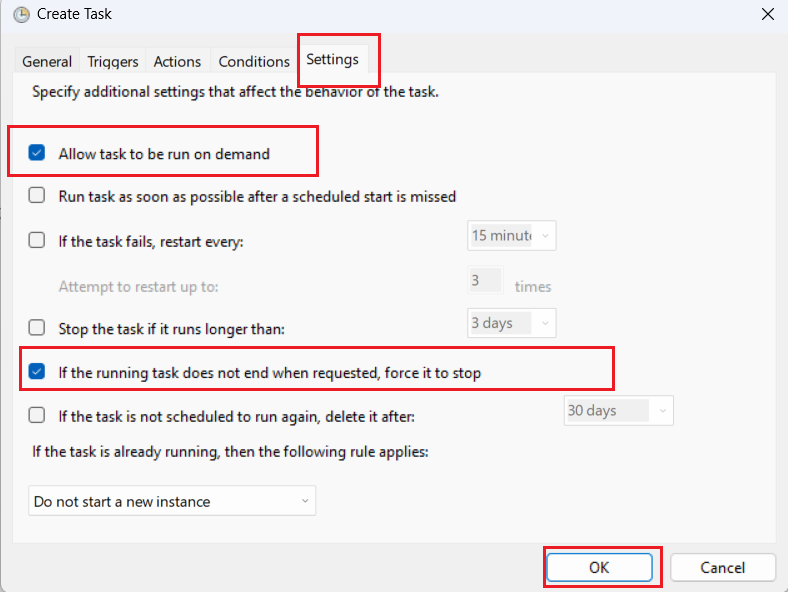
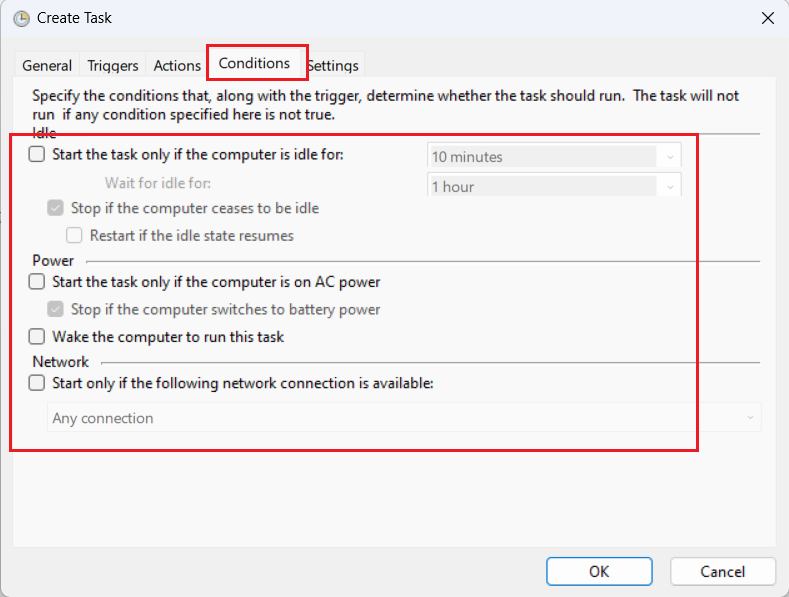
13. Go to the Conditions Tab and uncheck all the checkboxes.
14. Go to the Settings Tab and check only following two options:
a. Allow task to be run on demand.
b. If the running task does not end when requested, force it to stop.
c. Click OK.