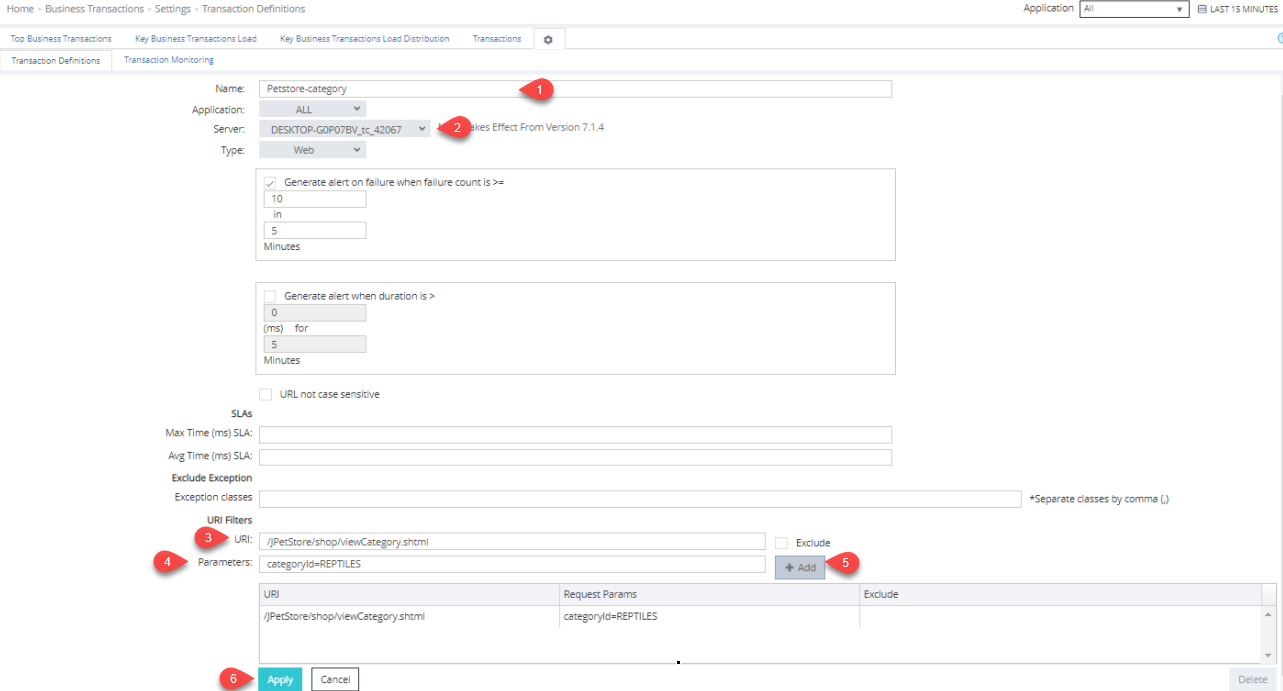
If you need to capture only a specific URL in KBT, then follow these steps:
Step 1: Navigate to Business Transactions-> Settings-> Transaction Definitions in Applicare, and then click the New button at the bottom right.
Step 2: Enter the KBT name in the Name text box, then click the server dropdown and select the appropriate server.
Step 3: Enter the application URL in the URL text box, then input the parameter you want to add in the parameter text box. Click on Add button, and then click Apply.
Example:
URL = /JPetStore/shop/viewCategory.shtml
Parameter = categoryId=REPTILES
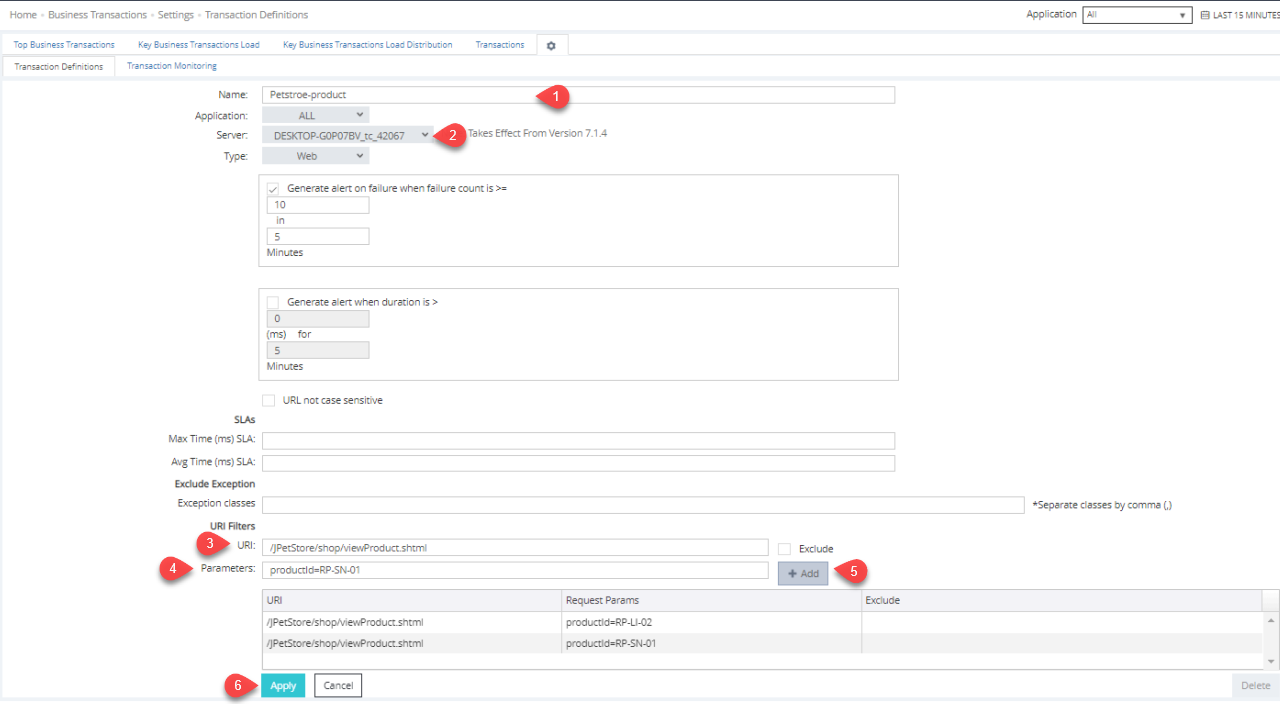
If you need to fetch a single parameter with different values for a specific URL in KBT, follow these steps:
Step 1: Navigate to Business Transactions-> Settings-> Transaction Definitions screen in Applicare and click the New button at the bottom right.
Step 2: Enter the KBT name in the Name text box, then click the server dropdown and select the desired server.
Step 3: Enter the application URL in the URL text box, but this time parameter with a different value. After adding the parameter, click the Apply button.
Step 4: Repeat the steps in step 3, to add another parameter, then click the Apply button.
e.g.
URL = /JPetStore/shop/viewProduct.shtml
Parameter = productId=RP-LI-02
URL = /JPetStore/shop/viewProduct.shtml
Parameter = productId=RP-SN-01
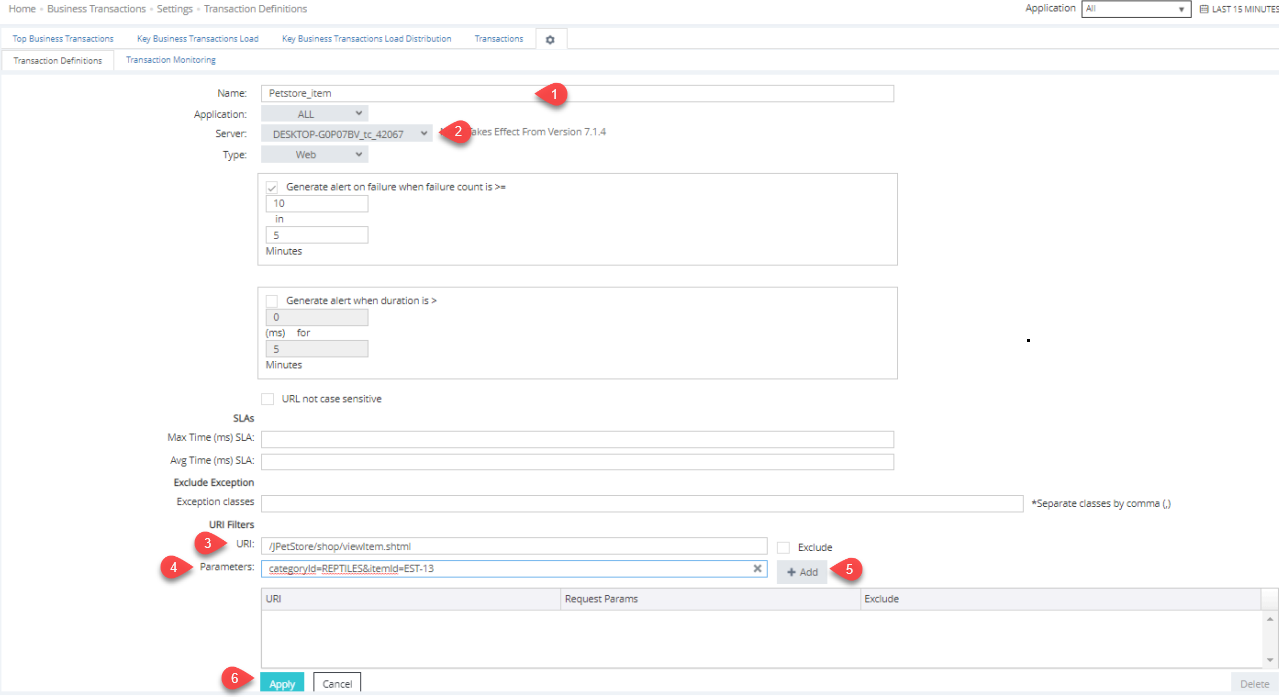
If you need to capture only different parameters for a specific URL in KBT. Follow these steps:
Step 1: Navigate to Business Transactions-> Settings-> Transaction Definitions in Applicare, and click the New button at the bottom right.
Step 2: Enter the KBT name in the Name text box, then click the server dropdown and select the appropriate server.
Step 3: Enter the application URL in the URL text box, then input the different parameter you want to add in the Parameter text box, click the Add button.
e.g.
URL = /JPetStore/shop/viewItem.shtml
Parameter = categoryId=REPTILES&itemId=EST-13
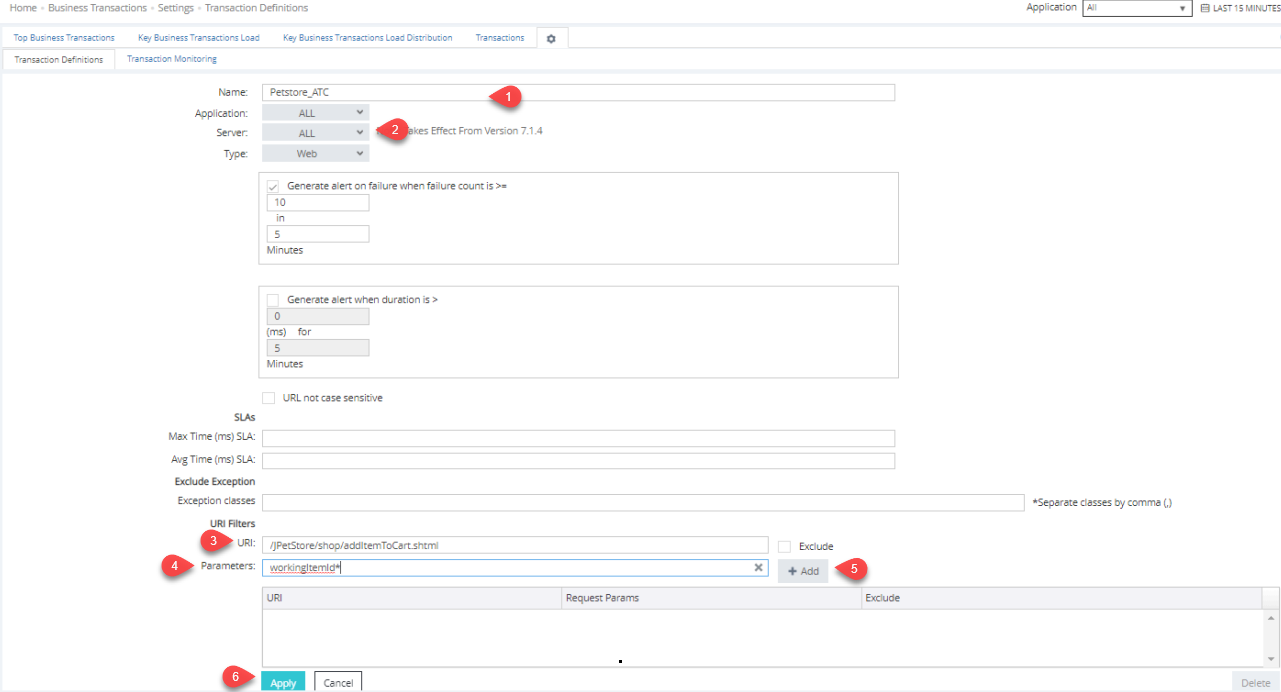
If want to capture all request from a specific parameter in KBT, follow these steps:
Step 1: Navigate to Business Transactions-> Settings-> Transaction Definitions in Applicare and click the New button at the bottom right.
Step 2: Enter the KBT name in the Name text box, then click the server dropdown and select the desired server.
Step 3: Enter the application URL in the URL text box, then input the parameter you want to include in the Parameter text box, click the Add button.
e.g.
URL = /JPetStore/shop/addItemToCart.shtml
Parameter =workingItemId*