An Applicare JMX Sensor is a JMX property whose value is stored by Applicare for analysis at any time. The server instance does not need to be active during the analysis. Applicare uses an efficient mechanism to persist sensor data with minimal overhead.
Create Sensors
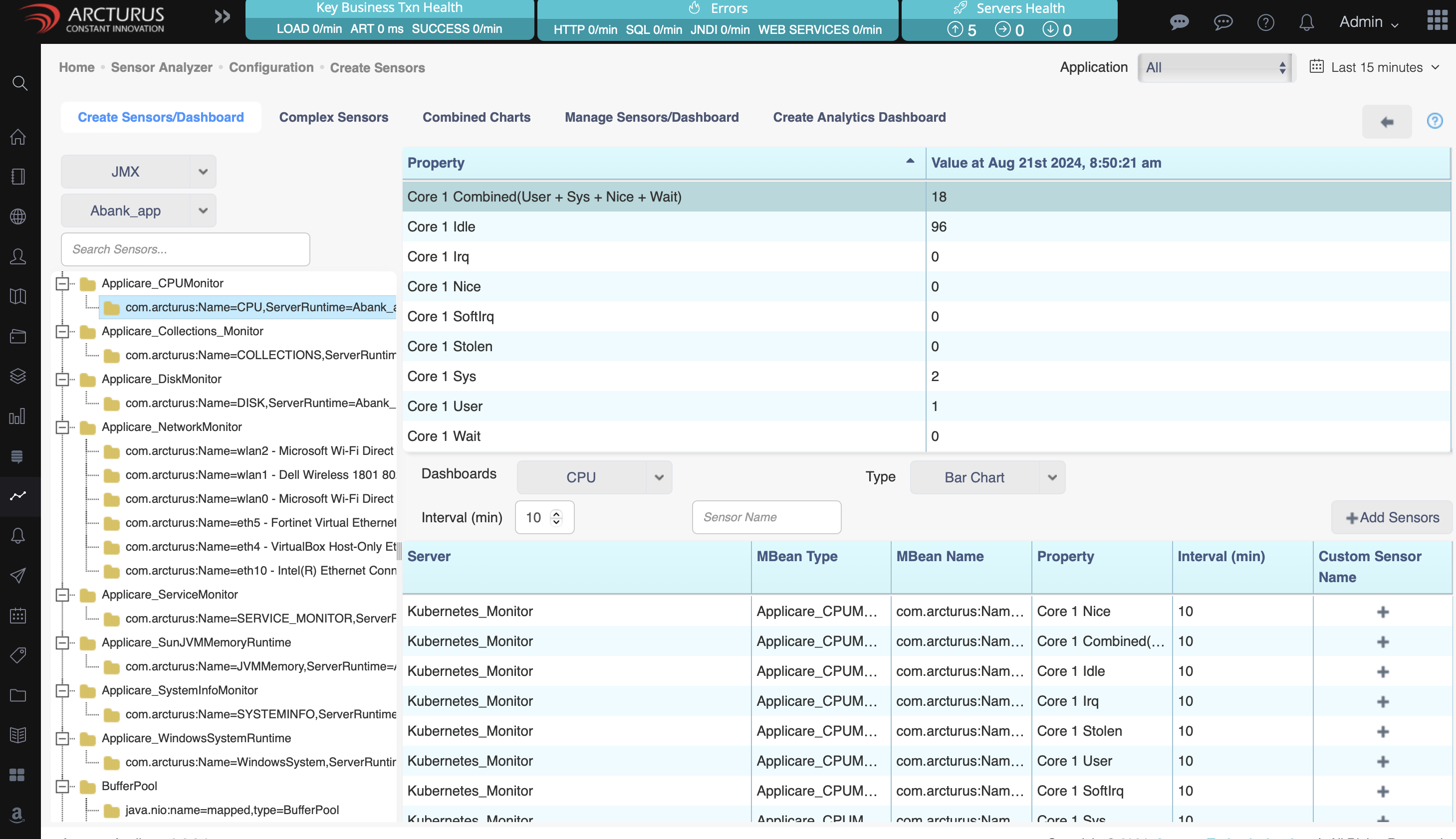
To access the "Creating JMX Sensors" screen, select Applicare Home > Sensors Analyzer > Configure Sensors button on right (wheel). The tree structure on the Create Sensors tab can be expanded to display the MBeans and its properties. You can select the Properties to create sensors and click Save Sensors button to save. This is illustrated below:
Click here to configure DB Query Sensor
Manage Sensors
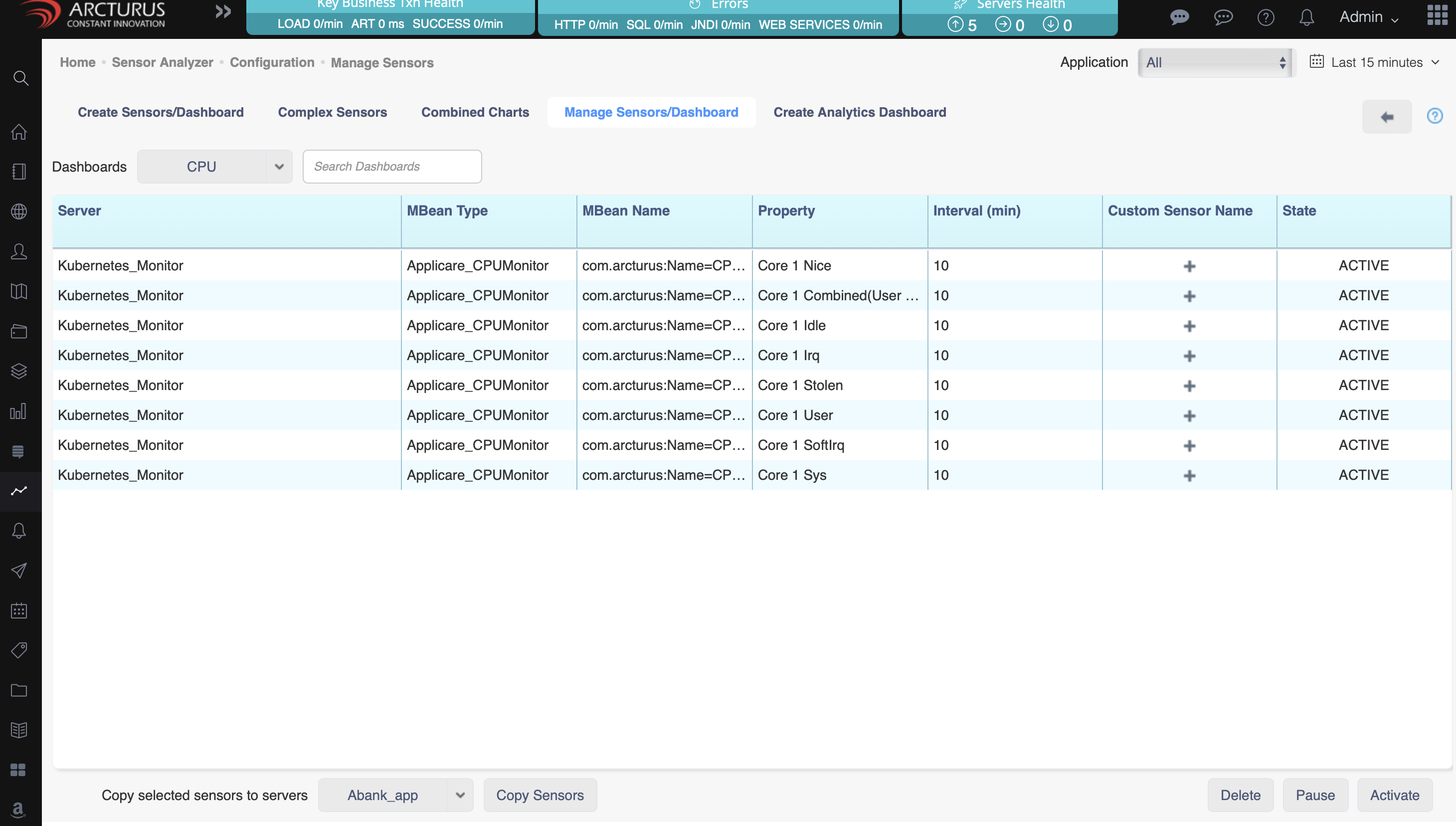
Manage Sensors tab can be used to view all created sensors, delete and copy sensors from one server to another.
To copy sensors, select sensors you want to copy and select the target server from server drop down at the bottom. Click Copy Sensors button to perform the copy. MBean names should exist on the target server.