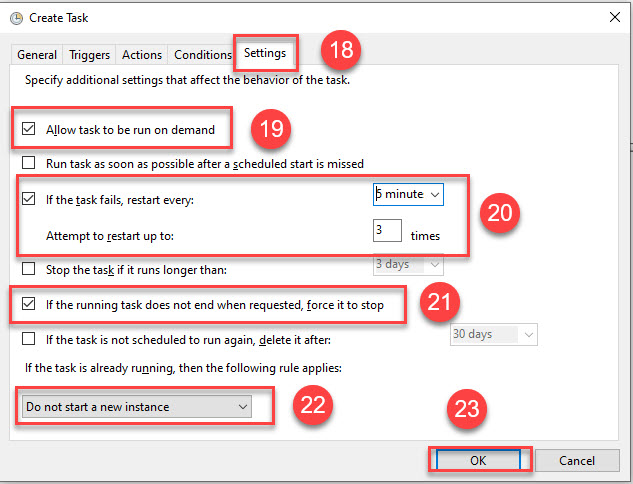
Task creation to stop the SingleAgent

Check this against your version

This article was last updated on Sep 13, 2024, before Applicare 10.0 was released (Jun 19, 2026), and has not been re-checked for Applicare 10.0. Confirm the steps in your environment or contact Support.

1. Navigate to ApplicareSingleAgent home directory and create a stopAgent.bat file with the following content. Save the file once created.

@echo off wmic process where "commandline like '%%applicare.standalone=true%%' and name='java.exe'" delete

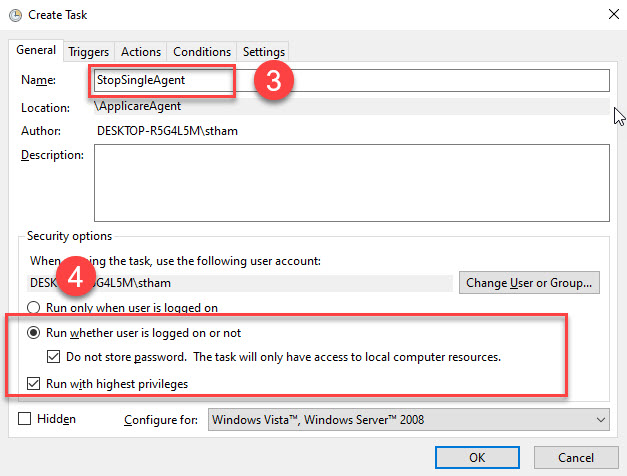
Screenshot 1 — Task creation to stop the SingleAgent

2. Open Task Scheduler and create the task as specified below.
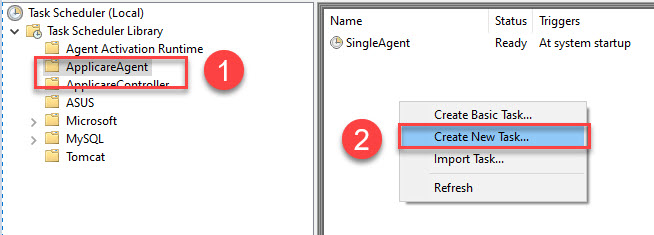
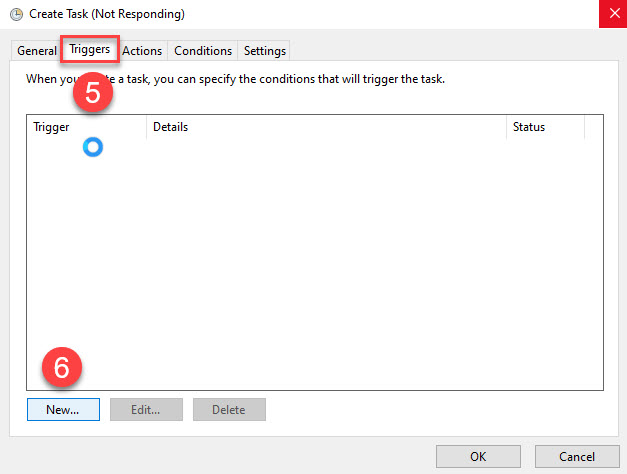
Screenshot 2 — Task creation to stop the SingleAgent

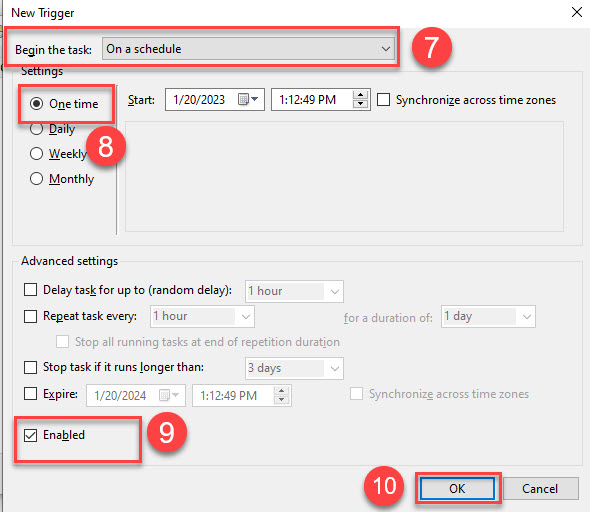
Screenshot 3 — Task creation to stop the SingleAgent

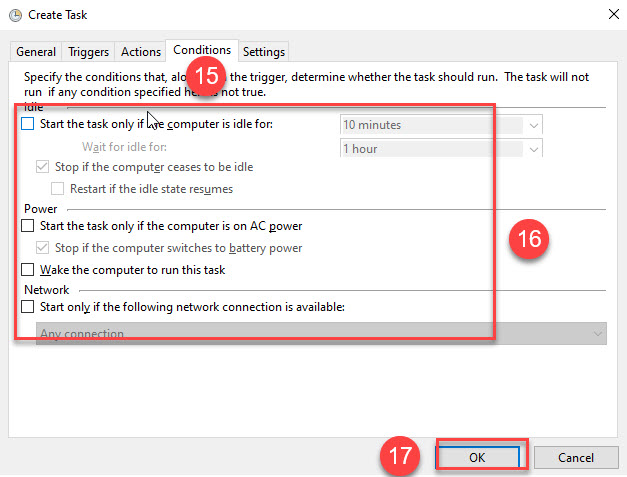
Screenshot 4 — Task creation to stop the SingleAgent

Do not alter the start time.

Screenshot 5 — Task creation to stop the SingleAgent

Program/script: AgentHomeDir\stopAgent.bat

Add arguments(optional): AgentHomeDir\stopAgent.bat

Start in (optional): AgentHomeDir\

Replace AgentHomeDir with the correct path.
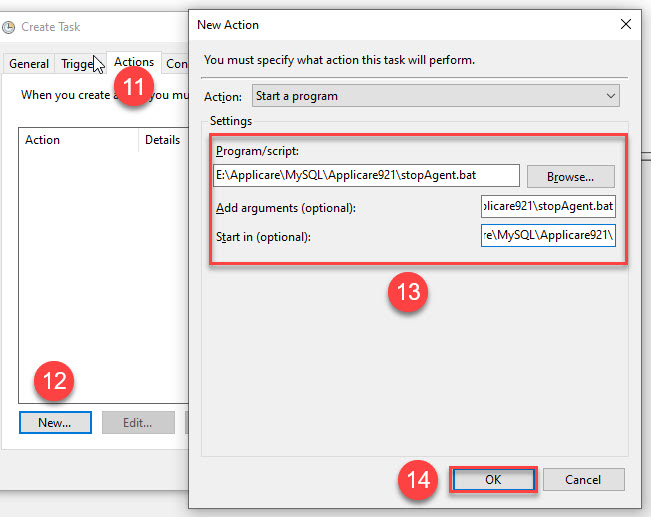
Screenshot 6 — Task creation to stop the SingleAgent

Screenshot 7 — Task creation to stop the SingleAgent

Screenshot 8 — Task creation to stop the SingleAgent

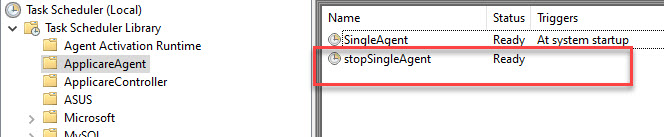
The task will be generated.

Screenshot 9 — Task creation to stop the SingleAgent

Running this task it will terminate all the Java processes, and the SingleAgent task Status will be changed to Ready. Next, right-click the SingleAgent task and select Run to start the agent.

Monitoring with Applicare

Was this article helpful?

Votes and follows are kept by Zendesk, so they need a Help Center account. These buttons open this article there.

Opens Zendesk · needs internet and sign-in

Still stuck? Contact support