
The Docker container must have the following packages installed for monitoring.
procps, net-tools, iotop and sysstat
To install packages inside a Docker container
Enter the Docker containers and install the packages one at a time.
If you encounter an Unable to locate package error, run the command apt-get update for Debian /Ubuntu or yum update for CentOS or RHEL. After updating, install the packages individually.
On Debian, Ubuntu, and Linux Mint
apt-get install procps apt-get install net-tools apt-get install iotop apt-get install sysstat
On RedHat, CentOS and Fedora yum install procps yum install net-tools yum install iotop yum install sysstat
On Fedora 22+ Releases
dnf install procps dnf install net-tools dnf install iotop dnf install sysstat
Windows
For HTTP Monitoring
1. Open the Docker desktop, and go to settings, and enable the "Expose daemon on tcp://localhost:2375 without TLS" option and restart the docker desktop.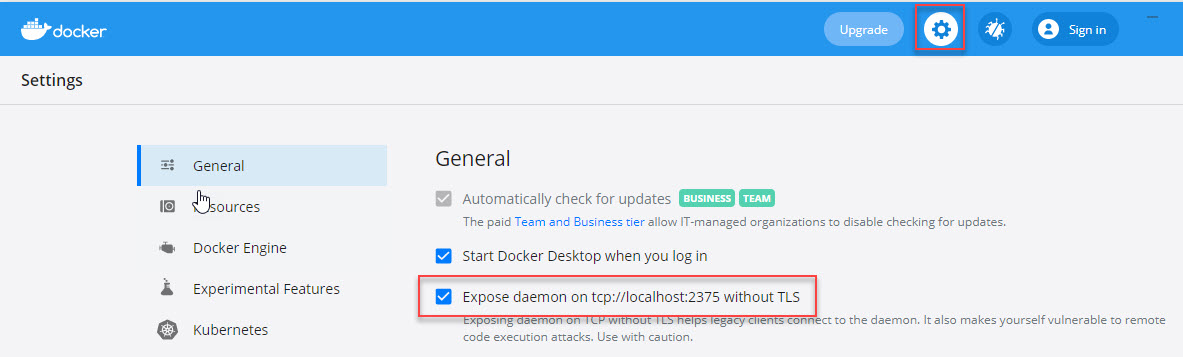
Linux
For HTTP Monitoring
1. Open the "docker.service" file and change the "ExecStart=" line to the below one
Syntax
ExecStart=<dockerdpath> -H fd:// -H tcp://<docker_installed_ip>:<docker_running_port>e.g.
ExecStart=/usr/bin/dockerd -H fd:// -H tcp://192.168.0.1:2375
2. Run the command "systemctl daemon-reload" and then restart the "docker.service".
Applicare Controller
1. Log in to Applicare Console and navigate to the Overview screen, and click the Add button.
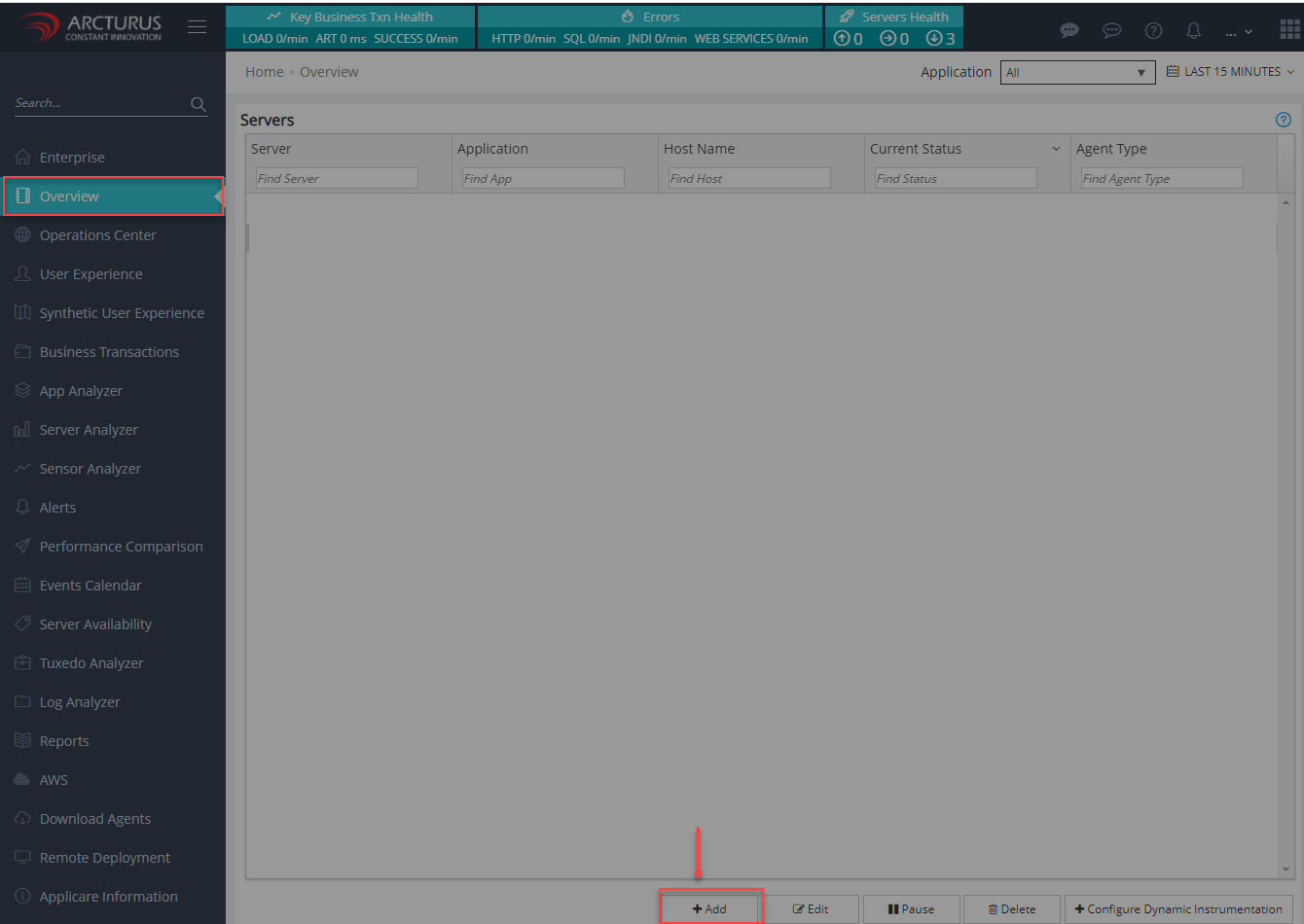
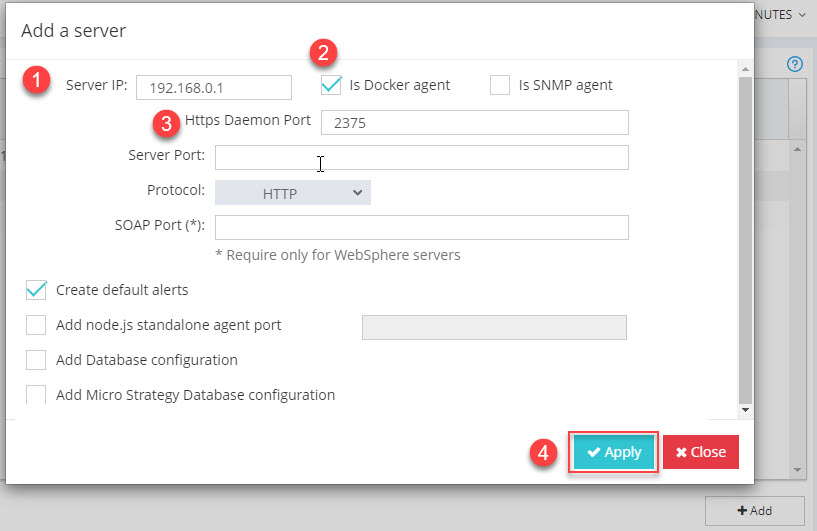
2. Enter the required details and save.
a. Input the Server IP
b. Enable the Is Docker agent option.
c. Enter the HTTP Daemon Port
d. Click the "Apply" button.
3. All running containers will be added as agents, any new containers that start will be automatically added as new agent.
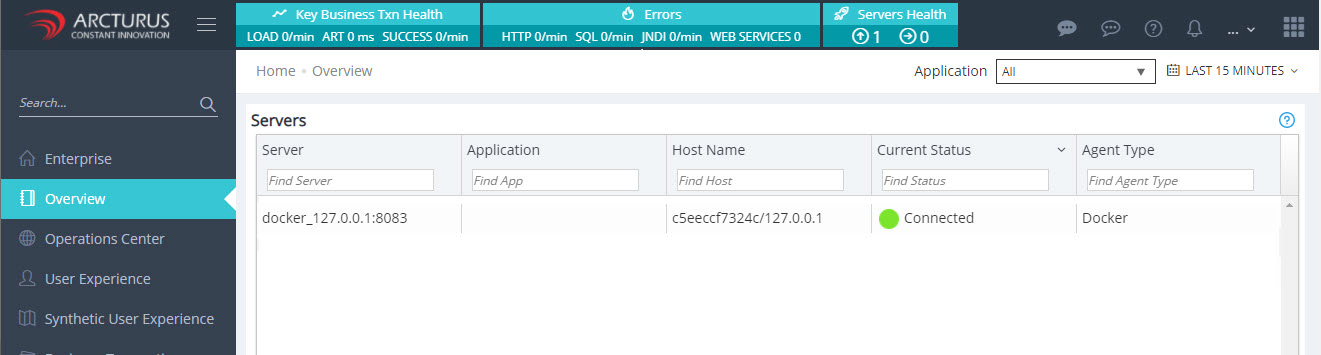
4. After adding the containers, navigate to the Server Analyzer screen and check the metrics.