
1. Open the Gradle build file and append the container block at the end of the Jib configuration section.
Syntax:
container {
jvmFlags = ['ARG1=Value','ARG2=Value']
}
e.g.
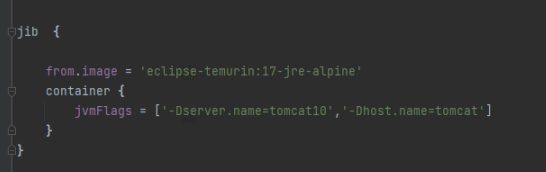
container { jvmFlags = ['-Dserver.name=tomcat10','-Dhost.name=tomcat'] }
Check this against your version
This article was last updated on Sep 13, 2024, before Applicare 10.0 was released (Jun 19, 2026), and has not been re-checked for Applicare 10.0. Confirm the steps in your environment or contact Support.
1. Open the Gradle build file and append the container block at the end of the Jib configuration section.
Syntax:
container {
jvmFlags = ['ARG1=Value','ARG2=Value']
}e.g.
container { jvmFlags = ['-Dserver.name=tomcat10','-Dhost.name=tomcat'] }
Votes and follows are kept by Zendesk, so they need a Help Center account. These buttons open this article there.
Opens Zendesk · needs internet and sign-in