
NOTE: Before starting the configuration, make sure that the system has .NET Framework 4.6.1 or higher. Use the command below to check. Lower versions are not compatible with this Applicare .Net configuration.
$PSVersionTable.PSVersionStep 1: On the machine where the .NET application is running, download the Applicare-dotnet-instrumentation zip file. Then, create a folder named Applicare-dotnet-instrumentation in the C - drive and paste the zip file into that folder.
Step 2: Extract the zip file as shown in the following image.
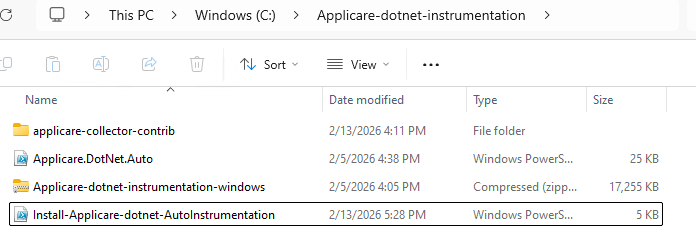
Step 3: Open a PowerShell window as Administrator and navigate to the directory where extracted the zip file.
Step 4: Execute below command in powershell windows.
.\Install-Applicare-dotnet-AutoInstrumentation.ps1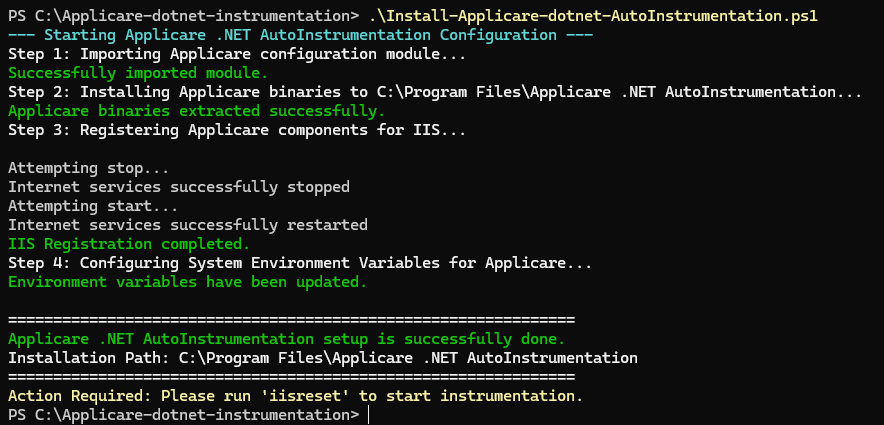
Step 5: After the script is executed, execute the command below to restart IIS.
iisresetStep 6: After the IIS restart is complete, open the config.yaml file in the applicare-collector-contrib directory using Notepad. Navigate to line 39 and replace <ApplicareControllerIP> with the actual IP address of the machine where the Applicare Controller is running, then save the file.
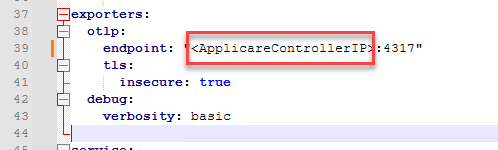
Step 7: Open the Command Prompt as Administrator, navigate to the applicare-collector-contrib directory, and execute the create-task-applicare-collector-contrib.bat file.
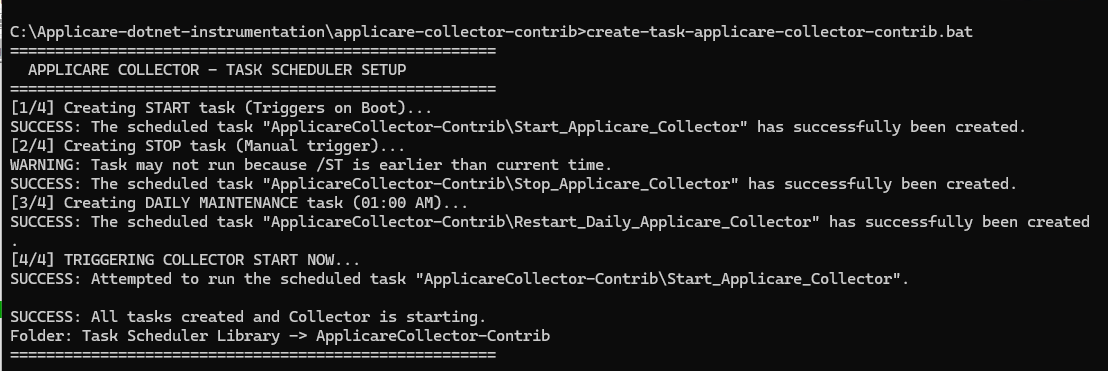
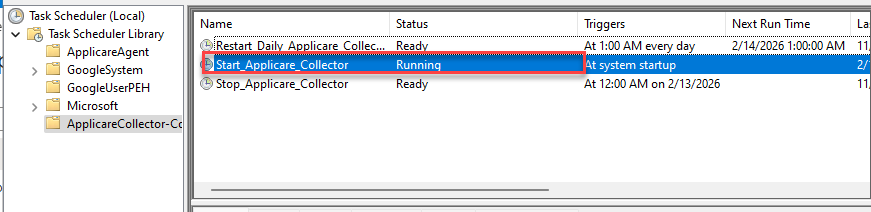
Note: Open the task scheduler and make sure that the task Start_Applicare_Collector is running.
The following port must be opened on the Applicare controller machine.
4317