
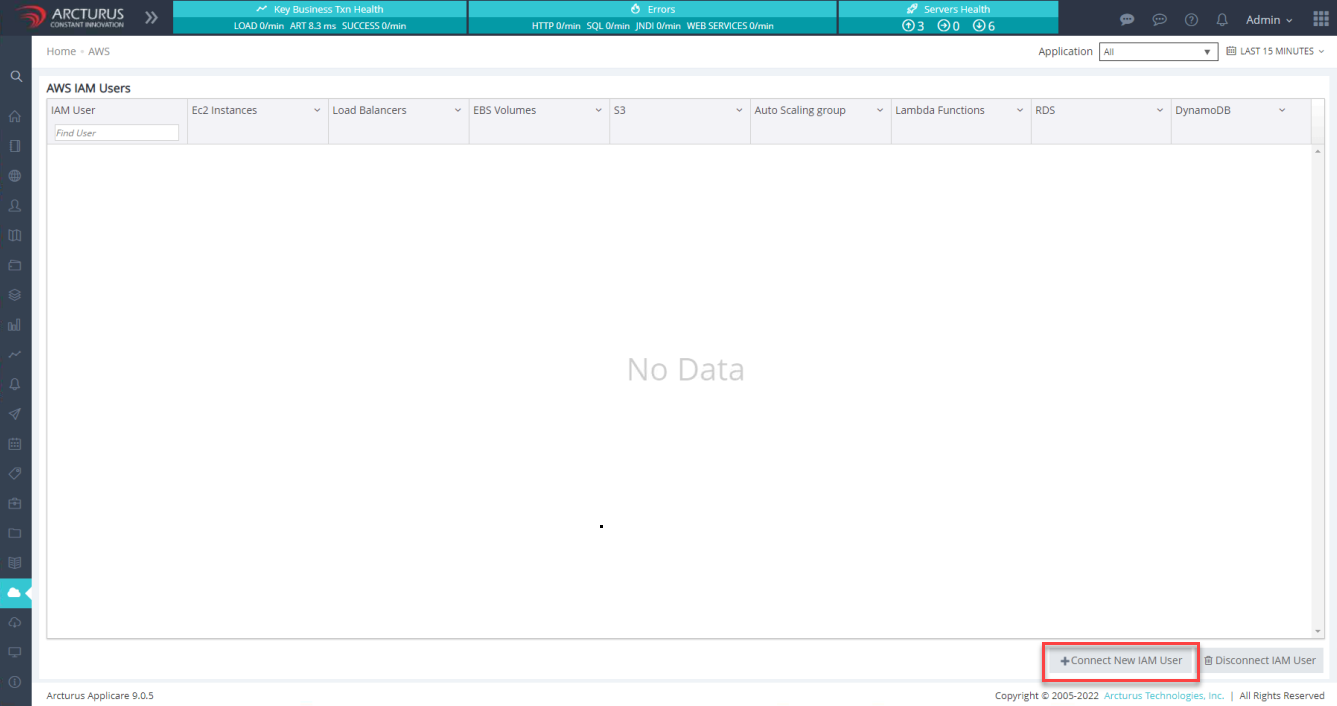
Steps 1: Log in to Applicare controller. On the left side menu, navigate to the AWS screen and click Connect New IAM User button located at the bottom right of AWS screen.
Step 2: Fill in the Add AWS IAM user popup with the required information as shown below. and then click the Save button. If needed, follow the steps in the IAM user creation/configuration for AWS monitoring guide for further instructions..
- User: Enter the IAM user name.
- Access Key: Enter the access key for the IAM user from the monitored AWS account.
- Secret Key: Enter the secret key for the IAM user from the monitored AWS account.
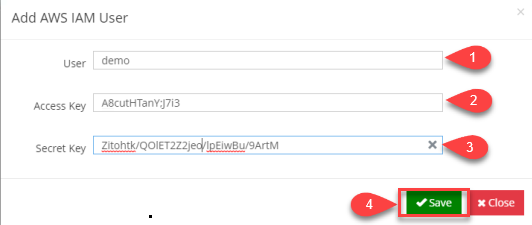
Save the configuration and allow up to 15 minutes for the data to become available.