Installing SingleAgent for Appserver on Windows using Command Line
Updated Sep 13, 2024javasingleagentwindowsApplies to 10.0, 9.2Not yet checked for Applicare 10.0
Check this against your version
This article was last updated on Sep 13, 2024, before Applicare 10.0 was released (Jun 19, 2026), and has not been re-checked for Applicare 10.0. Confirm the steps in your environment or contact Support.
1. Log in to the Applicare console and navigate to the Download Agents screen.
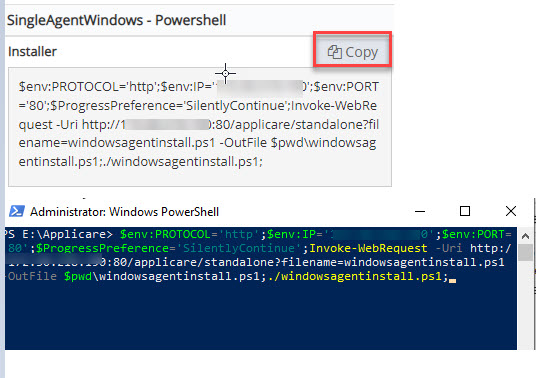
2. On to the machine where the agent is to be deployed. Copy the SingleAgentWindows - PowerShell Installer command. Open PowerShell in administrator mode, navigate to any drive, and paste the copied command and press Enter button.
3. Select option n if you do not wish the start SingleAgent.