
Step 1: Open up a command prompt or terminal then navigate to the Applicare home directory.
Step 2: Create a directory named predictive_analysis in the Applicare home path and set the appropriate permission for this directory.
chmod -R 777 <predictive_analysis>Step 3: Navigate to the predictive_analysis directory and create a file named rhel8.sh. Paste the following contents into that file and save it. Then set the appropriate permission for this file.
#!/bin/bash
export R_VERSION=4.2.0
bash -c "$(curl -L https://rstd.io/r-install)"
ln -s /opt/R/${R_VERSION}/bin/R /usr/local/bin/R
ln -s /opt/R/${R_VERSION}/bin/Rscript /usr/local/bin/Rscript
chmod -R 777 pred.R
chmod +x rhel8.shStep 4: After executing the basch script. It should produce output similar to the example below.
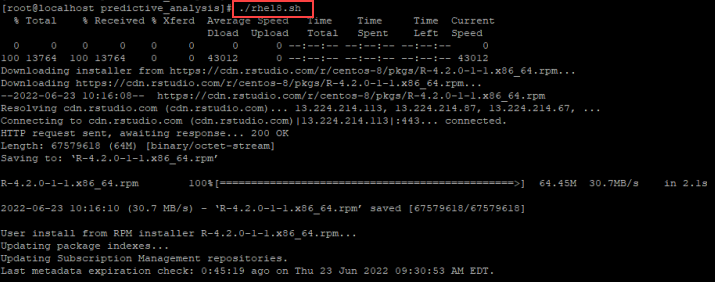
Step 5: Ensure that R is correctly installed and located. Execute the below command it.
which Rscript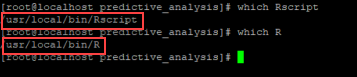
The result should be "usr/local/bin/Rscript"
Apply step 6 ,7 and 8 only if you didn't get results on executing which R command.
Step 6: If the results differ from the expected output, modify your .bashrc file to set the correct path for R:
vim ~/.bashrc //OR THE PATH TO YOUR BASHRC FILEStep 7: Once you are in the bashrc file, add the following line to your file:
export PATH=$PATH:/opt/R/4.2.0/bin/r --version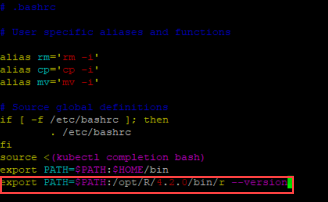
Step 8: Save and exit the file
Step 9: To verify that R was properly installed, type R in the terminal. You should see the R interface appear in the terminal or command prompt.
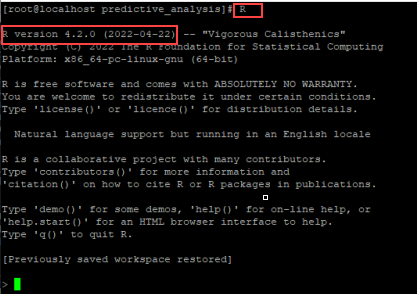
R should now be successfully installed and the Predictive Analysis program should be running in the background.Step 10: Go to <Applicare_home_directory>\server\bin and edit the catalina.sh file.
-Dapplicare.rHomePathDir=<R_installed_path>Enter the directory displayed after executing R in step 5, replacing the <R_installed_path> placeholder with this directory path .
Example
-Dapplicare.rHomePathDir=/usr/local/bin/Rscript