
Starting SingleAgent on Linux

Check this against your version

This article was last updated on Feb 5, 2025, before Applicare 10.0 was released (Jun 19, 2026), and has not been re-checked for Applicare 10.0. Confirm the steps in your environment or contact Support.

We can start the SingleAgent in two ways

Background mode

  1. To enable background mode, Navigate to the directory where ApplicareSingleAgent/agentscripts and run following command.
nohup ./startAgent.sh &

Screenshot 1 — Starting SingleAgent on Linux

Service Mode

  1. Administrative permission required to install or uninstall singleagent.service
  2. Navigate to the directory where ApplicareSingleAgent/agentscripts.
  3. Execute ./installAgentService.sh to install singleagent.service. and start singleagent.service.

Screenshot 2 — Starting SingleAgent on Linux

  1. To check the status of service, use the command systemctl status singleagent:
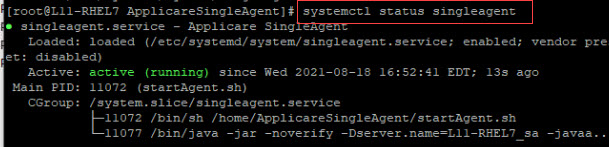
Screenshot 3 — Starting SingleAgent on Linux

  1. To stop the service, run the command systemctl stop singleagent:

Screenshot 4 — Starting SingleAgent on Linux

  1. To Start the service, execute the command systemctl start singleagent:

Screenshot 5 — Starting SingleAgent on Linux

  1. To Uninstall the service, execute ./uninstallAgentService.sh:

Screenshot 6 — Starting SingleAgent on Linux

Monitoring with Applicare

Was this article helpful?

Votes, comments and follows are kept by Zendesk, so they need a Help Center account. These buttons open this article there.

Opens Zendesk · needs internet and sign-in

Still stuck? Contact support