Step 1, 2 and 3 are necessary only if the ApplicareSingleAgentLinux directory is not present on the Docker-installed machine.
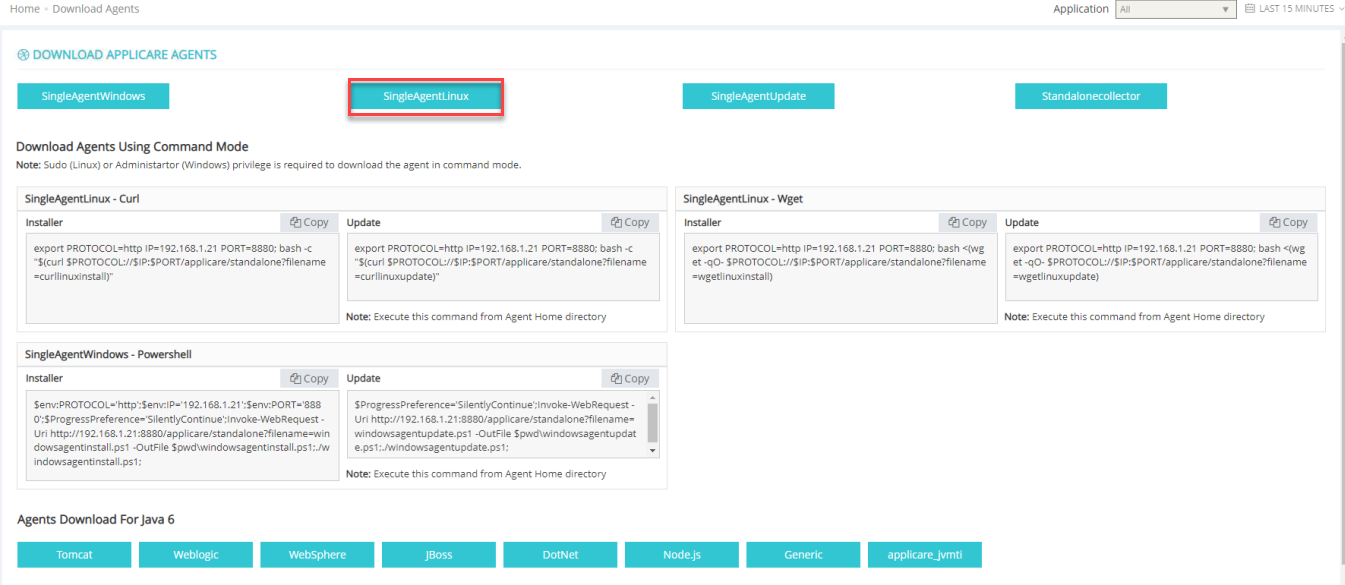
Step 1: Log in to Applicare console, and navigate to the "Download Agents" menu, and download the SingleAgentLinux package.
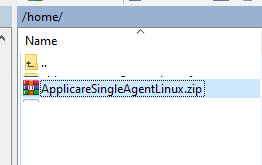
Step 2: Transfer the ApplicareSingleAgentLinux.zip file to the Docker-installed machine.
Step 3: Navigate to the location where you copied the zip file, create a directory named ApplicareSingleAgentLinux in that location, and extract the zip file into that directory.
mkdir ApplicareSingleAgentLinux
unzip ApplicareSingleAgentLinux.zip -d ApplicareSingleAgentLinux
Step 4: Access inside the Docker container.
docker container exec -it CONTAINER ID bashe.g. docker container exec -it a0eb9355dac0 bash

Step 5: Note the docker path and exit from the container. Here the docker path is a0eb9355dac0:/code
exit
Step 6: Copy the ApplicareSingleAgentLinux directory inside Docker container
docker cp sourcePath/ApplicareSingleAgentLinux dockerContainerPath/ApplicareSingleAgentLinuxe.g. docker cp /home/ApplicareSingleAgentLinux a0eb9355dac0:/code/ApplicareSingleAgentLinux

Step 7: Enter the Docker container and set read, write, and executable permissions for the ApplicareSingleAgentLinux directory.
docker container exec -it CONTAINER ID bashe.g. Docker container exec -it a0eb9355dac0 bash
chmod -R 777 ApplicareSingleAgentLinux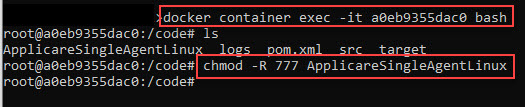
Step 8: Navigate to the ApplicareSingleAgentLinux/wrapper/linux directory and run ./install.sh to install the wrapper.
cd ApplicareSingleAgentLinux/wrapper/linux
./install.sh
Step 9: Exit the container.
exit
Step 10: Stop and then restart the container.
docker stop CONTAINER ID
docker start CONTAINER ID
e.g.
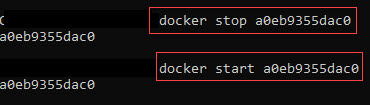
docker stop a0eb9355dac0
docker start a0eb9355dac0
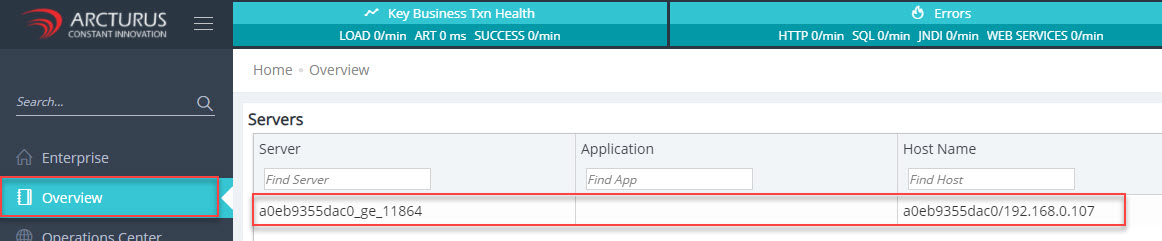
Step 11: Log in to Applicare console and navigate to the Overview menu to view the newly added agent.