Monitoring Applications Hosted on IIS with Applicare

Check this against your version

This article was last updated on Sep 13, 2024, before Applicare 10.0 was released (Jun 19, 2026), and has not been re-checked for Applicare 10.0. Confirm the steps in your environment or contact Support.

1. Follow the steps for Installing Applicare SingleAgent.

2. Navigate to the folder where the ApplicareSingleAgent.zip was extracted from and then run startAgent.bat in administrator mode.

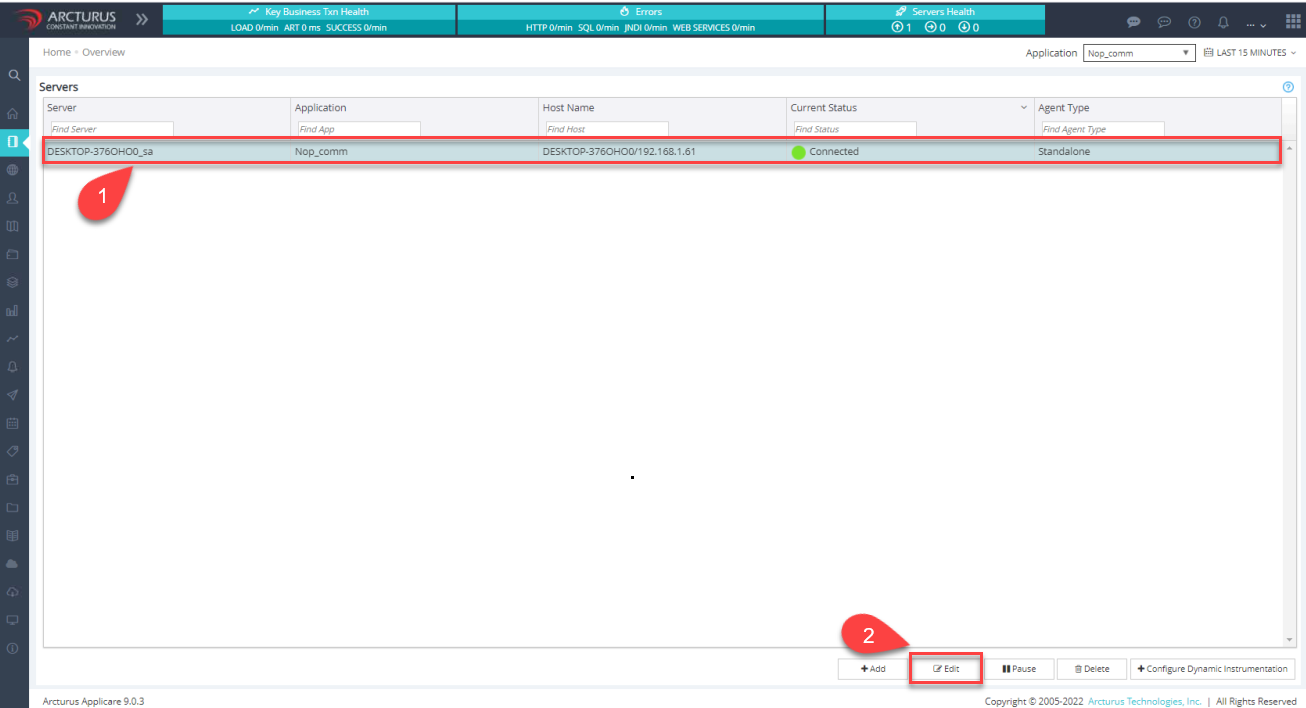
3. Login to the Applicare controller, Navigate to the overview screen, and check if the agents appear. If needed, add the app name to that agent.

4. Click the agent and then the edit button.

Screenshot 1 — Monitoring Applications Hosted on IIS with Applicare

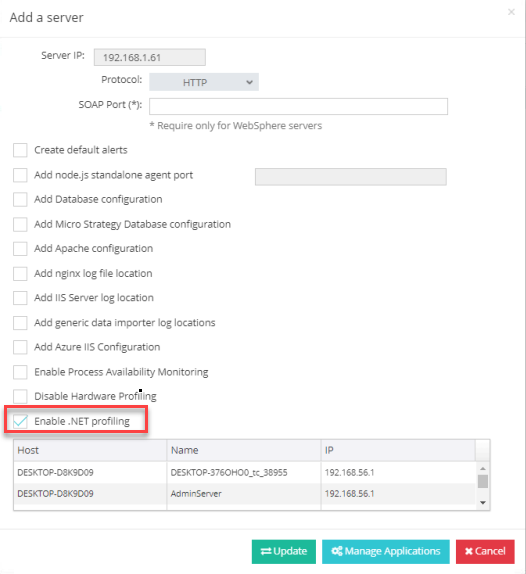
5. Click the edit button to open the "Add Server" popup. In the popup, check the "Enable .NET Profiling" checkbox.

Screenshot 2 — Monitoring Applications Hosted on IIS with Applicare

Monitoring with Applicare

Was this article helpful?

Votes, comments and follows are kept by Zendesk, so they need a Help Center account. These buttons open this article there.

Opens Zendesk · needs internet and sign-in

Still stuck? Contact support