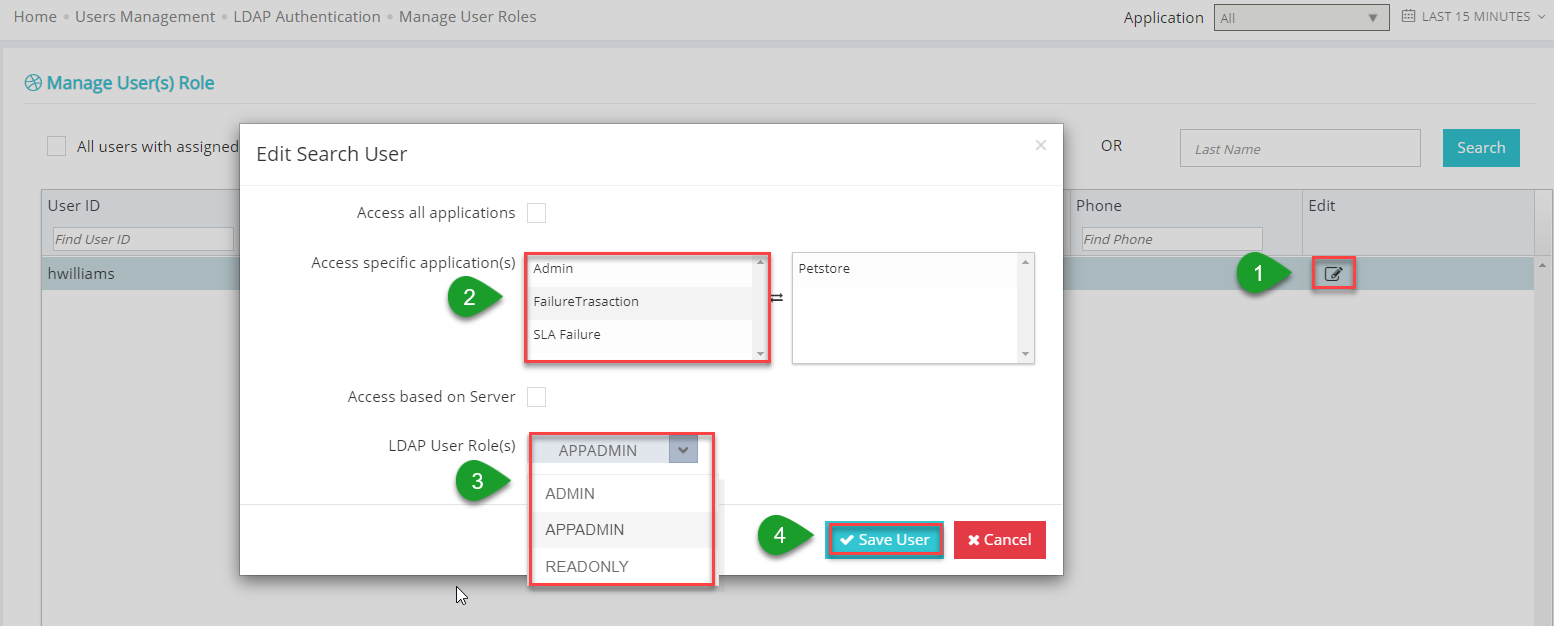
This page guides how to configure LDAP user Roles.
Search for LDAP users by username, first name or last name. The search will retrieve and displays all matching records on this page. You can click the Edit button to assign a role to a user. Applicare supports predefined roles such as Admin or Readonly. You must assign either of these roles to a user in order to provide Applicare access. If readonly access is enabled for all LDAP user, they will have readonly access by default. Only users assigned the admin role in Applicare will have admin access.
Applicare supports LDAP group-based access control. To enable this, create 'admin' and 'readonly' groups in LDAP and assigned them to the appropriate users.
Search By Username
Searching by user name requires the full username and doesn't support wild characters.
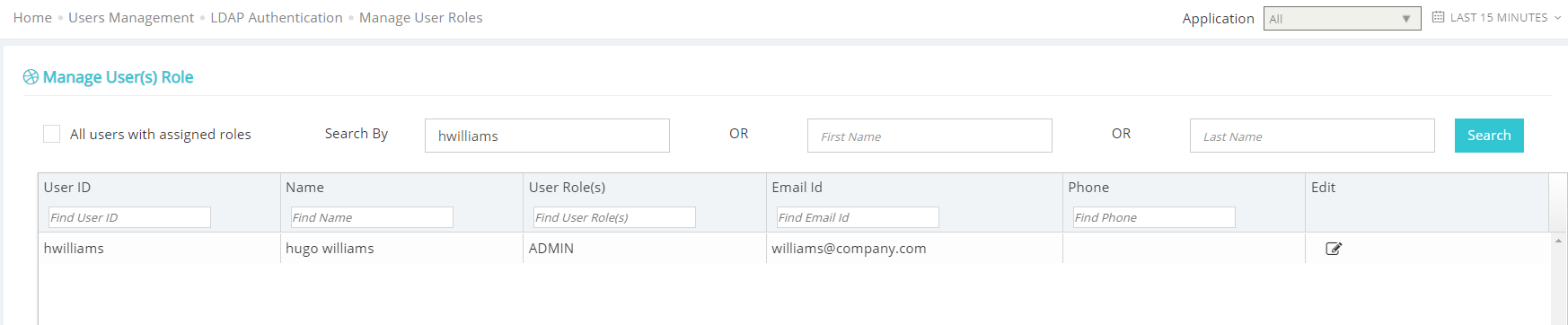
Search By First Name
Search by first name supports wildcard character and will retrieve all matching records. You do not need to include "*" at the end search of them.

Search By Last Name
Searching by last name supports wildcard characters and retrieves all matching records. There is no need to add '*' at the end of the search term.

Save User Role
After locating the user, click the "Edit" button and assign role to user on the following screen.