Set up the Applicare schema in MySQL

Check this against your version

This article was last updated on Sep 13, 2024, before Applicare 10.0 was released (Jun 19, 2026), and has not been re-checked for Applicare 10.0. Confirm the steps in your environment or contact Support.

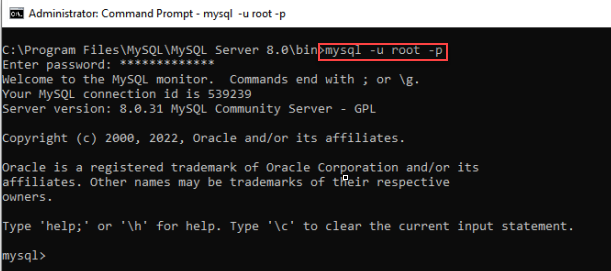
1. Open the command prompt as an administrator then navigate to MySQL_install_directory/bin path.

e.g. C:\Program Files\MySQL\MySQL Server 8.0\bin

2. After executing the command below, you will be prompted for a password, Once entered, you will be connected to the MySQL database.

mysql -u UserName -p

UserName - The username you specified during MySQL installation

Screenshot 1 — Set up the Applicare schema in MySQL

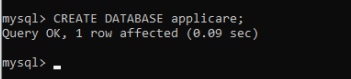
3. Once connected to the MySQL database, execute the command below to create the schema.

CREATE DATABASE applicare;

Screenshot 2 — Set up the Applicare schema in MySQL

4. Executing the command below will display the created database.

SHOW DATABASES;

Monitoring with Applicare

Was this article helpful?

Votes and follows are kept by Zendesk, so they need a Help Center account. These buttons open this article there.

Opens Zendesk · needs internet and sign-in

Still stuck? Contact support