
Go to Configuration -> LDAP Server Configuration to set up LDAP server settings and enable LDAP authentication.
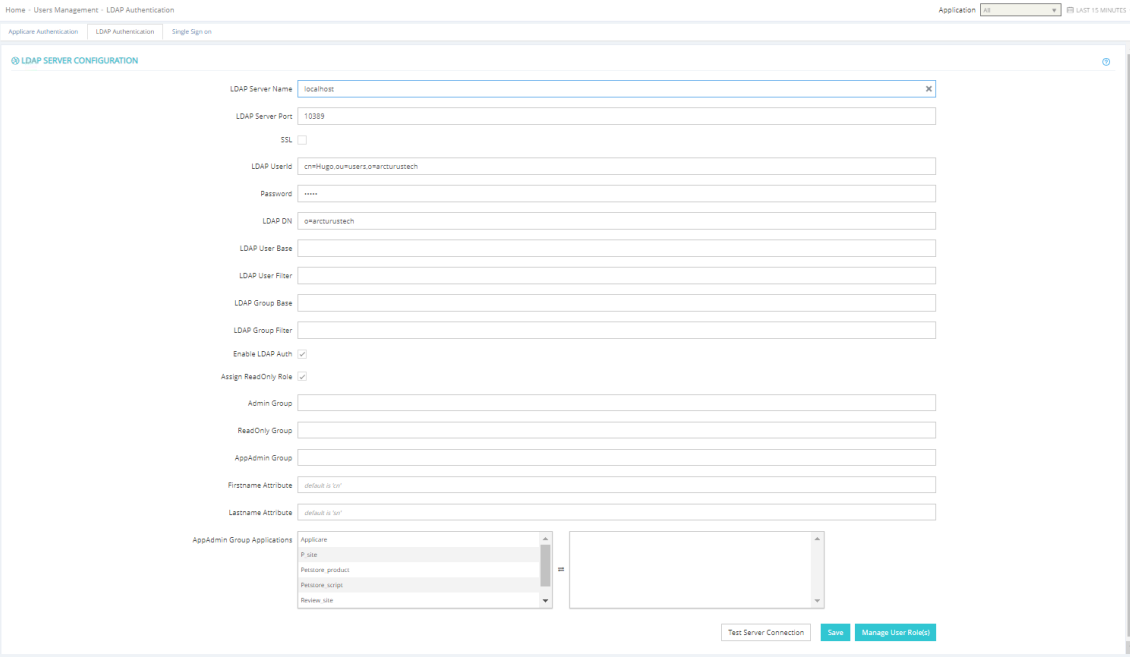
If SSL is enabled, you need to install LDAP SSL certificate on the Applicare server.
The DN (Distinguished Name) is the base directory folder in Active Directory where organizational users and groups are defined. It is required field.
The User OU (Organization Unit) is the base directory where user details are configured (Optional). If you are familiar about AD query formats, you can specify the filter otherwise, you can leave it blank (Optional).
The Group OU (Organization Unit) is the base folder where user group details are configured (Optional). If you are familiar with AD query formats, you can specify the filter; Otherwise, you may leave it blank (Optional).
Enable LDAP Auth to allow users to log into Applicare using their LDAP credentials. If it is not enabled, user authentication will be handled using Applicare database.
Assign the Readonly role to grant default read-only access to all the LDAP users if read-only access is enabled. You can override this default and assign different roles as needed. Click "Manage Role" to assign the appropriate Applicare role to an LDAP user.