
To enable OpenTelemetry auto-instrumentation for your .NET application and send traces to Applicare, you will need to apply configuration changes in both your Dockerfile and your application's YAML deployment script (e.g., Kubernetes Deployment, Docker Compose file, or other container orchestration tool's configuration).
Step 1: Modify your Dockerfile
Add the following lines to your application's Dockerfile. These commands will install necessary utilities, download the OpenTelemetry .NET auto-instrumentation setup script, and Applicare.NetTrace setup, execute it.
Add the Diagnostic tools stage below before the FROM base AS final (or) FROM runtime AS final stage
# Diagnostic tools stage
FROM mcr.microsoft.com/dotnet/sdk:8.0 AS diagnostic-tools
RUN dotnet tool install --tool-path /dotnet-tools dotnet-counters \
&& dotnet tool install --tool-path /dotnet-tools dotnet-trace \
&& dotnet tool install --tool-path /dotnet-tools dotnet-dump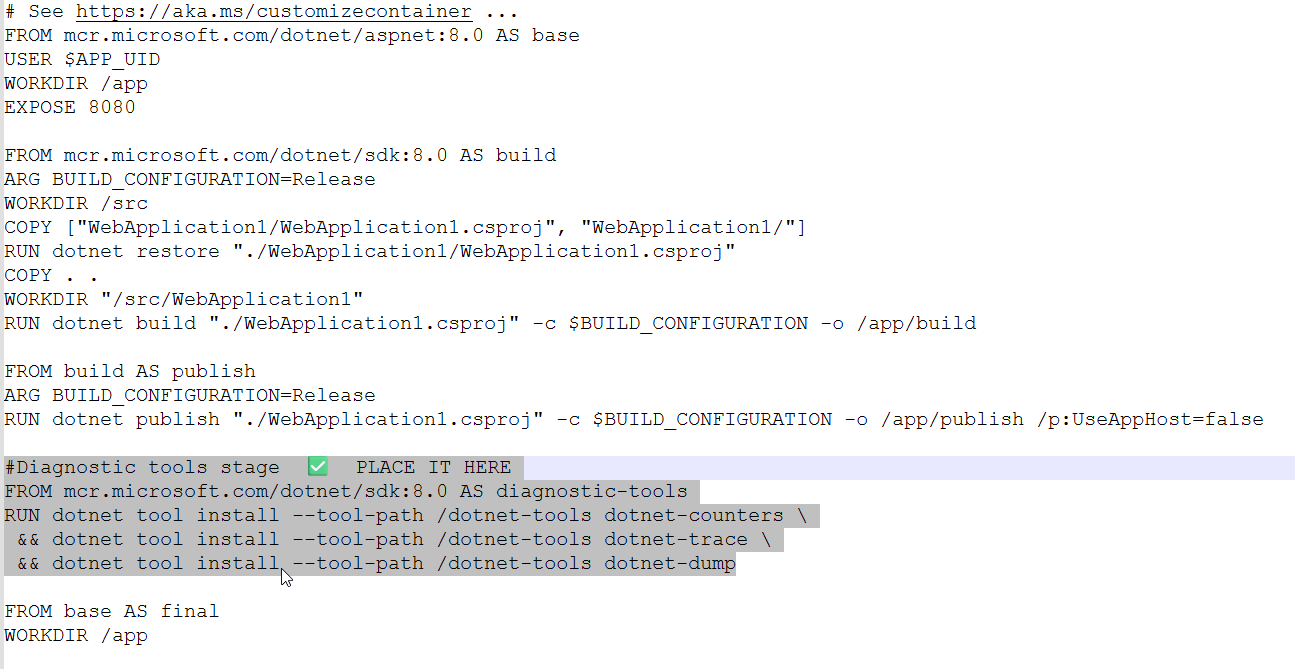
Note: The apt-get commands assume a Debian/Ubuntu-based base image (e.g., mcr.microsoft.com/dotnet/aspnet:8.0-alpine would use apk add --no-cache instead). Adjust package manager commands as per your base image.
Below lines should be added inside final runtime stage, and specifically after FROM base AS final (or) FROM runtime AS final
ENV OTEL_AGENT_VERSION=1.9.0
ENV DOTNET_EnableDiagnostics=1
ENV OTEL_DOTNET_AUTO_HOME=/otel-dotnet-auto
ENV DOTNET_SHARED_STORE=$OTEL_DOTNET_AUTO_HOME/store
ENV DOTNET_STARTUP_HOOKS=$OTEL_DOTNET_AUTO_HOME/net/OpenTelemetry.AutoInstrumentation.StartupHook.dll
ENV DOTNET_ADDITIONAL_DEPS=$OTEL_DOTNET_AUTO_HOME/AdditionalDeps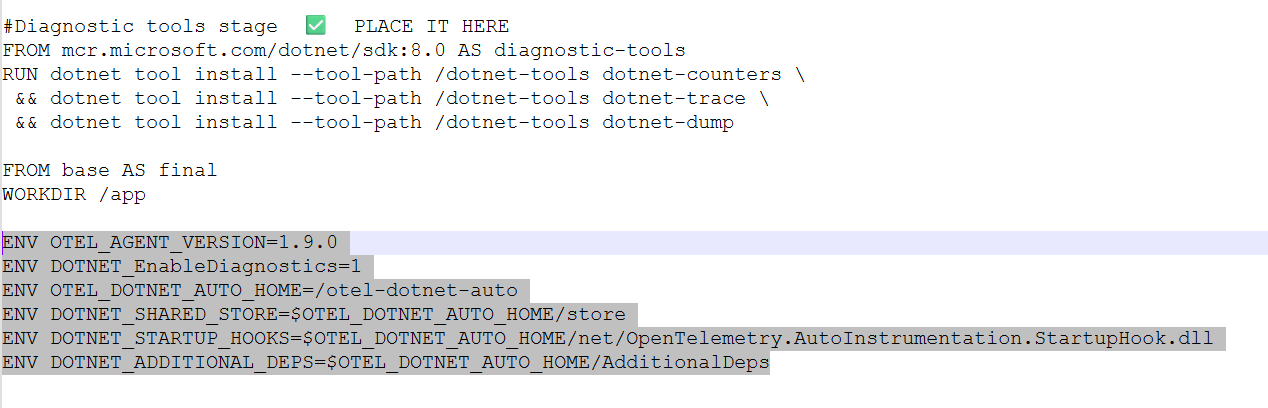
a.) If "USER $APP_UID" already exists in the Dockerfile, add the following lines after the ENV stage.
USER root
RUN apt-get update && apt-get install -y unzip curl
ADD https://github.com/open-telemetry/opentelemetry-dotnet-instrumentation/releases/download/v1.9.0/otel-dotnet-auto-install.sh /otel-install.sh
RUN chmod +x /otel-install.sh && \
   /otel-install.sh
RUN curl -L https://applicare.blob.core.windows.net/demoapplication/arc_dotnet.zip -o arc_dotnet.zip \
&& unzip arc_dotnet.zip -d arc_dotnet \
&& rm arc_dotnet.zip
COPY --from=diagnostic-tools /dotnet-tools /dotnet-tools
ENV PATH="$PATH:/dotnet-tools"
ENV APPLICARE_URL=Protocol://ApplicareIP:ApplicarePort
USER $APP_UID
(OR)
b.) If "USER $APP_UID" not exists in the Dockerfile, add the following lines after the ENV stage.
RUN apt-get update && apt-get install -y unzip curl ADD https://github.com/open-telemetry/opentelemetry-dotnet-instrumentation/releases/download/v1.9.0/otel-dotnet-auto-install.sh /otel-install.sh RUN chmod +x /otel-install.sh && \    /otel-install.sh

# Download and unzip arc_dotnet.zip
RUN curl -L https://applicare.blob.core.windows.net/demoapplication/arc_dotnet.zip -o arc_dotnet.zip \
&& unzip arc_dotnet.zip -d arc_dotnet \
&& rm arc_dotnet.zip

# ✅ Copy diagnostic tools into runtime
COPY --from=diagnostic-tools /dotnet-tools /dotnet-tools

ENV PATH="$PATH:/dotnet-tools"
ENV APPLICARE_URL=Protocol://ApplicareIP:ApplicarePort # e.g. http://192.168.1.100:8880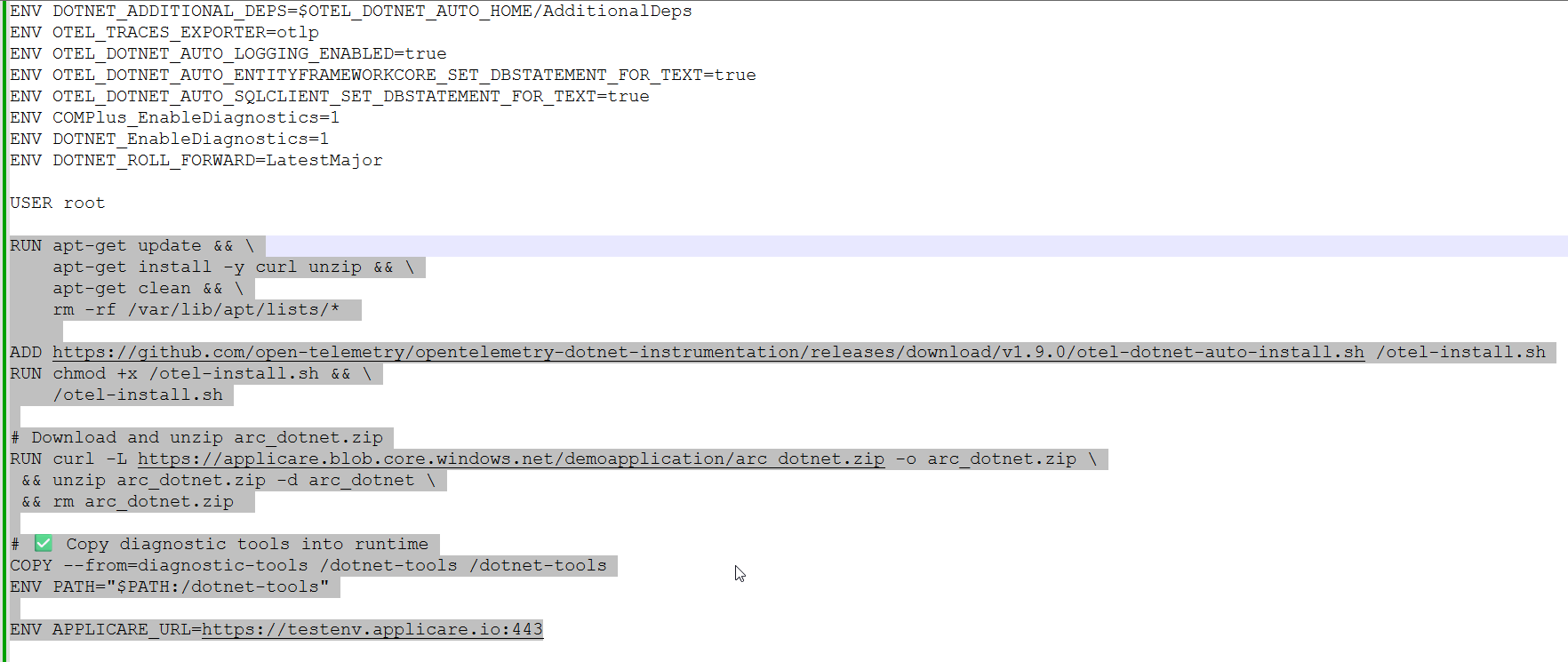
We need to add ApplicareDotnetTrace.dll to the Entrypoint and configure it to start.
Before Update ENTRYPOINT in Dockerfile
ENTRYPOINT ["dotnet", WebApplication1.dll]

After Update ENTRYPOINT in Dockerfile
ENTRYPOINT sh -c "dotnet WebApplication1.dll & OTEL_DOTNET_AUTO_INSTRUMENTATION_ENABLED=false  dotnet ./arc_dotnet/ApplicareDotnetTrace.dll"
Step 2: Install Opentelemetry collector in your Kubernetes cluster. Download the yaml file and change <Applicare_Ip> in that yaml file.
If have Wget, execute the command below.
sudo wget https://applicare.blob.core.windows.net/demoapplication/opentelemetry_collector.yaml **(OR)**If have Curl, execute the command below.
sudo curl -O https://applicare.blob.core.windows.net/demoapplication/opentelemetry_collector.yamlThen apply that yaml file to install collector in Kubernetes cluster.
kubectl apply -f opentelemetry_collector.yamlStep 3: Configure Environment Variables in your YAML Deployment
Add the following environment variables to the container definition section of your application's YAML deployment file (e.g., under env: in a Kubernetes Deployment's container specification, or environment: in a Docker Compose service). These variables instruct the OpenTelemetry auto-instrumentation how to behave and where to send the telemetry data.
          env:
            - name: OTEL_DOTNET_AUTO_HOME
              value: "/otel-dotnet-auto"
            - name: DOTNET_SHARED_STORE
              value: "/otel-dotnet-auto/store"
            - name: DOTNET_STARTUP_HOOKS
              value: "/otel-dotnet-auto/net/OpenTelemetry.AutoInstrumentation.StartupHook.dll"
            - name: DOTNET_ADDITIONAL_DEPS
              value: "/otel-dotnet-auto/AdditionalDeps"
            # Kubernetes Metadata (Critical Fix)
            - name: KUBE_POD_NAME
              valueFrom:
                fieldRef:
                  fieldPath: metadata.name
            - name: KUBE_NAMESPACE
              valueFrom:
                fieldRef:
                  fieldPath: metadata.namespace
            # Resource Attributes (Updated)
            - name: OTEL_RESOURCE_ATTRIBUTES
              value: "k8s.pod.name=$(KUBE_POD_NAME),k8s.namespace.name=$(KUBE_NAMESPACE)"
            # Metrics Configuration
            - name: OTEL_METRICS_EXPORTER
              value: "otlp"
            - name: OTEL_DOTNET_AUTO_METRICS_ENABLED
              value: "true"
            - name: OTEL_EXPORTER_OTLP_ENDPOINT
              value: "http://otel-collector.monitoring.svc.cluster.local:4318"
            - name: OTEL_DOTNET_AUTO_METRICS_INCLUDE_PROCESS_RUNTIME
              value: "true"
            - name: OTEL_DOTNET_AUTO_METRICS_SET_SPECIFIC
              value: "Microsoft.AspNetCore.Hosting[0],Microsoft.AspNetCore.Http.Connections[0]"
            - name: OTEL_DOTNET_AUTO_METRICS_ADDITIONAL_SOURCES
              value: "*"
            # Tracing Configuration
            - name: OTEL_TRACES_EXPORTER
              value: "otlp"
            # Instrumentation
            - name: OTEL_DOTNET_AUTO_ASPNETCORE_INSTRUMENTATION_ENABLED
              value: "true"
            - name: OTEL_DOTNET_AUTO_PROCESS_ENABLED
              value: "true"
            - name: OTEL_DOTNET_AUTO_HTTPCLIENT_ENABLED
              value: "true"
            - name: OTEL_DOTNET_AUTO_RUNTIMEMETRICS_ENABLED
              value: "true"
            - name: OTEL_DOTNET_AUTO_ENTITYFRAMEWORKCORE_SET_DBSTATEMENT_FOR_TEXT
              value: "true"
            - name: OTEL_DOTNET_AUTO_SQLCLIENT_SET_DBSTATEMENT_FOR_TEXT
              value: "true"
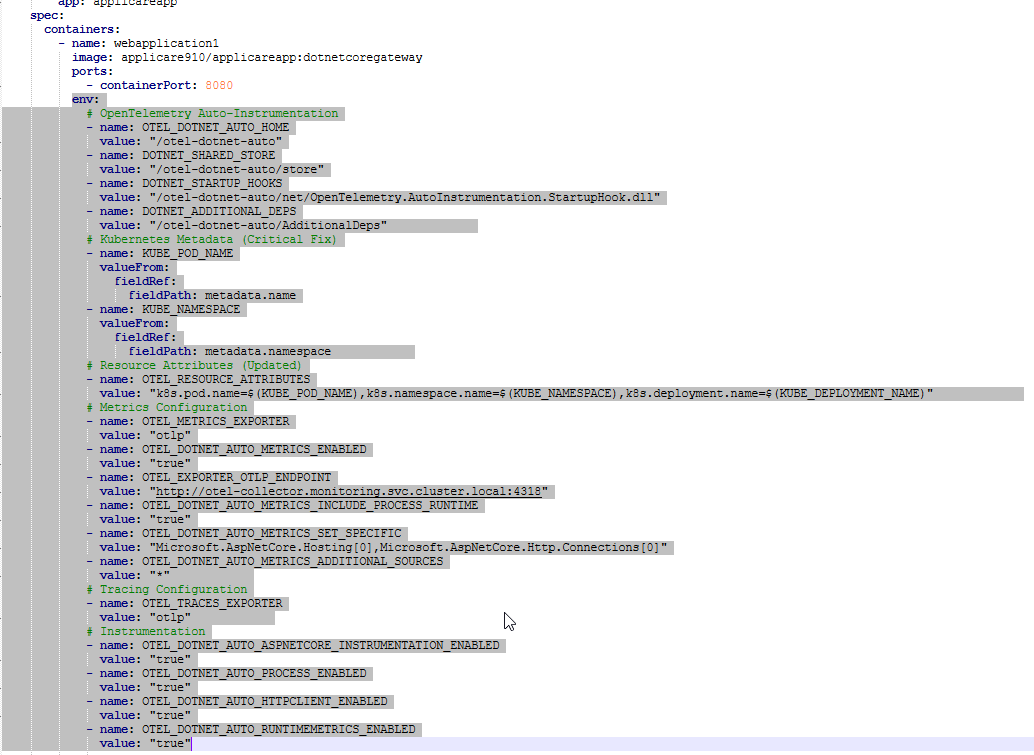
Sample YAML with the above changes.
Step 4: On the machine running Applicare, download the shell script for below URL and give the executable permission for that shell script and execute the shell script.
If have Wget, execute the command below.
sudo wget https://applicare.blob.core.windows.net/demoapplication/applicare_metric_collector_install.sh **(OR)**If have Curl, execute the command below.
sudo curl -O https://applicare.blob.core.windows.net/demoapplication/applicare_metric_collector_install.shThe following port must be opened on the system where the Applicare controller is running.
9090 and 4318