
Step 1: Open the command prompt with administrator privileges, and navigate to the Applicare controller installation directory, and run the createControllerTask.bat. file.

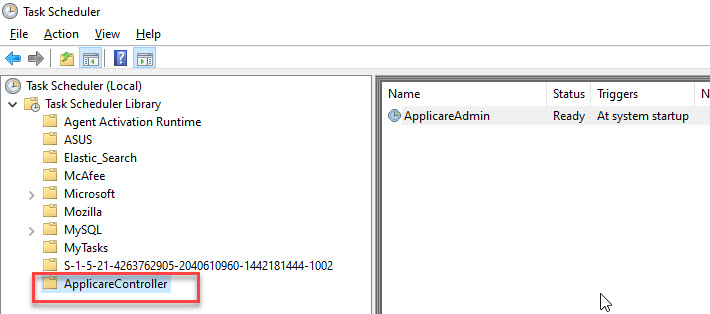
Step 2: Open Task Scheduler, expand the Task Scheduler Library, and select the ApplicareController folder.
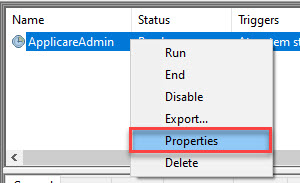
Step 3: Right-click the ApplicareAdmin task and choose Properties.
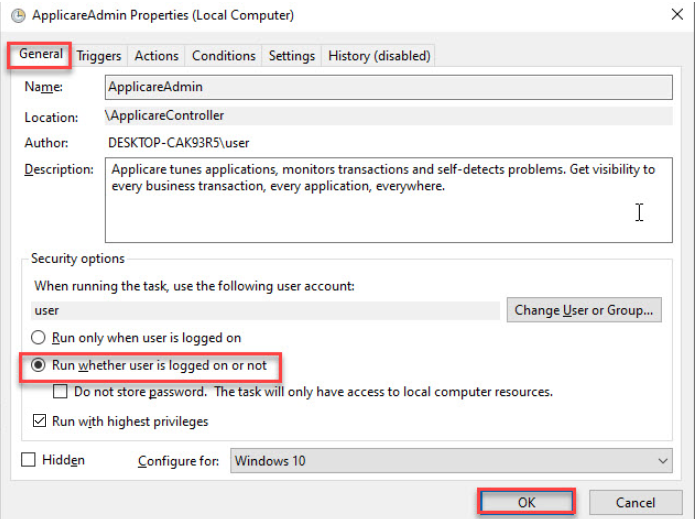
Step 4: Select the Run whether user is logged on or not option and click OK.
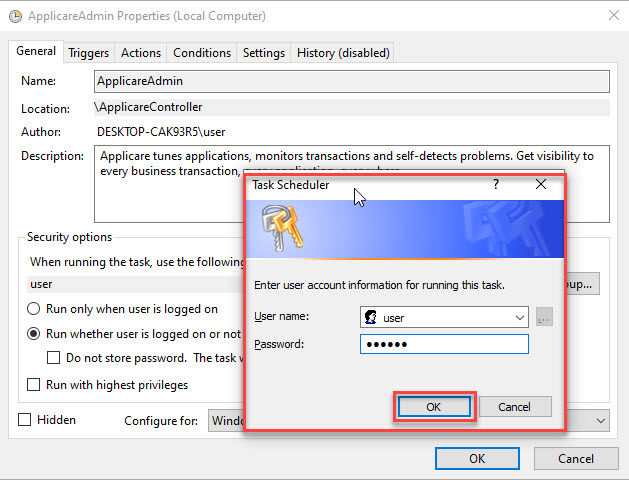
Step 5: Enter the username and password, then click OK.
If the 2147943712 error occurs while saving the password. Refer here
Step 6: Right Click the ApplicareAdmin task and select Run.
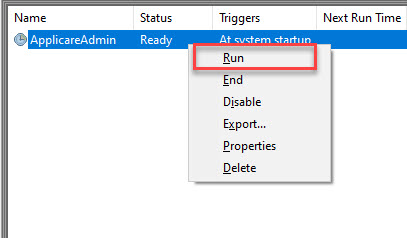
Step 7: After starting the controller, you can access the Applicare console using any browser by entering the IP address and port you specified during the installation.
URL for the Applicare Console : http://<IP>:<PORT>/applicare
For the above case Applicare console URL will be: http://192.168.0.106:8880/applicare
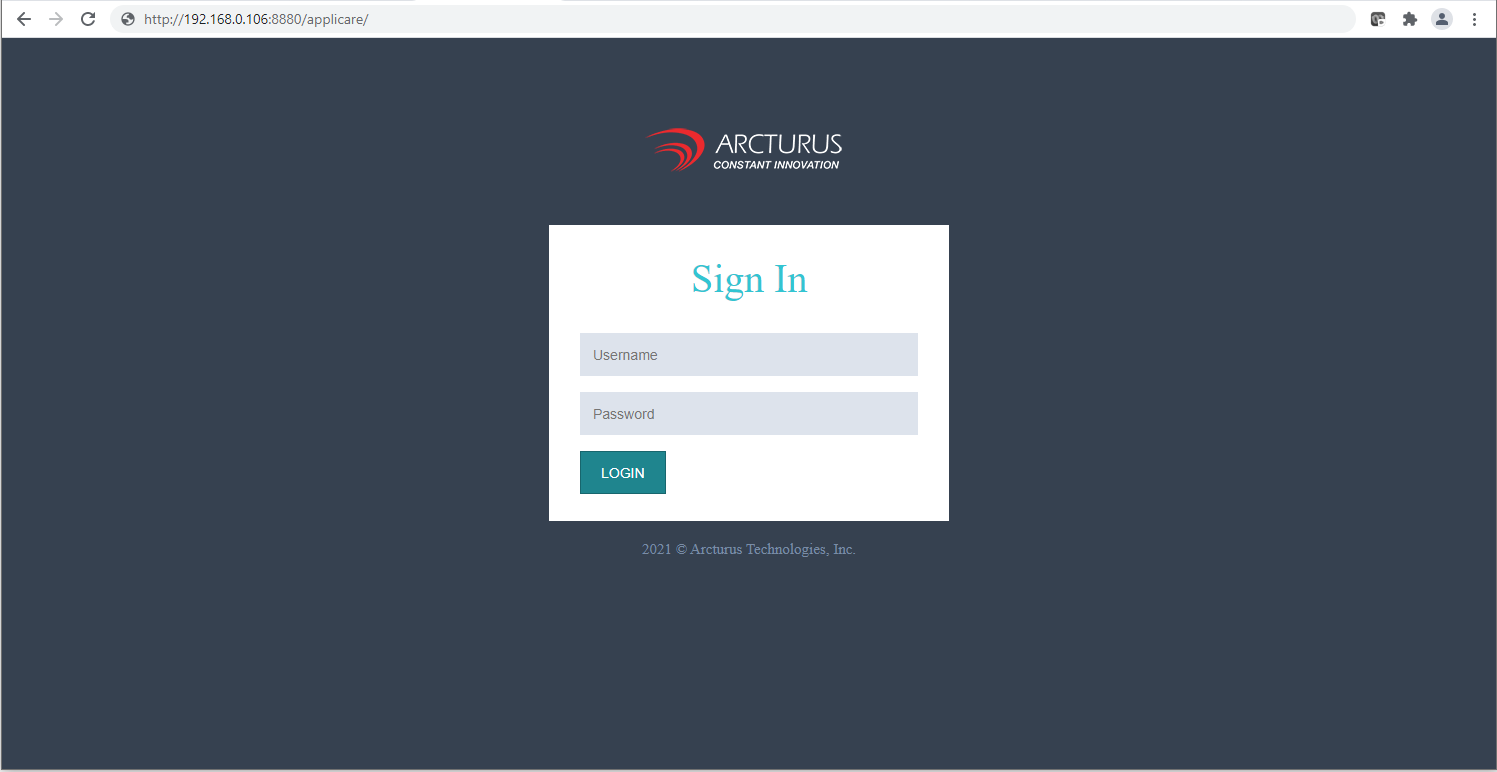
The default login credentials for the Applicare dashboard are both "admin" for the username and password.
Next Steps - Installing SingleAgent