
Prerequisites
Essential System Requirements for Applicare Controller and Database
- Red Hat Linux 6.x or newer - RHEL 8 recommended
System Requirements
- Disk Space: 10 GB
- RAM: 16 GB
- CPU: Intel i7 4-core or equivalent, or higher
Ports Requirements
- VM Access: Ensure the VM is accessible to all agents via its IP address.
Additional products needed
- Java 1.8. java downloads.
Installation
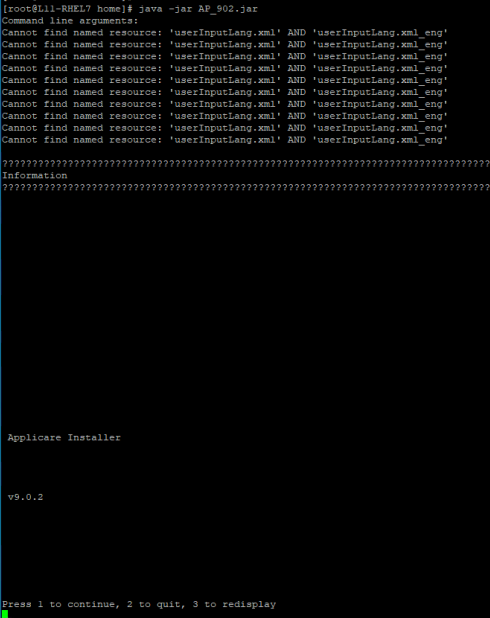
1. Copy the downloaded installer to the machine where Applicare will be installed.
- Open PuTTY and navigate to the directory containing the installer. Execute the command java -jar AP_XXX.jar to begin with installation process.
- Press '1' and 'Enter' to continue the installation.
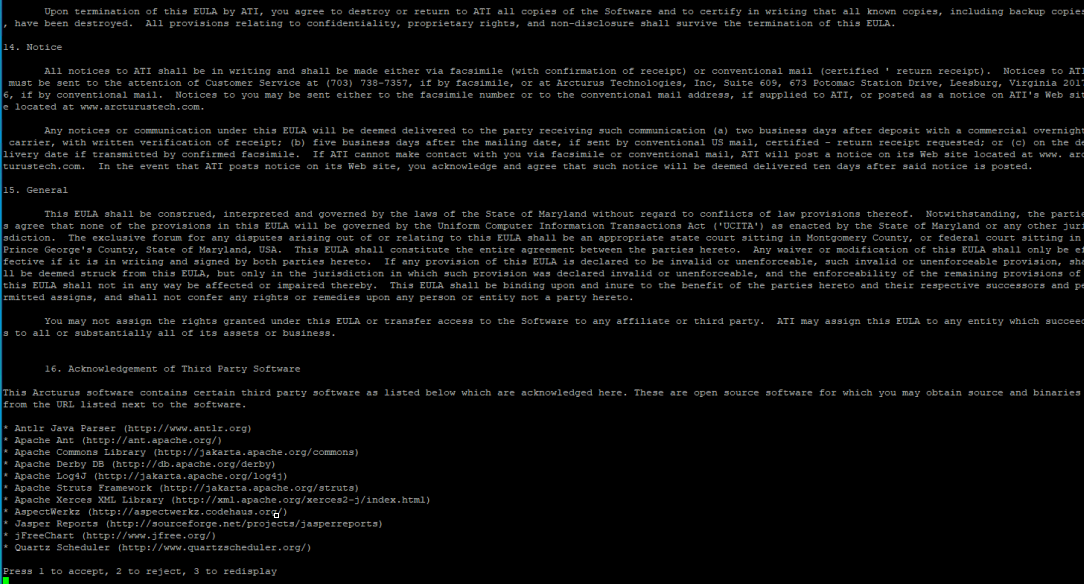
- Next, read the license agreement. To accept it press '1' and then press 'Enter'.
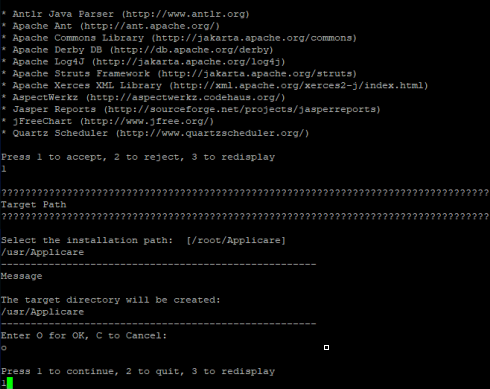
2. Enter the directory to install Applicare and (APPLICARE_HOME) and press 'Enter'.
- Press 0 and then 'Enter' to create the target directory.
- Press 1 and 'Enter' to proceed with the installation.
3. Enter the IP address of the machine (the same machine that Applicare is being installed on to) and enter.
- Choose any port as you prefer and enter.
- Press 1 and then 'Enter' to continue installation.

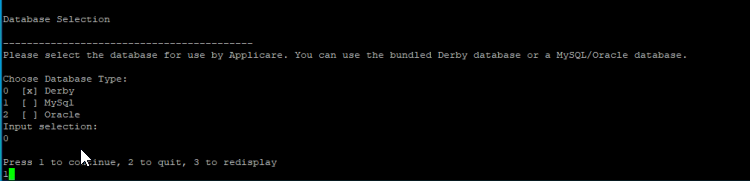
4. Select the database of your choice. Press '1' and then 'Enter' to proceed the installation.
- For proof of concept (POC) purposes, we recommend using the Derby Database. For production environments or system with high workloads, we advise using MySQL or Oracle.
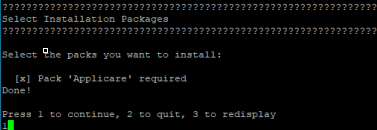
5. Review the installation packages on the screen, Press '1' and 'Enter' to proceed with the installation.
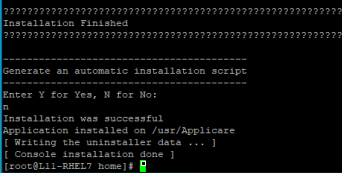
7. Installation is now completed. The automatic installation script screen will appear. Type N and press 'Enter'.
8. Grant executive permissions by running the following command from the parent directory of Applicare.
- (In the example above we installed Applicare in /usr/Applicare and hence run this command from /usr directory)
chmod -R 777 Applicare/*.9. Applicare controller port (default port 8880) and 8983 must be opened to access the Applicare controller in a browser.
Installed on RHEL/CentOS/Fedora Os, use the following command to open the port.
sudo firewall-cmd --permanent --add-port=8880/tcp
sudo firewall-cmd --permanent --add-port=8983/tcp
sudo firewall-cmd --reload
Installed on Ubuntu/Debian Os, use the following command to open the port.
sudo ufw allow 8880/tcp
sudo ufw allow 8983/tcp
sudo ufw enable
Note:
To configure predictive analysis data, Refer here.
For Other Docs - Click here