Setting Up Automatic Start of Applicare Agent with Windows Task Scheduler
Updated Sep 13, 2024singleagentwindowstasksApplies to 10.0, 9.2Not yet checked for Applicare 10.0
Check this against your version
This article was last updated on Sep 13, 2024, before Applicare 10.0 was released (Jun 19, 2026), and has not been re-checked for Applicare 10.0. Confirm the steps in your environment or contact Support.
To Applicare SingleAgent start task is automatically added to Windows Task Scheduler when downloaded using the PowerShell command from the Agent Download page. Alternatively, it can be manually added by running createAgentTask.bat in Applicare SingleAgent home directory.
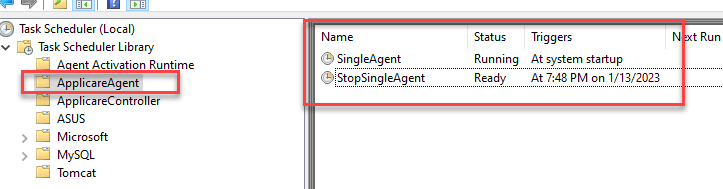
1. Open Task Scheduler, expand the Task Scheduler Library and select the ApplicareAgent folder. You will find two task.