Note: The following configurations are verified for .NET Framework 4.8.1 Application only
Step 1: Open powershell in administrator mode and execute the following commands one by one.
$module_url = "https://github.com/open-telemetry/opentelemetry-dotnet-instrumentation/releases/latest/download/OpenTelemetry.DotNet.Auto.psm1"
$download_path = Join-Path $env:temp "OpenTelemetry.DotNet.Auto.psm1"
Invoke-WebRequest -Uri $module_url -OutFile $download_path -UseBasicParsing

Import-Module $download_path
Install-OpenTelemetryCore
Step 2: Run the command below to enable auto-instrumentation for all IIS-hosted applications using the OpenTelemetry module.
Register-OpenTelemetryForIISStep 3: Execute the following PowerShell command to configure the system-level environment variables required for .NET Auto-Instrumentation
$vars = @{
   "COR_ENABLE_PROFILING"="1"
   "COR_PROFILER"="{918728DD-259F-4A6A-AC2B-B85E1B658318}"
   "COR_PROFILER_PATH"="C:\Program Files\OpenTelemetry .NET AutoInstrumentation\win-x64\OpenTelemetry.AutoInstrumentation.Native.dll"
   "CORECLR_ENABLE_PROFILING"="1"
   "CORECLR_PROFILER"="{918728DD-259F-4A6A-AC2B-B85E1B658318}"
   "CORECLR_PROFILER_PATH"="C:\Program Files\OpenTelemetry .NET AutoInstrumentation\win-x64\OpenTelemetry.AutoInstrumentation.Native.dll"
   "DOTNET_ADDITIONAL_DEPS"="C:\Program Files\OpenTelemetry .NET AutoInstrumentation\AdditionalDeps"
   "DOTNET_SHARED_STORE"="C:\Program Files\OpenTelemetry .NET AutoInstrumentation\store"
   "DOTNET_STARTUP_HOOKS"="C:\Program Files\OpenTelemetry .NET AutoInstrumentation\net\OpenTelemetry.AutoInstrumentation.StartupHook.dll"
   "OTEL_DOTNET_AUTO_HOME"="C:\Program Files\OpenTelemetry .NET AutoInstrumentation"
   "OTEL_DOTNET_AUTO_INSTALL_DIR"="C:\Program Files\OpenTelemetry .NET AutoInstrumentation"
   "OTEL_DOTNET_AUTO_LOGS_CONSOLE_EXPORTER_ENABLED"="none"
   "OTEL_DOTNET_AUTO_METRICS_CONSOLE_EXPORTER_ENABLED"="none"
   "OTEL_DOTNET_AUTO_TRACES_CONSOLE_EXPORTER_ENABLED"="true"
   "OTEL_DOTNET_AUTO_ENTITYFRAMEWORKCORE_SET_DBSTATEMENT_FOR_TEXT"="true"
   "OTEL_DOTNET_AUTO_SQLCLIENT_SET_DBSTATEMENT_FOR_TEXT"="true"
   "OTEL_EXPORTER_OTLP_ENDPOINT"="http://<APPLICARE_CONTROLLER_IP>:4318"
   "OTEL_SERVICE_NAME"="<APPLICARE_AGENT_NAME>"
}; foreach($k in $vars.Keys) { [System.Environment]::SetEnvironmentVariable($k, $vars[$k], [System.EnvironmentVariableTarget]::Machine) }
Note:
<APPLICARE_CONTROLLER_IP>: Replace this placeholder with the actual IP address or hostname of your Applicare controller instance.
<APPLICARE_AGENT_NAME>: The name of the agent as listed in the Applicare console.
Step 4: Once the configuration is complete, an IIS service restart is required. Execute the below command .
iisresetStep 5: To start the OpenTelemetry Collector on the controller machine using the specified config.yaml file, execute the following command.
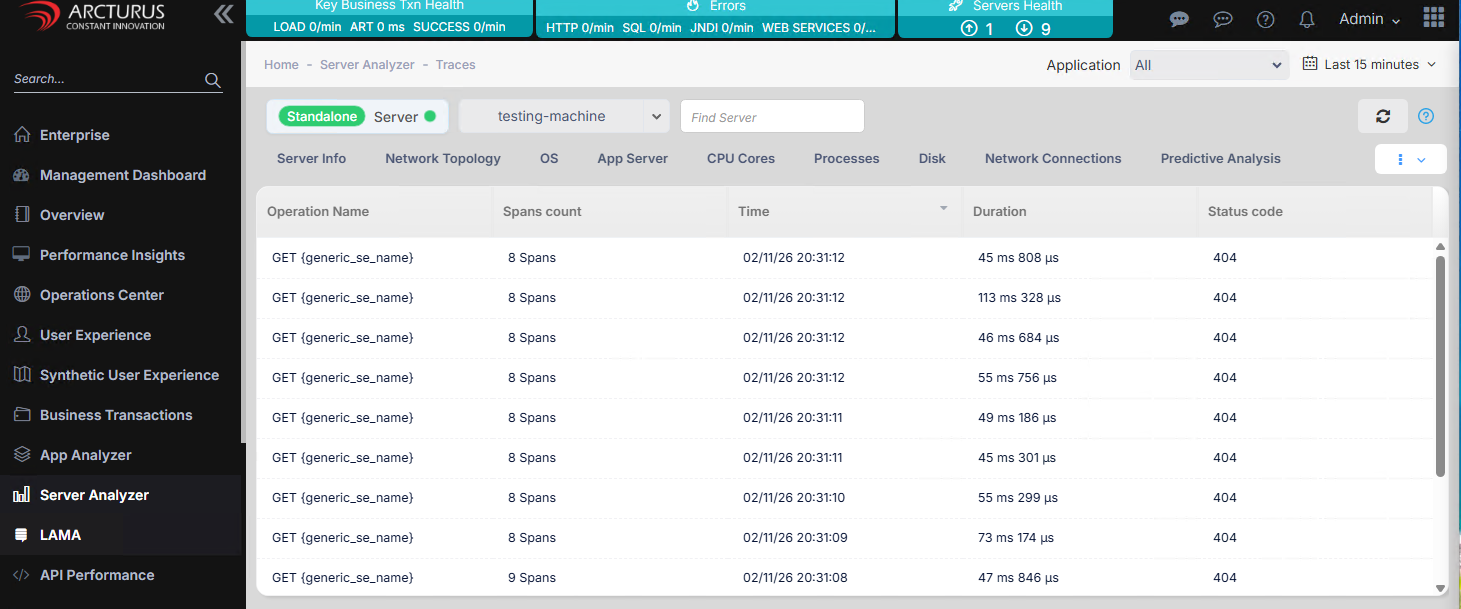
otelcol-contrib.exe --config=config.yamlThe collected traces will be shown in Server Analyzer -> Telemetry Traces screen in Applicare console.