
Please follow the steps below to update your Applicare installation
Step 1: To download the update.jar, log in with your Arcturus Support Login ID on the Arcturus Support site.
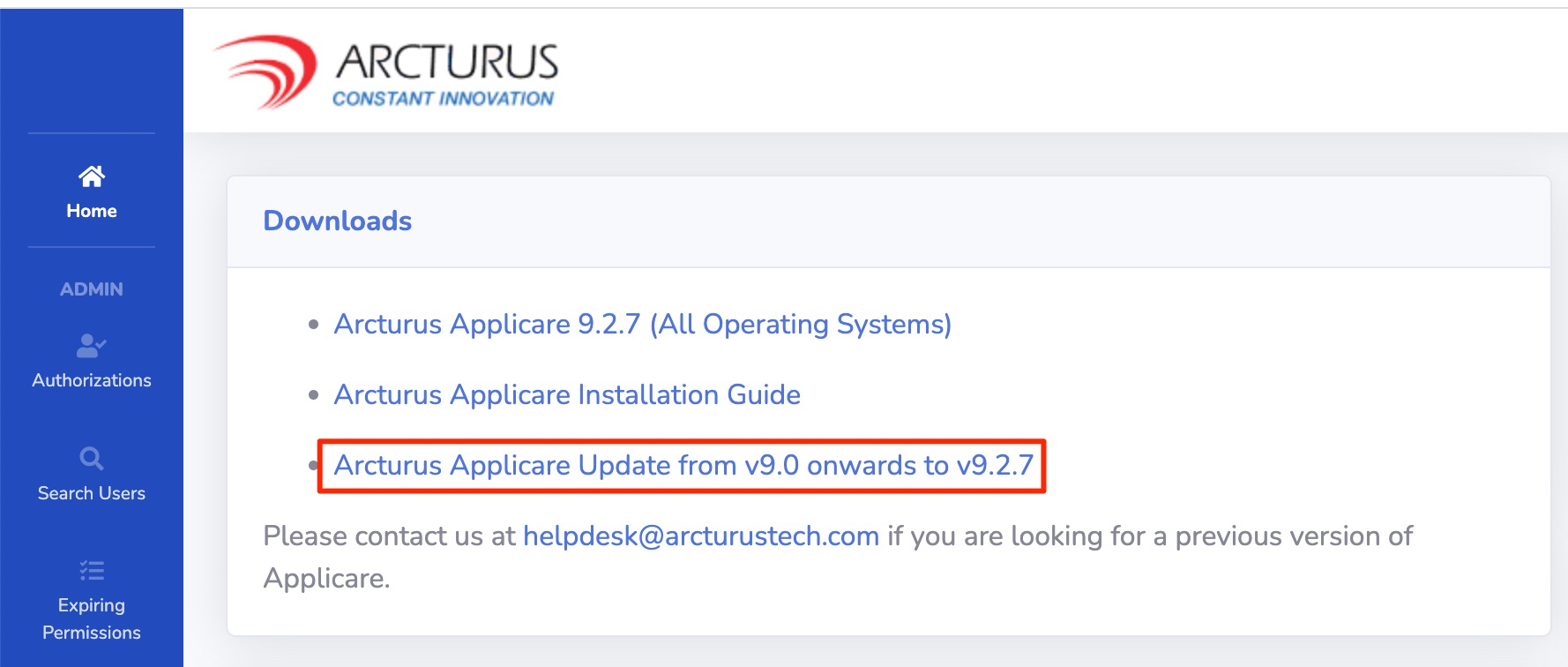
Step 2: For updating Arcturus Applicare v9.0 onwards to v9.* Click on provided link.
Step 3: After downloading the update.jar copy update.jar in the <Applicare Installation Dir>/tmp/updates/ folder. If there is update.jar.processed file then delete that file.
Step 4: Stop any active Applicare processes if they are running.
Step 5: If the Applicare controller is running on windows, open the command prompt and cd into the directory <Applicare Installation Dir>/scripts. Then, execute runupdate.bat.
ORIf the Applicare controller is running on Linux, go to the directory <Applicare Installation Dir>/scripts and execute runupdate.sh.
If Applicare controller is running on Linux, Grant full permissions to Applicare directory after completing the update.
Step 6: On windows, navigate to <Applicare Installation Dir>/controllerscripts. Open a command prompt in administrator mode at this location and execute the createControllerTask.bat.
Step 7: Start the Applicare controller.
Follow the steps below to update the license file
Step 1: Download the license file and replace it in <Applicare Installation Dir> directory.
Step 2: Restart Applicare if it is running, replacing the license file.