Updated Sep 13, 2024controllerwindowstasksApplies to 10.0, 9.2Not yet checked for Applicare 10.0
Check this against your version
This article was last updated on Sep 13, 2024, before Applicare 10.0 was released (Jun 19, 2026), and has not been re-checked for Applicare 10.0. Confirm the steps in your environment or contact Support.
1. Launch the command prompt with administrator rights, go to the directory where Applicare controller is installed and run the createControllerTask.bat file.
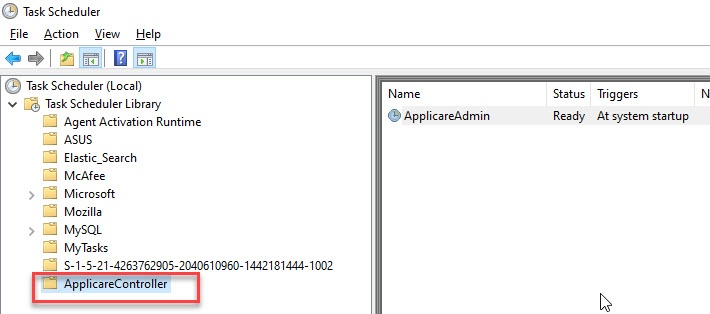
Open Task Scheduler, expand the Task Scheduler Library, and choose the ApplicareController folder.
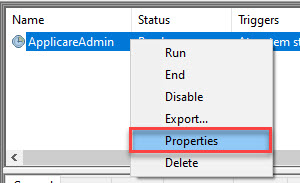
3. Right-click on the ApplicareAdmin task and choose Properties.
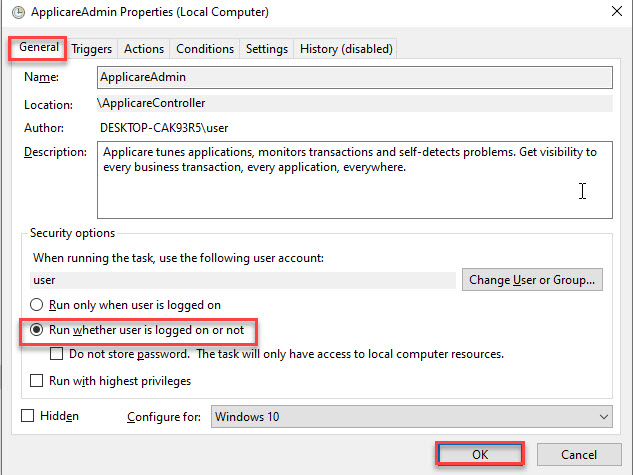
4. Enable Run whether the user is logged on or not option and click OK.
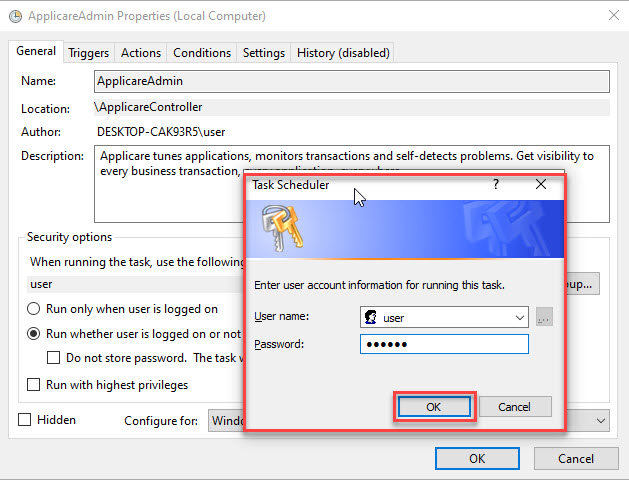
5. Provide the username and password, then click OK.
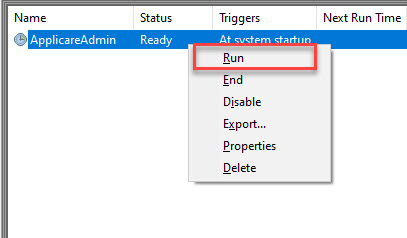
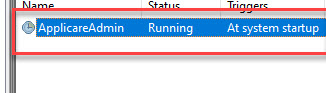
6. Right-click the ApplicareAdmin task and choose Run.