Updated Feb 28, 2025apacheApplies to 10.0, 9.2Not yet checked for Applicare 10.0
Check this against your version
This article was last updated on Feb 28, 2025, before Applicare 10.0 was released (Jun 19, 2026), and has not been re-checked for Applicare 10.0. Confirm the steps in your environment or contact Support.
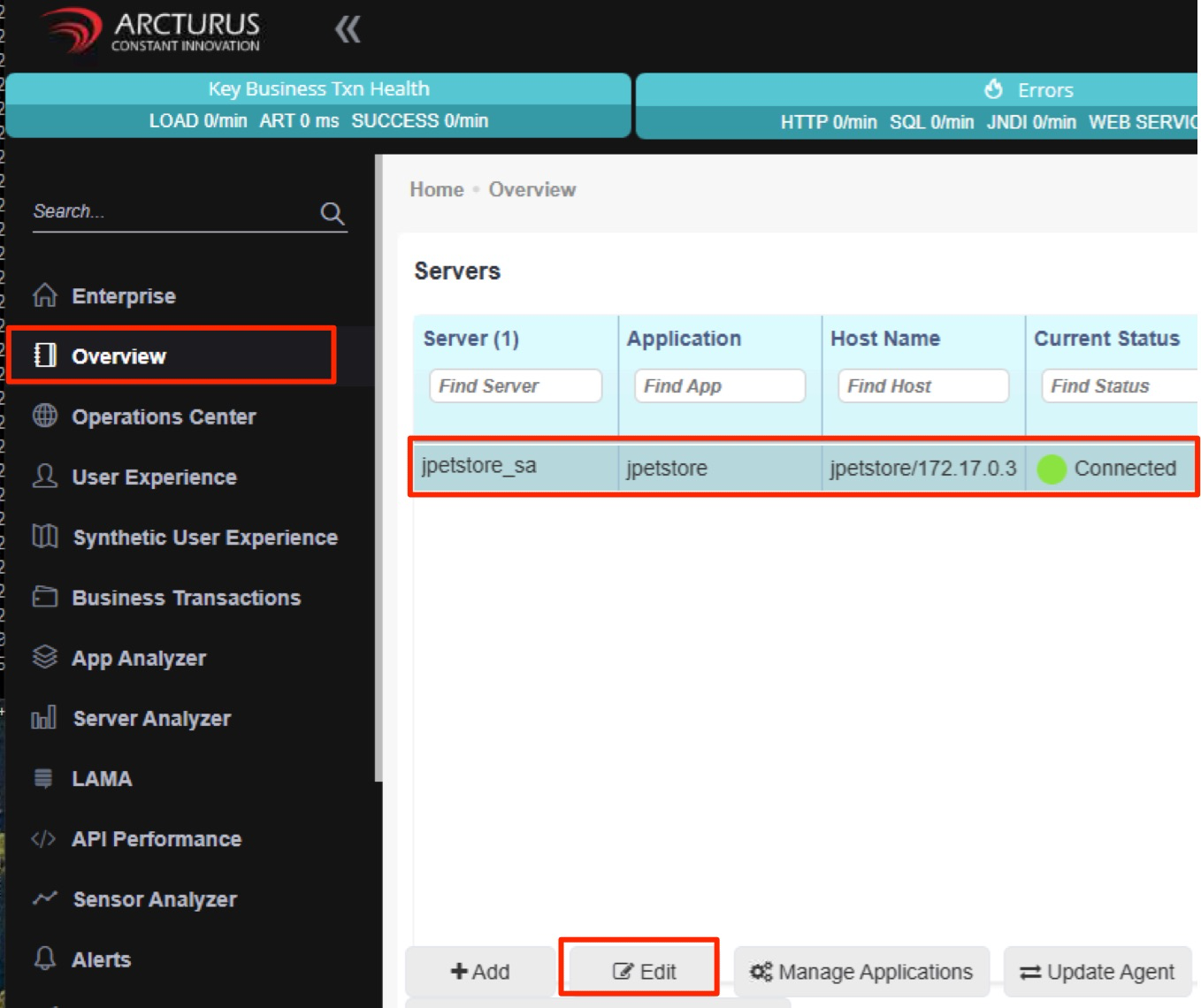
After starting the agent, it will automatically be registered with the Applicare controller. Log in to the Applicare console and navigate to the Overview menu.
After a few minutes, choose the newly added agent and click the Edit button.
Verify if the Apache configuration appears in the popup screen under the Add Apache configuration.
If the Apache configuration is not visible in this popup screen, follow the steps provided in this link
Was this article helpful?
Votes and follows are kept by Zendesk, so they need a Help Center account. These buttons open this article there.